
Beauty Unlocked
How to Revert a Computer to Factory Settings: Mac & Windows
Jun
A factory reset is the digital equivalent of clearing every snack wrapper, mystery cable, and questionable download from your computer’s life. It can solve stubborn software problems, prepare a device for resale, or give you a clean start after years of “I’ll organize that later.”
But pressing reset is not a magic wand. It is more like moving apartments during a thunderstorm: possible, useful, and much less stressful when you pack first. Whether you have a Windows laptop, desktop PC, MacBook, or iMac, the key is choosing the right reset method and protecting the files you actually care about.
This guide explains how to revert a computer to factory settings on Mac and Windows systems, when a full reset makes sense, what gets erased, and how to avoid turning your family photos into a tragic cautionary tale.
What Does “Factory Reset” Actually Mean?
A factory reset returns a computer to a fresh operating-system state. Depending on the device and recovery option, it may restore the operating system, remove installed applications, erase personal files, reset settings, and sometimes reinstall manufacturer software that originally came with the machine.
On Windows, the built-in Reset this PC feature usually reinstalls Windows and lets you choose whether to keep personal files or remove everything. On many Dell, HP, Lenovo, ASUS, and similar PCs, a separate manufacturer recovery tool may restore the computer closer to its original out-of-the-box setup, including certain preinstalled drivers and utilities.
On a Mac, newer supported models can use Erase All Content and Settings, while older Macs may require macOS Recovery, Disk Utility, and a macOS reinstall. Apple recommends backing up before erasing because the process removes data from the computer.
When Should You Factory Reset a Computer?
A reset is useful when your computer has become unstable, painfully slow, infected with malware, packed with software leftovers, or impossible to troubleshoot through normal repairs. It is also the smart choice before selling, donating, trading in, or giving away a device.
Still, do not reset a computer just because one app is behaving like a tiny digital goblin. Try simpler fixes first:
- Restart the computer.
- Install available Windows or macOS updates.
- Uninstall a recently added program or driver.
- Run a malware scan on Windows.
- Use System Restore on Windows if a recent update or driver caused the issue.
- Check available storage space and remove unnecessary files.
If those steps do not help, or you are handing the device to someone else, a factory reset may be the cleanest solution.
Before You Reset: The Essential Backup Checklist
The most important rule of any computer reset is simple: assume everything can disappear. Even when Windows offers a “Keep my files” option, create a separate backup first. A reset can remove apps, settings, local folders, login data, and files stored in places you forgot existed.
Back Up Your Personal Files
Copy important documents, photos, videos, downloads, school files, work folders, and desktop items to an external drive or trusted cloud storage account. Do not forget less obvious folders, such as saved game files, music projects, browser downloads, and anything sitting in an old folder named “New Folder 7 Final Actually Final.”
Save Important Account and License Information
Write down or securely store the details you may need after the reset, including:
- Microsoft account or Apple Account login information.
- Wi-Fi passwords.
- BitLocker recovery key for Windows devices with encryption enabled.
- Software license keys for paid applications.
- Password-manager access and backup codes.
- Two-factor authentication recovery codes.
Windows Recovery Environment may ask for a BitLocker recovery key before allowing certain repair or reset actions. Find that key before starting, not while staring at a recovery screen with the emotional energy of a confused raccoon.
Keep the Computer Plugged In
Plug in a laptop and keep a desktop connected to stable power. A reset can involve multiple restarts, large downloads, and a fair amount of quiet thinking by the operating system. Interrupting the process because the battery dies is an excellent way to create a more exciting problem than the one you started with.
How to Factory Reset a Windows Computer
Windows 11 and Windows 10 both include a built-in reset feature. The names and screen layouts can vary slightly, but the overall process is similar.
Option 1: Reset Windows From Settings
- Open Start and select Settings.
- In Windows 11, go to System > Recovery.
- Under Recovery options, find Reset this PC.
- Select Reset PC.
- Choose either Keep my files or Remove everything.
- Select Cloud download or Local reinstall.
- Review the summary screen carefully, then confirm the reset.
Microsoft’s reset process uses those two core decisions: whether to keep personal files and whether to reinstall Windows from locally stored recovery files or download a fresh copy from Microsoft.
Keep My Files vs. Remove Everything
Keep my files reinstalls Windows while preserving personal files in your user folders. It still removes installed apps, drivers, and many custom settings. Think of it as keeping the furniture but firing the entire interior-design team.
Remove everything deletes personal files, installed programs, and settings. This is generally the right option when selling or giving away a Windows computer, provided you have backed up anything you need.
For a device leaving your possession, review the additional reset settings carefully. Windows may offer options related to cleaning data or removing files from all drives. Choose deliberately, especially if you have more than one internal storage drive.
Cloud Download vs. Local Reinstall
Cloud download downloads a fresh Windows image. It is useful if the local recovery files may be damaged or if you want a current copy of Windows. You will need a reliable internet connection and enough available data allowance.
Local reinstall uses files already stored on the computer. It can be faster when internet access is limited, but it may fail if those local recovery files are damaged.
Option 2: Reset Windows When the PC Will Not Start
If Windows will not boot normally, you can use Windows Recovery Environment, often called WinRE. One common route is to hold Shift while selecting Restart from the Windows power menu. After the computer restarts, choose:
Troubleshoot > Reset this PC
From there, you can choose to keep files or remove everything. Windows Recovery Environment also includes tools such as Startup Repair and System Restore, which may fix the computer without requiring a full reset.
Using Manufacturer Recovery Tools
Many major PC brands include their own recovery options. Dell computers may use SupportAssist OS Recovery, HP systems often provide recovery options through a startup key or recovery environment, and some Lenovo and ASUS devices include manufacturer recovery tools or recovery media.
These tools can restore the original factory image, including drivers and manufacturer software. That can be helpful when a generic Windows reset does not solve the problem or when you need the exact software configuration the PC shipped with. Manufacturer recovery methods differ by model, so use the support page for your specific device rather than blindly pressing every function key like you are entering a cheat code.
How to Factory Reset a Mac
The best reset method depends on your Mac model and macOS version. Newer Macs usually make the job much easier, while older Macs require a few more steps.
Option 1: Use Erase All Content and Settings
On supported Macs running macOS Monterey or later, Erase All Content and Settings is usually the simplest option. It is available on Macs with Apple silicon and compatible Intel Macs with the Apple T2 Security Chip.
- Open the Apple menu.
- Choose System Settings.
- Select General.
- Choose Transfer or Reset.
- Select Erase All Content and Settings.
- Enter your administrator password if prompted.
- Follow the Erase Assistant instructions.
On macOS Monterey, the option may appear in System Preferences rather than the newer System Settings layout. The process removes personal data, settings, and apps, then prepares the Mac for a fresh setup.
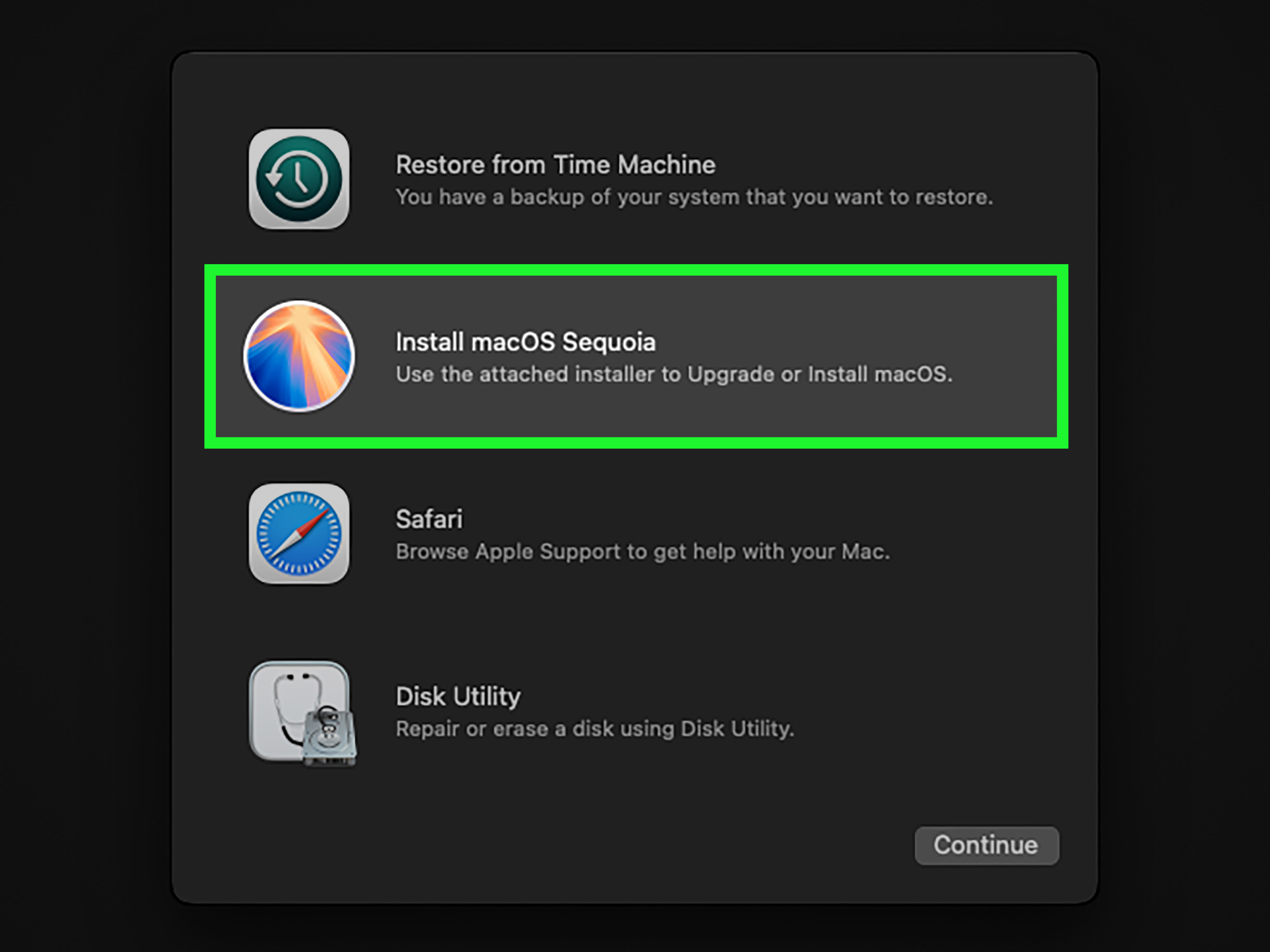
Option 2: Erase and Reinstall macOS Through Recovery
If your Mac does not have Erase All Content and Settings, use macOS Recovery.
For Apple Silicon Macs
- Shut down the Mac completely.
- Press and hold the power button until startup options appear.
- Select Options, then choose Continue.
- Open Disk Utility.
- Select the startup disk, usually named Macintosh HD.
- Choose Erase and follow the prompts.
- Quit Disk Utility and select Reinstall macOS.
For Intel-Based Macs
- Restart the Mac.
- Immediately hold Command-R until you see the Apple logo or Recovery screen.
- Open Disk Utility.
- Erase the startup disk according to the on-screen guidance.
- Return to the Recovery menu.
- Select Reinstall macOS.
Apple’s Recovery tools allow you to erase the startup disk and reinstall macOS when the newer erase assistant is unavailable.
What to Do After a Factory Reset
Once your Windows PC or Mac starts fresh, resist the urge to install every program you have ever used since 2012. Start with the essentials.
- Connect to a trusted Wi-Fi network.
- Install operating-system updates.
- Install critical drivers or manufacturer updates on Windows.
- Sign in to your Microsoft account or Apple Account.
- Restore files from your backup.
- Reinstall only the applications you truly need.
- Set up antivirus protection or built-in security tools.
- Confirm that your backup files open correctly before deleting the backup.
For a computer you plan to sell or donate, stop at the initial setup screen after the reset. Do not sign back in with your personal account. Let the next owner enjoy the thrill of choosing their own wallpaper.
Common Factory Reset Problems and Simple Fixes
The Reset Fails or Gets Stuck
Try restarting and launching the reset through Windows Recovery Environment or macOS Recovery. If Windows still cannot reset, create official Windows installation media on another computer and perform a clean reinstall. Microsoft notes that a clean installation removes personal files, apps, settings, and manufacturer customizations, so use it only after backing up data.
You Cannot Find Your BitLocker Recovery Key
Pause before changing partitions or attempting advanced repairs. Check the Microsoft account associated with the PC, your workplace or school IT administrator if applicable, and any records created when encryption was enabled.
Your Mac Will Not Enter Recovery Mode
Verify whether your Mac uses Apple silicon or Intel. Apple silicon Macs use the power-button method, while Intel Macs commonly use Command-R during restart. A wired keyboard can help on some older desktop Macs if a wireless keyboard is not detected early enough during startup.
The Computer Is Still Slow After Resetting
A reset fixes software problems, not aging hardware. If a computer remains slow after a clean setup, the issue may involve a failing drive, insufficient memory, overheating, battery problems, or another hardware fault. Run manufacturer diagnostics or contact a qualified repair provider before spending money on random upgrades.
Real-World Experiences: What Resetting a Computer Is Actually Like
The following composite scenarios reflect common factory-reset experiences rather than one person’s exact story. They show why preparation matters more than bravery, although a little bravery does help when the progress bar has been sitting at 37 percent long enough to develop a personality.
The overloaded student laptop: A student notices that a three-year-old Windows laptop takes several minutes to start, freezes during video calls, and has a desktop covered in screenshots, duplicate PDFs, and six versions of the same essay. After backing up school work to an external drive and cloud storage, they choose Keep my files. The reset removes bulky apps, browser extensions, and old drivers while preserving documents. Afterward, the computer feels faster, but the student still needs to reinstall Office, a browser, class software, and printing tools. The lesson: a reset is not a shortcut around reinstalling programs.
The family computer hand-me-down: A parent gives an older Windows desktop to a relative. The first instinct is to delete a few folders and empty the Recycle Bin. That is not enough. The better approach is to back up what matters, sign out of personal services, choose Remove everything, and review the drive-cleaning options before proceeding. The new owner receives a clean setup screen instead of a computer filled with old tax documents, browser autofill, and a photo library containing fourteen nearly identical pictures of a dog asleep on a couch.
The MacBook with a mysterious storage problem: A MacBook owner sees a warning that storage is almost full even after deleting large files. They first check storage management, remove unused apps, empty the Trash, and move photos to external storage. When the Mac still behaves oddly, they create a Time Machine backup and use Erase All Content and Settings. The reset is smoother than expected, but the important part is verifying the backup before erasing. A backup is only comforting when it actually contains the files you wanted.
The failed Windows update recovery: A Windows computer refuses to boot after an update. The owner does not immediately erase the PC. They enter Windows Recovery Environment, try Startup Repair, then try System Restore. Only after those tools fail do they use Reset this PC. This approach saves time because a factory reset should usually be the bigger hammer, not the first hammer you swing at every software problem.
The resale reset mistake: Someone resets a Mac before selling it, then signs back in to “make sure it works.” That creates extra cleanup work because their account, personal settings, and cloud data may begin syncing again. The better approach is to confirm the computer reaches the initial setup screen, shut it down, and leave it there for the next owner. The same principle applies to Windows: when the fresh setup screen appears, your job is done.
The final takeaway: Most factory resets go well when you slow down, back up first, keep the computer powered, and choose the reset option that matches your goal. Resetting for troubleshooting is different from resetting for resale. A clean setup is satisfying, but losing important files is not. Treat the reset button with respect, and it can turn a cluttered, cranky computer into something that feels refreshingly close to new.
Note: Menu names and recovery choices can vary slightly by Windows version, macOS version, computer model, encryption settings, and manufacturer. Back up important files and confirm you have account recovery information before approving any erase action.

