
Skincare
5 Ways to Remove Icons from the Android Home Screen
Aug
Your Android home screen should feel like a tidy desk, not a digital junk drawer where every app icon shows up wearing shoes inside the house. Whether you use a Samsung Galaxy, Google Pixel, Motorola, OnePlus, or another Android phone, those extra shortcuts can pile up fast: games you tried once, shopping apps you downloaded for a coupon, widgets you forgot existed, and mysterious icons that seem to multiply overnight like tiny square rabbits.
The good news? Removing icons from the Android home screen is usually simple, and in most cases, it does not delete the app. That is the part many users worry about. On Android, the home screen icon is often just a shortcut, while the actual app still lives safely in your app drawer or Apps screen. Think of it like removing a sticky note from your fridge. You did not throw away the milk; you just cleared the reminder.
In this guide, we will walk through five practical ways to remove icons from the Android home screen, including long-press removal, folder cleanup, widget removal, uninstalling apps, hiding apps, and stopping new app icons from appearing automatically. Because Android varies by brand, we will also explain what to expect on popular interfaces such as Samsung One UI, Pixel Launcher, Motorola’s near-stock Android experience, and third-party launchers like Nova or Microsoft Launcher.
Why Android Home Screen Icons Appear in the First Place
Before cleaning up the mess, it helps to know why it exists. Android uses a flexible home screen system. You can place app shortcuts, widgets, folders, contact shortcuts, web shortcuts, and launcher-specific tools on one or more home screen panels. This flexibility is wonderful until your phone starts looking like Times Square during a software sale.
Icons may appear because you manually added them, restored them from an old phone backup, installed a new app, changed launchers, enabled an “add icon to home screen” setting, or switched to a home screen layout that places every app outside the app drawer. Samsung phones, for example, can use both a Home and Apps screen layout or a Home screen only layout. In a Home screen only setup, removing an icon may feel different because the phone treats the home screen as the main app list.
The key distinction is this: Remove usually removes only the shortcut from the home screen, while Uninstall deletes the app from the device. If you see both options, pause for a second and choose the one that matches your goal. Your thumb is powerful. Use it wisely.
1. Long-Press the Icon and Tap Remove
The fastest way to remove icons from the Android home screen is the classic long-press method. It works on many Android phones and launchers, although the exact wording may differ slightly.
How to do it
- Go to the home screen that contains the unwanted icon.
- Touch and hold the app icon for about one second.
- Look for an option such as Remove, Remove from Home, or a trash-can icon.
- Tap Remove, or drag the icon to the Remove area if your launcher uses drag-and-drop.
- Release your finger and enjoy the tiny burst of digital cleanliness.
On Samsung Galaxy phones, you may see options such as Select, Remove, Uninstall, or App info. Choose Remove if you only want to clear the shortcut from the home screen. The app will still be available from the Apps screen. On many Pixel-style Android phones, you may drag the icon toward a Remove target at the top of the screen.
This method is best for removing one or two icons quickly. It is not always ideal when your home screen has fifty shortcuts after a phone restore. In that case, your thumb may file a complaint with human resources.
Remove vs. uninstall: do not mix them up
If you tap Uninstall, Android will attempt to remove the app entirely. That can be useful for apps you no longer want, but it is not the same as removing an icon. Some preinstalled apps cannot be fully uninstalled, though many can be disabled. If your goal is only to clean the home screen, use Remove, not Uninstall.
2. Drag the Icon to Remove, Trash, or the Top of the Screen
Some Android launchers use a drag-and-drop style instead of a pop-up menu. You touch and hold the icon, then move it to a special area labeled Remove, Delete, or shown as a trash can. This usually removes the shortcut from the home screen while leaving the app installed.
How to do it
- Touch and hold the icon you want to remove.
- Keep your finger on the screen until the icon becomes movable.
- Drag it toward the top, bottom, or side of the screen where the launcher shows Remove or a trash icon.
- Release the icon over that target.
This method is common on many Android phones, especially older versions or launchers with a traditional layout. If nothing appears when you drag, try long-pressing and looking for a pop-up menu instead. Android interfaces are like coffee orders: same basic idea, surprisingly many variations.
Be careful if the launcher shows both Remove and Uninstall. Dragging to Remove clears the shortcut. Dragging to Uninstall deletes the app if Android allows it. When in doubt, release your finger, breathe, and try again slowly. No icon is worth panic-dragging into oblivion.
3. Remove Icons from Folders or Delete Empty Home Screens
Folders are useful until they become app caves where old icons go to retire. If you have a folder full of apps you rarely use, you can remove individual icons from the folder or empty the folder completely.
How to remove an icon from a folder
- Tap the folder to open it.
- Touch and hold the app icon inside the folder.
- Drag it out of the folder if you want to place it elsewhere, or choose Remove if your launcher offers that option.
- Repeat until the folder contains only what you actually want.
On some Samsung Galaxy phones, dragging an icon out of a folder places it on the home screen rather than removing it completely. If that happens, long-press the icon again from the home screen and tap Remove. It is a two-step shuffle, mildly annoying but still cheaper than therapy.
How to remove an empty home screen panel
Android may create extra home screen panels when you add icons, widgets, or folders. To remove a blank panel, clear everything from that screen. In many launchers, once the last app shortcut, widget, or folder is removed, the empty panel disappears automatically.
This is especially helpful after restoring a phone backup. Sometimes Android brings back old home screen pages from your previous device, complete with icons you forgot you ever cared about. Removing everything from those extra panels can bring your phone back to a simpler, calmer layout.
4. Remove Widgets, Web Shortcuts, and Special Icons
Not every item on your Android home screen is a normal app icon. Some are widgets, web shortcuts, contact shortcuts, calendar shortcuts, smart home controls, or launcher tools. They may look like icons, but they behave differently.
How to remove widgets
- Touch and hold the widget.
- Drag it to Remove, or tap Remove from the pop-up menu.
- Release your finger when the removal option is highlighted.
Widgets can take up more space than app icons, so removing just one weather widget, news widget, or music widget can make your home screen feel dramatically cleaner. It is the phone equivalent of removing a recliner from a studio apartment.
How to remove website shortcuts
Website shortcuts are often added from Chrome or another browser. They may look like app icons, but they open a specific website. To remove one, long-press it and choose Remove. If you accidentally remove a web shortcut you still need, open the website again in your browser and add it back to the home screen.
How to remove suggested app icons
Some launchers show suggested apps in the dock, search area, or bottom row. These icons may change based on your usage. On Pixel-style launchers, app suggestions can often be controlled from Home settings. Long-press a blank area of the home screen, open Home settings, and look for options related to suggestions, app predictions, or suggested apps. Turn them off if you prefer a static, no-surprises home screen.
5. Hide Apps or Stop New Icons from Being Added Automatically
If icons keep coming back, removing them one by one is like sweeping during a confetti cannon test. You need to stop the source. Two settings can help: hiding apps and disabling automatic home screen shortcuts.
Hide apps from the home screen or app drawer
Some Android phones let you hide apps. On Samsung Galaxy devices, for example, you can usually open Home screen settings and look for Hide apps on Home and Apps screens. Select the apps you want to hide, then apply the change. This is useful for apps you need but do not want staring at you every time you unlock your phone.
Google Pixel phones with newer Android privacy features may offer options such as Private Space, which can keep selected apps separate and protected. Other brands may use different names, such as hidden apps, app lock, privacy space, or secure folder. The exact path depends on the phone model and Android version.
Hiding an app is not the same as uninstalling it. The app remains on the device, and you can usually find it through search, settings, or the hidden apps area. This is helpful for reducing clutter without losing access.
Turn off automatic app icons
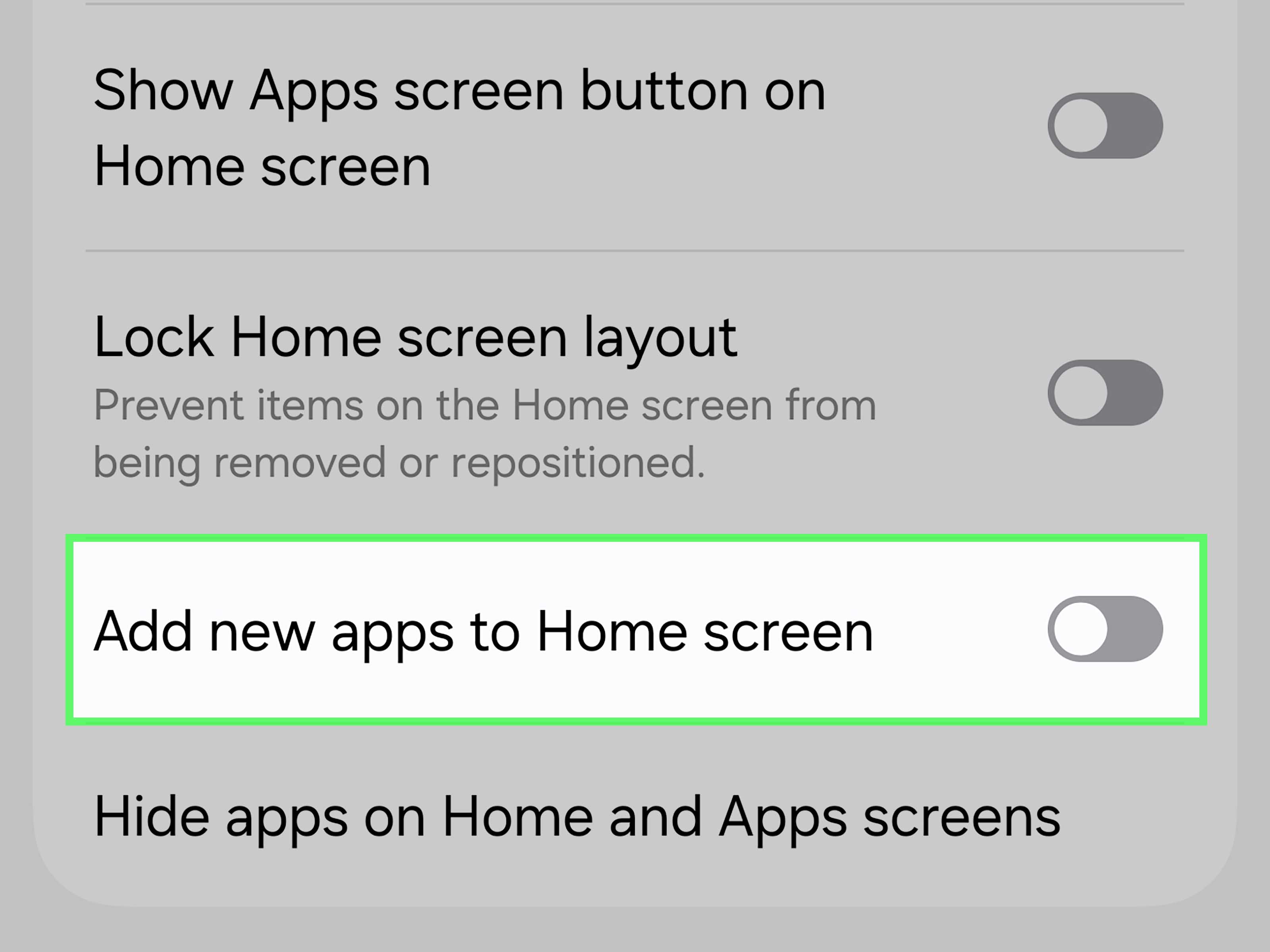
Some launchers include a setting that automatically adds newly installed apps to the home screen. To stop this, long-press an empty area of the home screen, open Home settings, and look for a switch such as Add app icons to Home screen, Add new apps to Home screen, or similar wording. Turn it off.
On certain Android versions and phone brands, this setting may live in the launcher settings rather than the Google Play Store. Older Android versions sometimes placed the option in Play Store settings, but modern phones often manage it through the home screen launcher. If you cannot find it, search your Settings app for “home screen,” “launcher,” or “add icon.”
What to Do If You Cannot Remove an Android Home Screen Icon
Occasionally, an icon refuses to leave like a guest who missed three goodbye hints. If the usual long-press method does not work, try these fixes.
Restart your phone
A simple restart can fix temporary launcher glitches. Hold the power button, tap Restart, and try removing the icon again after the phone boots.
Check whether the home screen is locked
Some Android launchers include a Lock Home screen layout feature. When enabled, icons cannot be moved or removed. On Samsung phones, you can usually find this under Settings > Home screen. Turn off the lock, remove the icon, then turn it back on if you want to prevent accidental changes.
Switch from “Home screen only” to “Home and Apps screens”
If your Android phone places all apps on the home screen, look for the home screen layout setting. On Samsung, changing from Home screen only to Home and Apps screens gives you an app drawer, making it easier to keep only favorite shortcuts on the home screen.
Clear launcher cache
If icons are stuck, duplicated, or behaving strangely, clearing the launcher cache may help. Go to Settings > Apps, find your launcher app, open Storage, and tap Clear cache. Avoid clearing data unless you are comfortable rebuilding your home screen layout, because that may reset your arrangement.
Update your launcher
If you use a third-party launcher such as Nova Launcher, Microsoft Launcher, Niagara Launcher, or Smart Launcher, check for updates in the Google Play Store. Launcher bugs can affect icon behavior, especially after Android system updates.
Android Brand Differences: Pixel, Samsung, Motorola, and More
Android is an operating system, but each phone maker adds its own personality. That is why your friend’s Pixel may show a drag-to-remove target while your Samsung shows a neat pop-up menu. Both are normal.
Google Pixel
Pixel phones usually use Pixel Launcher. Long-pressing an app shortcut often gives quick actions, app info, and removal options. Pixel also emphasizes app suggestions and search, so users who want a minimalist home screen should check Home settings for suggestions.
Samsung Galaxy
Samsung’s One UI offers strong home screen customization. You can remove shortcuts, lock the layout, hide apps, change grid size, manage folders, and choose whether to use an Apps screen. Samsung users should pay close attention to the difference between Remove and Uninstall, because both may appear in the same long-press menu.
Motorola
Motorola phones often stay close to stock Android. The long-press and drag-to-remove methods usually work well. Motorola also offers home settings for layout controls, icon appearance, and notification dots.
OnePlus and other brands
OnePlus, Xiaomi, Oppo, Vivo, and other brands may use their own launchers. The steps are similar, but labels can vary. Look for words like Remove, Hide apps, Home screen settings, Layout, or Drawer mode.
Best Practices for a Cleaner Android Home Screen
Removing icons is only step one. Keeping the home screen clean is the real victory. A good home screen should help you move faster, not make you feel like you are sorting through a garage sale every time you want to open Maps.
Keep only daily-use apps on the first page
Your first home screen should contain the apps you use every day: phone, messages, camera, browser, maps, email, calendar, notes, banking, or whatever fits your routine. If you use an app once a month, it probably does not deserve beachfront property.
Use folders carefully
Folders are great for categories like Work, Travel, Shopping, Finance, or Entertainment. But too many folders become another layer of clutter. Use folders when they reduce searching, not when they hide chaos under a cute label.
Limit widgets
Widgets can be helpful, but they can also turn the home screen into a dashboard for a spaceship you do not remember applying to pilot. Keep widgets that provide real value, such as calendar, weather, tasks, or music controls. Remove widgets that look nice but never get used.
Review your layout once a month
Once a month, take two minutes to remove icons you no longer need. This tiny habit prevents digital clutter from becoming a full-blown icon jungle. Bonus: it makes your phone feel newer without spending a dollar.
Personal Experience: What Cleaning an Android Home Screen Actually Feels Like
Cleaning up an Android home screen sounds like a small task, but anyone who has done it knows it can feel weirdly satisfying. The first time I seriously cleaned mine, I discovered apps I had not opened since a vacation, a restaurant coupon app from a city I no longer lived in, three nearly identical photo editors, and a weather widget that was basically a giant rectangle of guilt. It was telling me the forecast, yes, but mostly it was forecasting that I had lost control of my screen.
The easiest win was removing icons without uninstalling apps. That small distinction changed everything. Before that, I hesitated because I thought removing an icon might delete something important. Once I understood that the home screen shortcut was just a shortcut, the process became much less scary. I long-pressed apps I rarely used, tapped Remove, and watched my screen get calmer one square at a time. No app drama. No data loss. No tiny Android goblin laughing at me.
Folders helped, but only after I stopped making too many of them. At one point, I had a folder called “Useful,” which is one of the least useful folder names ever invented. Useful for what? Cooking? Taxes? Escaping a corn maze? I replaced vague folders with clear ones: Work, Money, Travel, Photo, and Shopping. The result was faster navigation and fewer moments of opening a folder, staring into it, and forgetting why I was there.
Another lesson came from widgets. I used to keep a huge news widget on the first screen because it made the phone look “smart.” In reality, it mostly made me distracted. Removing it gave me back space and made the home screen feel lighter. I kept a calendar widget because it genuinely helped me see the day ahead. That became my rule: if a widget helps me act, it stays. If it only helps me scroll, it goes.
The biggest long-term improvement was turning off automatic app icons. New apps used to land on the home screen like uninvited party guests. After disabling that setting in the launcher’s home screen settings, new downloads stayed in the app drawer until I decided they deserved a spot. That single change prevented future clutter and made the cleanup last longer than a weekend.
For people helping parents, kids, or less tech-comfortable relatives, removing icons can also make Android easier to use. A simplified home screen with six to ten essential apps is far less intimidating than five panels packed with everything installed on the phone. I have seen users become more confident simply because they no longer had to hunt through clutter. The phone did not change; the layout did.
My favorite approach now is the “one-screen test.” If the most important apps fit on one home screen without feeling cramped, the layout is probably healthy. Everything else can live in the app drawer, searchable and available but not constantly demanding attention. Android gives you that flexibility, and using it well can make your phone feel faster, cleaner, and more personal.
Conclusion
Removing icons from the Android home screen is one of the easiest ways to make your phone feel more organized. Start with the simple long-press method, drag icons to Remove when needed, clean up folders and widgets, hide apps you do not want visible, and turn off automatic shortcuts so the clutter does not come back. Most importantly, remember that removing a home screen icon usually does not uninstall the app. It simply clears visual space.
A clean Android home screen saves time, reduces distraction, and makes your phone feel more like a helpful tool than a crowded bulletin board. You do not need a perfect minimalist setup. You just need a layout that helps you find what you need without making your thumb go on a treasure hunt.
Note: This article is based on current Android home screen behavior, official Android support guidance, major U.S. manufacturer support patterns, and common launcher settings. Menu names may vary slightly by Android version, phone brand, carrier software, and launcher.

