
Hair Care
Why Are My Messages Green Instead of Blue on iPhone or iPad?
Jul
If your iPhone or iPad messages suddenly turned green instead of blue, congratulations: you have discovered one of Apple’s most famous color-coded mysteries. It is not quite a software emergency, not usually a sign of betrayal, and not proof that your phone has joined a tiny green cult. In most cases, green messages simply mean your device sent the conversation as RCS, SMS, or MMS instead of iMessage.
On Apple devices, blue bubbles mean iMessage. Green bubbles mean the message is traveling through a carrier-based texting system, such as SMS, MMS, or RCS. That tiny color change can happen for several reasons: the other person may be using Android, iMessage may be turned off, your internet connection may be weak, Apple’s iMessage service may be temporarily unavailable, or your iPad may not be properly connected to your iPhone for text message forwarding.
The good news? A green bubble does not automatically mean something is broken. Sometimes it is just your iPhone politely saying, “I had to take the scenic route.” Let’s unpack what green messages mean, why your iPhone or iPad uses them, and how to fix the problem when you expected blue bubbles instead.
Green vs. Blue Messages: The Simple Explanation
Apple’s Messages app uses color to show which messaging technology is being used. A blue bubble means the message was sent through iMessage, Apple’s internet-based messaging service. A green bubble means the message was sent as RCS, SMS, or MMS through a wireless carrier instead of Apple’s iMessage system.
Blue Bubbles Mean iMessage
iMessage works between Apple devices, including iPhone, iPad, Mac, and Apple Watch. It uses Wi-Fi or cellular data, not the traditional text messaging network. That is why iMessage can support features such as read receipts, typing indicators, high-quality media sharing, message effects, replies, reactions, and syncing across Apple devices.
For example, if you text a friend who also uses an iPhone and both of you have iMessage turned on, the conversation should appear in blue. Your message is moving through Apple’s iMessage service rather than through your carrier’s old-school texting pipes.
Green Bubbles Mean RCS, SMS, or MMS
Green bubbles appear when your message is not using iMessage. Traditionally, that meant SMS or MMS. SMS is used for basic text messages, while MMS allows pictures, videos, and group texts. On newer iPhones running iOS 18 or later, green bubbles may also represent RCS, a newer messaging standard that improves conversations between iPhone and Android users.
RCS can support better photo and video quality, typing indicators, delivery receipts, read receipts, and improved group chats. However, on iPhone, RCS messages still appear green. In other words, green does not always mean “ancient texting technology” anymore. Sometimes it means “modern texting technology wearing the same green jacket.”
Why Are My Messages Green Instead of Blue?
There are several common reasons your messages appear green instead of blue on iPhone or iPad. Some are completely normal. Others require a quick settings check.
1. The Person You Are Texting Does Not Use an Apple Device
The most common reason is simple: the recipient is using an Android phone or another non-Apple device. iMessage only works between Apple devices. If you send a message from your iPhone to someone using Android, your iPhone cannot use iMessage for that conversation. It must use RCS, SMS, or MMS instead.
This is why your messages to one friend may be blue while messages to another friend are green. Your iPhone is not playing favorites. It is choosing the available messaging system based on the recipient’s device and settings.
2. iMessage Is Turned Off on Your iPhone or iPad
If iMessage is disabled, your device will send messages through carrier texting instead. This can happen after a software update, device reset, SIM change, Apple Account issue, or accidental settings tap. The accidental settings tap is a classic. Many great tech mysteries begin with “I was just looking around.”
To check iMessage on iPhone, open Settings, go to Apps, tap Messages, and make sure iMessage is turned on. On some iOS versions, you may find Messages directly in the main Settings list.
3. iMessage Is Turned Off on the Other Person’s Device
Even if your iPhone is set up perfectly, the other person’s iMessage settings matter too. If your friend turned off iMessage, signed out of their Apple Account, switched phones, changed numbers, or has no internet connection, your message may fall back to green.
This is especially common when someone moves from iPhone to Android. Their old number may still be associated with iMessage for a while, or their new phone may not receive iMessages at all. The result can be delayed messages, failed sends, or green bubbles where blue ones used to be.
4. Your Internet Connection Is Weak or Unavailable
iMessage needs Wi-Fi or cellular data. If your connection is poor, your iPhone may send the message as a regular text instead, depending on your settings. This often happens in elevators, basements, parking garages, rural roads, school gyms, airports, and other places where phone signals go to take a nap.
If you see green messages during a weak signal moment, try connecting to reliable Wi-Fi or moving to an area with better cellular coverage. Then send another message. If it turns blue, the issue was probably connection-related.
5. “Send as SMS” Is Enabled
iPhone has a setting called Send as SMS. When it is turned on, your iPhone may send a message as a text message when iMessage is unavailable. This can be useful because the message still goes through. However, it can also surprise you when a normally blue conversation suddenly produces a green bubble.
To check it, open Settings, go to Apps, tap Messages, and look for Send as SMS. Turning it off may prevent automatic fallback, but it can also mean messages fail instead of being sent as regular texts when iMessage is unavailable.
6. RCS Messaging Is Being Used
With iOS 18 and later, Apple added support for RCS on supported carriers and plans. RCS is designed to make texting between iPhone and Android much better than old SMS/MMS. It can allow higher-resolution photos and videos, better group messaging, read receipts, delivery receipts, and typing indicators.
However, RCS still appears in green bubbles on iPhone. So if you are texting someone on Android and the conversation feels more modern than old SMS, you may be using RCS. Green does not always mean “bad.” Sometimes green means “not iMessage, but at least we have upgraded from potato-quality videos.”
7. Your iPad Is Not Set Up for Text Message Forwarding
On iPad, the situation is a little different. iPads can send iMessages directly using your Apple Account, but SMS, MMS, and RCS messages usually need to be forwarded from your iPhone. If your iPad shows green messages inconsistently or cannot send texts to non-Apple users, check Text Message Forwarding on your iPhone.
On your iPhone, go to Settings, tap Apps, choose Messages, and look for Text Message Forwarding. Make sure your iPad is enabled. Also confirm that both devices are signed in with the same Apple Account and that your phone number is selected under Send & Receive.
Does a Green Message Mean I Am Blocked?
No, not necessarily. This is one of the biggest myths about green messages on iPhone. A green bubble alone does not prove that someone blocked you. It only shows that the message was sent through RCS, SMS, or MMS instead of iMessage.
There are many ordinary reasons for green messages: the person may have Android, iMessage may be off, their phone may be offline, your connection may be weak, or a carrier service may be involved. Being blocked is only one possible explanation, and the bubble color by itself is not enough evidence.
If your messages suddenly turn green and calls go straight to voicemail, you still should not jump to conclusions. Their phone could be off, out of service, in Focus mode, or having carrier problems. Technology is dramatic enough without us adding courtroom-level accusations.
Are Green Messages Less Private Than Blue Messages?
In general, iMessage offers stronger privacy protections than traditional SMS and MMS. iMessage is end-to-end encrypted between Apple devices. SMS and MMS are carrier-based services and are not end-to-end encrypted, which means they do not offer the same level of protection while traveling between devices.
RCS is more complicated. Google Messages supports end-to-end encryption for eligible RCS chats between Google Messages users. Cross-platform RCS between iPhone and Android has been improving, and Apple and Google have been testing end-to-end encrypted RCS as part of newer iOS 26 development. Still, availability may depend on software version, carrier support, device compatibility, and whether the feature has officially rolled out to your setup.
For everyday conversations, RCS is a major improvement over old SMS. For highly sensitive conversations, use an end-to-end encrypted platform that both people support and verify that encryption is active.
How to Fix Green Messages When They Should Be Blue
If you are texting another Apple user and you expected blue bubbles, try these troubleshooting steps.
Step 1: Check That iMessage Is On
Open Settings, go to Apps, tap Messages, and turn on iMessage. If it is already on, turn it off, wait a few seconds, and turn it back on. Give your device a moment to activate the service.
Step 2: Confirm Send & Receive Settings
In Messages settings, tap Send & Receive. Make sure your phone number and Apple Account email are selected. If your iPhone number is missing, sign in to your Apple Account and check that your number is properly linked.
Step 3: Check Your Internet Connection
Open Safari and load a webpage. If nothing loads, iMessage may not work either. Try switching between Wi-Fi and cellular data. You can also toggle Airplane Mode on and off to refresh your connection.
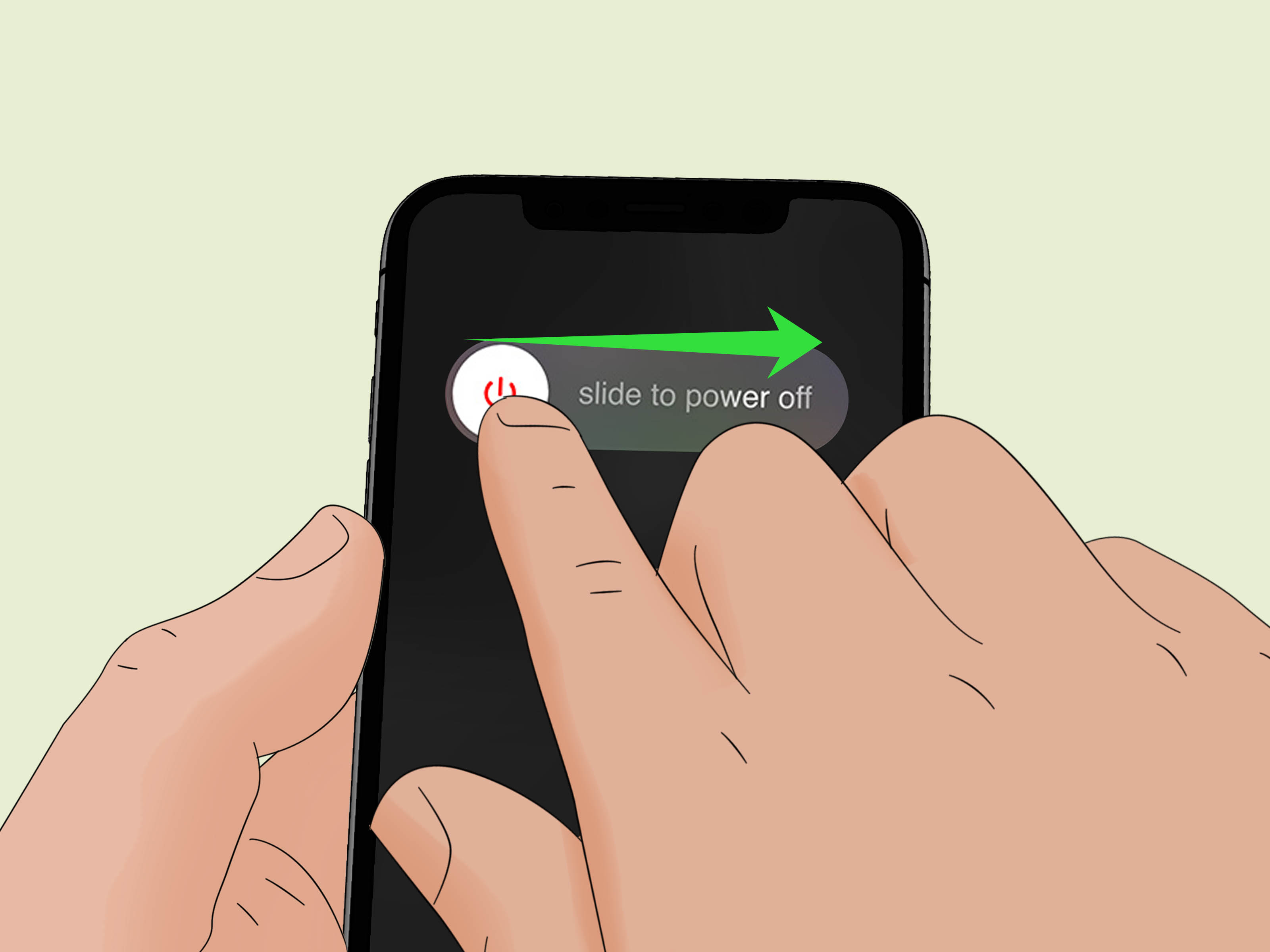
Step 4: Restart Your Device
Restarting sounds almost too simple, but it fixes a surprising number of messaging problems. Think of it as giving your iPhone a tiny cup of coffee and a chance to rethink its life choices.
Step 5: Update iOS or iPadOS
Software updates can fix bugs, improve carrier messaging support, and add newer features such as RCS improvements. Go to Settings, tap General, then choose Software Update. Install any available update after backing up your device.
Step 6: Check RCS Settings
If you use iOS 18 or later and your carrier supports RCS, open Settings, go to Apps, tap Messages, and choose RCS Messaging. Make sure RCS is turned on if you want enhanced texting with non-Apple users. Remember, RCS messages will still appear green.
Step 7: Contact Your Carrier
If green messages will not send at all, especially to Android users, your carrier may need to check your texting plan, SIM/eSIM activation, RCS support, or SMS/MMS provisioning. Carrier issues are less glamorous than iMessage mysteries, but they are very real.
What Green Messages Mean for Group Chats
Group chats are where bubble colors can get extra confusing. If every person in the group uses Apple devices with iMessage enabled, the group should appear blue. If even one member uses Android or is not available through iMessage, the conversation may switch to green through RCS, SMS, or MMS.
Modern RCS support makes mixed iPhone-and-Android group chats better than they used to be. You may get higher-quality media, typing indicators, read receipts, and improved group behavior when everyone’s carrier and device support RCS. But the conversation still will not be the same as a fully blue iMessage group.
Common Examples: Why One Contact Is Green but Another Is Blue
Here are a few real-world examples that explain what may be happening:
- Your sibling is blue, but your coworker is green: Your sibling likely uses iPhone with iMessage, while your coworker may use Android or have iMessage turned off.
- Your friend used to be blue but is now green: They may have switched to Android, disabled iMessage, lost internet access, changed numbers, or signed out of their Apple Account.
- Your iPad sends blue messages but not green ones: iMessage works on the iPad, but SMS/MMS/RCS forwarding from your iPhone may not be set up.
- Your Android chats are green but better than before: You may be using RCS instead of old SMS/MMS.
- Your message says “Not Delivered”: This may involve connection issues, iMessage activation problems, carrier trouble, or an incorrect recipient number.
Should You Worry About Green Messages?
Most of the time, no. Green messages are normal when texting Android users, people without iMessage, or contacts reached through carrier messaging. A green bubble is not a warning light. It is more like a road sign telling you which messaging highway your text used.
You should troubleshoot if a conversation with another Apple user unexpectedly turns green for a long time, messages fail to send, your iPad cannot reach non-Apple users, or your group chats stop working properly. In those cases, check iMessage, Send & Receive, Text Message Forwarding, RCS settings, your internet connection, and your carrier plan.
Personal Experience: The Day My Blue Bubbles Went Green
The first time I noticed my messages turning green instead of blue, I treated it like a tiny digital scandal. One minute I was sending cheerful blue iMessages, and the next minute my iPhone started producing green bubbles as if it had changed teams without telling me. Naturally, my first reaction was not calm technical analysis. It was more like, “What did I break, and can I blame the latest update?”
In my case, the problem started after I switched SIM settings while traveling. My iPhone still had iMessage turned on, but my phone number was not properly selected under Send & Receive. Messages to Apple users were acting strangely, and messages to Android users were bouncing between SMS and RCS depending on my signal. It felt random, but it was not random. My iPhone was simply choosing whatever delivery method still worked.
The fix was boring, which is how you know it was probably correct. I opened Settings, went into Messages, checked Send & Receive, selected my phone number again, toggled iMessage off and on, and restarted the phone. After a short activation delay, blue bubbles returned for Apple contacts. Green bubbles stayed for Android contacts, but that was expected. Crisis over. Dramatic soundtrack unnecessary.
Another common experience happens with iPads. Many people expect an iPad to text exactly like an iPhone, but an iPad without cellular texting support relies on iMessage or forwarding from an iPhone. So when someone says, “My iPad sends blue messages but not green ones,” the likely issue is not the iPad being stubborn. It is usually Text Message Forwarding. Once the iPhone allows the iPad to send and receive SMS, MMS, and RCS messages, the iPad becomes much more useful for texting non-Apple contacts.
I have also seen green bubbles cause social confusion. Someone sends a message, sees green, and immediately wonders whether they were blocked. That is understandable, but it is usually too big a conclusion from too small a clue. A green bubble can mean Android, weak data, iMessage disabled, carrier fallback, RCS, or a temporary service issue. It is evidence of the message route, not a full relationship report.
The best way to think about green vs. blue is this: blue means Apple’s iMessage system handled the conversation; green means your device used another texting system. Green is not automatically worse, especially now that RCS has improved cross-platform messaging. Old SMS could make videos look like they were filmed through a foggy potato. RCS can handle richer media and more modern chat features, which is a real upgrade for iPhone-to-Android conversations.
Still, iMessage remains the smoothest experience when everyone uses Apple devices. Blue-bubble chats usually feel more seamless across iPhone, iPad, Mac, and Apple Watch. They support Apple-specific features and strong encryption between Apple users. Green-bubble chats, especially RCS chats, are catching up in useful ways, but they are still not identical.
So if your messages are green instead of blue, do not panic. Check who you are texting, confirm iMessage is enabled, review Send & Receive, make sure your internet works, update your software, and verify RCS or Text Message Forwarding when needed. Most fixes take only a few minutes. And if the message is green because your friend uses Android, there is nothing to fix. That is just the bubble doing its job, wearing its green uniform, and delivering your text like a responsible little messenger.
Conclusion
Green messages on iPhone or iPad mean your device is using RCS, SMS, or MMS instead of iMessage. The most common reasons are that the recipient does not use an Apple device, iMessage is turned off, the internet connection is weak, your Send & Receive settings need attention, or your iPad needs Text Message Forwarding from your iPhone.
Blue bubbles are still the sign of iMessage, while green bubbles now cover both classic carrier texting and newer RCS messaging. The color difference matters, but it is not something to fear. Once you know what each bubble means, troubleshooting becomes much easierand far less dramatic than assuming your iPhone has developed a mysterious personality.

