
Skincare
How to View Phone Call History on Google Voice: 2 Ways
May
Google Voice is wonderfully useful until the exact moment you need to find one specific call from three Tuesdays ago. Maybe a client said, “I called you at 2:17,” maybe your dentist’s office swears they left a voicemail, or maybe you simply want to confirm whether you called your landlord before or after your heroic battle with the leaking sink. Whatever the reason, knowing how to view phone call history on Google Voice can save you time, confusion, and a surprising amount of “Wait, did I imagine that call?” energy.
The good news: Google Voice keeps your call history accessible from both the web version and the mobile app. Your history typically shows recent incoming, outgoing, and missed calls, along with useful details such as the phone number or contact name, call direction, date, time, and sometimes duration. The even better news: you do not need to be a tech wizard, spreadsheet sorcerer, or person who says “API” at dinner parties to check it.
In this guide, we will walk through the two main ways to view Google Voice call history: using Google Voice on a computer and using the Google Voice app on Android or iPhone. We will also cover practical troubleshooting tips, privacy notes, deletion warnings, export options, and real-world usage advice so your call log does not become a digital junk drawer with a dial tone.
What Is Google Voice Call History?
Google Voice call history is the record of calls associated with your Google Voice number. It can include calls you placed, calls you received, and calls you missed. Depending on the situation, a call entry may show the caller’s name if the number is saved in your contacts, the phone number, the time of the call, and the call status.
This history is different from your regular carrier phone log. If you use the Google Voice app, your most reliable source for Google Voice activity is the Google Voice interface itself. Your iPhone Phone app or Android dialer may show some related activity depending on your settings, but that is not the official place to review your complete Google Voice call log.
Think of it this way: your phone’s built-in call log is the front desk. Google Voice is the actual office with the files. If you want the cleanest record of Google Voice calls, go straight to Google Voice.
Before You Start: Make Sure You Are in the Right Google Account
The most common reason people cannot find their Google Voice call history is also the most boring: they are signed into the wrong Google account. Boring, yes. Annoying, absolutely. But it happens constantly, especially if you use one Gmail account for personal life, another for work, and a third one you created in 2014 for reasons that remain emotionally unavailable.
Before checking your call history, confirm that you are signed into the Google account connected to your Google Voice number. On the web, look at the profile icon in the top-right corner. On mobile, open the Google Voice app and check the active account. If the call log looks strangely empty, switching accounts should be your first move.
Way 1: View Phone Call History on Google Voice Using a Computer
The desktop method is the best choice if you want a larger screen, easier searching, or a more comfortable way to review several calls at once. It is especially helpful for business users, freelancers, support teams, students managing appointments, or anyone who prefers not to squint at a phone screen like they are decoding ancient stone tablets.
Step 1: Go to Google Voice on the Web
Open your preferred browser and go to Google Voice. Google Voice works through modern browsers such as Chrome, Microsoft Edge, Firefox, and Safari. Sign in with the Google account connected to your Google Voice number.
If you manage more than one Google account, do not skip the account check. A blank or outdated call history usually means you are viewing the wrong profile, not that Google Voice suddenly decided to become mysterious.
Step 2: Open the Calls Section
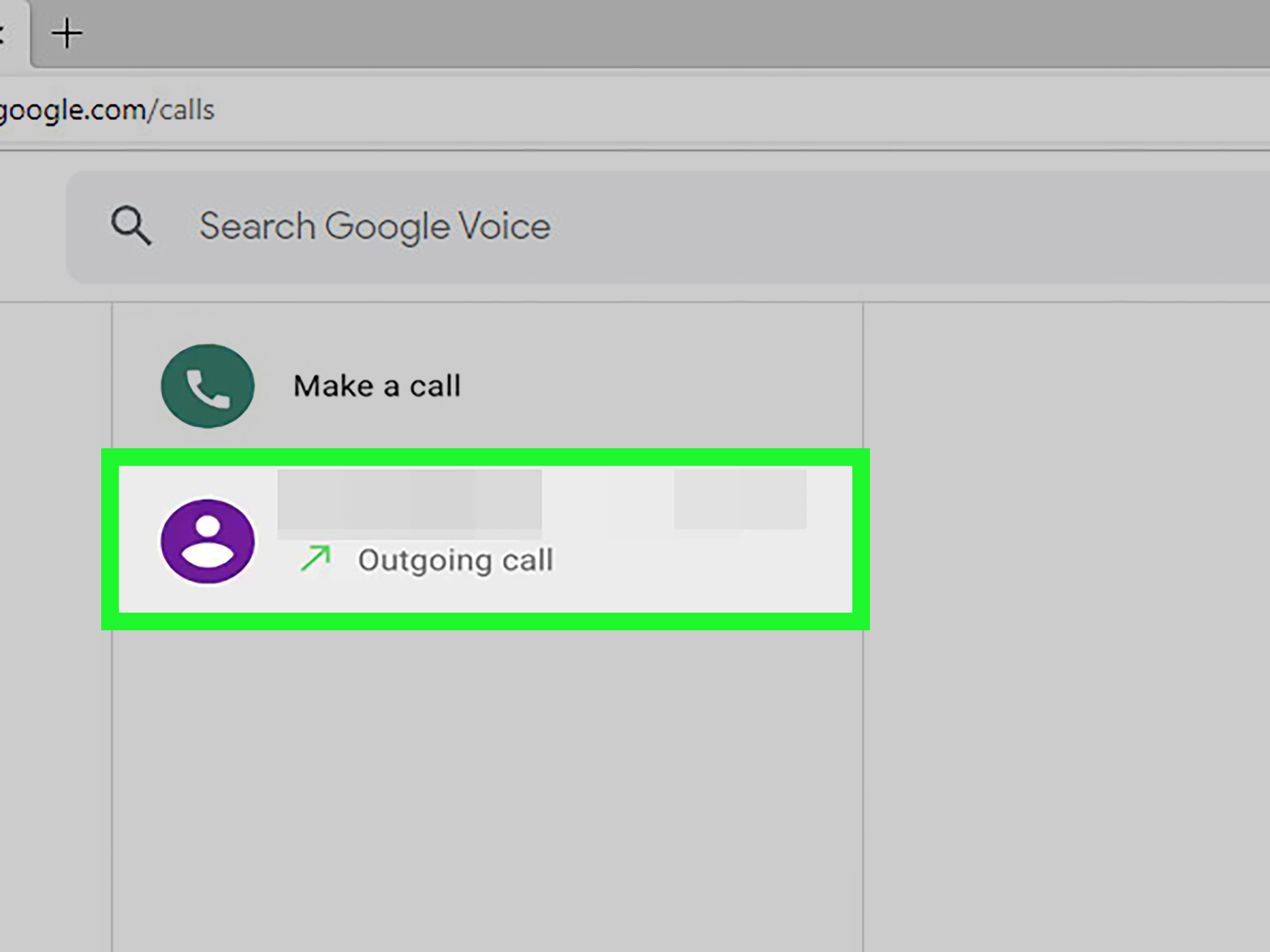
Once you are inside Google Voice, look for the navigation menu. Select the Calls tab. This is where Google Voice displays your recent call activity. You should see entries for missed calls, received calls, and placed calls.
Each call entry may show the caller name, phone number, date, time, and call direction. If the person is saved in your Google Contacts, their name may appear instead of just the number. If not, you may see the raw phone number, which is less charming but still useful.
Step 3: Review Recent Calls
Scroll through the list to find the call you need. For example, if you are checking whether a client called yesterday afternoon, scan the dates and times. If you are looking for a call from a specific number, use visual scanning or the available search tools in Google Voice where applicable.
The desktop view is ideal for comparing call times with emails, calendar events, invoices, or meeting notes. For instance, if your calendar says “consultation at 10:30 a.m.” and your Google Voice history shows a missed call at 10:28 a.m., congratulations: you have found the breadcrumb trail.
Step 4: Click or Select a Call for More Context
Depending on the call and account setup, selecting a call may show more details or related communication with that contact. Google Voice organizes calls, texts, and voicemails into separate areas, so remember that a voicemail may appear under the voicemail section rather than only in the calls list.
If you are investigating a missed call, check both Calls and Voicemail. Many people call, wait three rings, panic, leave a voicemail, and then text “call me.” Google Voice may store those interactions in different places, so it pays to look around.
Best Uses for the Desktop Method
The web version is best when you need to review call history carefully. It is easier to use when you are preparing a record, checking call duration, comparing call times, or managing multiple communications for work. It also helps when you need to copy a number, review a voicemail transcript, or document a timeline.
For people who use Google Voice as a lightweight business phone system, the desktop method feels more organized. You can keep the tab open while working, review missed calls, and return calls without constantly switching between phone apps.
Way 2: View Phone Call History in the Google Voice Mobile App
The mobile app method is the fastest way to check Google Voice call history when you are away from your desk. It works well for quick checks, missed-call follow-ups, travel days, errands, and those moments when someone says, “I called you,” and you want to verify the claim before your coffee gets cold.
Step 1: Open the Google Voice App
Open the Google Voice app on your Android phone, iPhone, or iPad. If you do not already have it installed, download it from Google Play or the Apple App Store. Sign in using the Google account connected to your Google Voice number.
Google Voice is designed to sync across devices, so the calls you see in the app should generally match the activity connected to your Google Voice account. If your app looks outdated, refresh it, restart it, or confirm that you are using the latest version.
Step 2: Tap the Calls Tab
At the bottom of the mobile app, tap Calls. This opens your recent Google Voice call history. You should see a list of calls with names or numbers, along with call direction and time information.
The layout may vary slightly between Android and iOS, but the basic idea is the same: open Google Voice, choose the Calls tab, and review the call log.
Step 3: Check Incoming, Outgoing, and Missed Calls
Look through the list for the call you need. Missed calls are useful when you want to know who tried to reach you. Outgoing calls help confirm that you returned a call. Incoming calls can help verify whether a conversation happened and when.
For example, imagine you run a small tutoring business through Google Voice. A parent says they called last Friday. You can open the app, tap Calls, and check whether the number appears. If it does, you can follow up professionally. If it does not, you can gently ask whether they called the correct number without sounding like a detective in a low-budget procedural drama.
Step 4: Tap a Call Entry When Needed
Tap a call entry to see available options. You may be able to call the person back, send a message, view contact details, or access related information. If the call resulted in a voicemail, check the Voicemail tab too. Google Voice voicemail transcripts can be especially useful when you cannot listen to audio.
The app method is perfect for quick action. You can return a missed call, identify a number, or check whether you already called someone back while standing in line at the grocery store pretending not to buy three kinds of cheese.
Desktop vs. Mobile: Which Method Is Better?
Both methods work, but they serve different needs. The desktop version is better for careful review, recordkeeping, and multitasking. The mobile app is better for speed, convenience, and immediate follow-up.
Use the computer method when you need accuracy and context. Use the mobile app when you need a quick answer. If a call matters for billing, customer service, school, legal documentation, or business notes, verify it on the desktop version and consider exporting your data for your own records.
Can You Export Google Voice Call History?
Yes, but exporting is separate from simply viewing your recent call history. Google allows users to export Google Voice data through Google Takeout. Exported Voice data can include call logs, text messages, voicemails, voicemail transcripts, greetings, billing history, the Google Voice number, and service address information.
This is useful if you want a backup, need long-term records, or want to analyze older communication history. However, Google Takeout is not the fastest way to check who called this morning. It is more like ordering the full filing cabinet rather than opening the top drawer.
When Exporting Makes Sense
Export your Google Voice data when you need to preserve records before deleting anything, switch services, review long-term call patterns, or maintain documentation for business purposes. If you manage a lot of calls, a periodic export can help you avoid relying only on the visible recent-call list.
One important warning: exports generally include data that has not been deleted. If you delete call history first and then try to export it later, you may be disappointed. In the world of digital recordkeeping, “I will delete it now and recover it later” is how small tragedies are born.
Can You Delete Google Voice Call History?
Yes. Google Voice allows users to delete call history. However, deleting call history removes past calls from your account view, and the process may take time to fully update across devices. You may also need to restart the Voice app or refresh the web version to see the updated history.
Before deleting anything, ask yourself whether you might need the record later. If the answer is “maybe,” export your Google Voice data first. Deleting call history can be useful for privacy and cleanup, but it is not something to do casually if those records matter for work, billing, customer service, or personal documentation.
Why Your Google Voice Call History May Not Show a Call
If a call is missing, do not immediately assume Google Voice ate it like a hungry raccoon. Several ordinary issues may explain the problem.
You Are Signed Into the Wrong Account
This is the classic culprit. If you have multiple Google accounts, switch to the account that owns the Google Voice number. Check the profile icon and confirm the correct email address.
The App Needs to Refresh
Mobile apps sometimes lag behind. Close and reopen Google Voice, check your internet connection, and update the app if needed. If you recently deleted history or changed settings, the app may need a restart.
The Call Went to a Linked Number
Google Voice can forward calls to linked numbers. Depending on your setup, you may see activity in your carrier phone app, Google Voice, or both. For Google Voice records, always check the Google Voice Calls tab first.
The Call Became a Voicemail
If someone called and left a voicemail, the most useful record may be in the Voicemail tab. Check both Calls and Voicemail when reviewing missed communication.
The Call Was Deleted
If call history was deleted, it may no longer appear in your visible Google Voice history. That is why exporting important data before cleanup is a smart habit.
Privacy and Account Safety Tips
Call history can reveal a lot: who contacted you, when they called, how often you communicate, and how long calls lasted. Treat it as sensitive information. Use a strong Google account password, enable two-step verification, and avoid checking call history on shared or public computers.
If you use a Google Voice number through work, school, or an organization, remember that administrative rules may apply. Google Workspace administrators with the correct subscription and privileges may have access to Voice log events, including call-related details such as cost, duration, and exact call times. Personal Google Voice users and managed Workspace users do not always have the same privacy and administration setup.
In plain English: if the number belongs to your organization, treat it like a work tool, not a private diary with ringtone support.
Practical Examples of Checking Google Voice Call History
Example 1: Confirming a Missed Business Call
A customer says they called yesterday afternoon. You open Google Voice on your computer, click Calls, and scan yesterday’s entries. You find a missed call from their number at 3:42 p.m. Now you can reply with confidence: “Thanks for calling yesterday. Sorry I missed you at 3:42. I’m available today after 1 p.m.” That is much better than “Uh, maybe my phone sneezed.”
Example 2: Checking Whether You Returned a Call
You receive a voicemail from a contractor. Later, you are not sure whether you called back. Open the mobile app, tap Calls, and look for an outgoing call to that number. If you see one, you know you followed up. If not, make the call before the task quietly moves into the mental junk drawer.
Example 3: Reviewing Calls for a Small Team
If your organization uses Google Voice through Google Workspace, an administrator may review Voice log events depending on plan and permissions. This can help with auditing, troubleshooting, and monitoring business communication. For everyday users, though, the normal Calls tab remains the simplest way to view personal call history.
Best Practices for Managing Google Voice Call History
First, check call history regularly if you rely on Google Voice for important communication. A quick daily review can prevent missed calls from becoming missed opportunities.
Second, use contact names. Saving important numbers in Google Contacts makes your call history easier to read. “Mom,” “Dr. Parker,” or “Johnson Plumbing” is much more helpful than a mysterious string of digits that looks like a lottery number with commitment issues.
Third, do not delete records unless you are sure. If you want a cleaner inbox, consider archiving where available instead of deleting. If you need long-term documentation, export your data through Google Takeout before removing anything.
Fourth, keep your app updated. Google Voice features and interface details can change over time, so an updated app gives you the best chance of stable performance.
Finally, separate personal and work communication when possible. If you use Google Voice for business, keep records organized and avoid mixing sensitive personal calls into a work-managed number.
Real-World Experience Tips: What It Is Like to Use Google Voice Call History
In everyday use, Google Voice call history feels less like a fancy reporting dashboard and more like a practical memory assistant. It is not trying to be dramatic. It simply answers the small but important questions: Who called? When did they call? Did I call them back? Was that voicemail from the same number? For most people, that is exactly enough.
The desktop version tends to feel more dependable when you are doing serious review. If you are sitting at a laptop with email, calendar, and notes open, Google Voice call history becomes part of a workflow. You can compare a missed call with a meeting time, copy a number into a customer file, or check whether a call happened before sending a follow-up message. This is especially useful for freelancers, consultants, real estate agents, tutors, local service providers, and anyone who uses one number to keep professional communication separate from personal life.
The mobile app, on the other hand, is all about speed. You are walking into a meeting, the phone buzzes, and later you need to know whether it was a missed call or just another mysterious notification trying to ruin your attention span. You open Google Voice, tap Calls, and the answer is right there. The app is also helpful when you are returning calls on the move. Instead of digging through your main phone log and wondering which calls came through your carrier number, you stay inside Google Voice and keep the communication tied to your Voice number.
One common experience is discovering how important contact names are. A call history full of unnamed phone numbers quickly becomes a guessing game. After a week of business calls, every unknown number starts to look equally suspicious. Saving frequent callers as contacts makes the history far more readable. It also reduces mistakes, like calling back the wrong person or ignoring a number that actually belongs to someone important.
Another practical lesson: check voicemail along with calls. A missed call alone may not tell the whole story. Someone may have left a voicemail with the real details, and the voicemail transcript can help you understand the reason for the call without playing audio in public. This is a small luxury, but a good one. Nobody wants to listen to a tax office voicemail on speaker while waiting for coffee.
For people using Google Voice for work, call history also creates accountability. It can help confirm response times, document customer follow-ups, and prevent the classic “I thought you called them” confusion. Still, it is wise not to treat the visible call list as your only permanent archive. If records matter, export your Google Voice data periodically. A backup is boring until the day it saves you. Then it becomes the hero of the story, cape optional.
Conclusion
Viewing phone call history on Google Voice is simple once you know where to look. Use the web version when you want a bigger screen, better focus, and easier record review. Use the Google Voice mobile app when you need fast access to recent calls on Android, iPhone, or iPad. In both cases, the key step is the same: sign into the correct Google account and open the Calls tab.
For quick checks, the Calls tab is your best friend. For long-term records, Google Takeout is the backup plan. For privacy, delete carefully, secure your Google account, and remember that managed Workspace accounts may follow organizational rules. Google Voice call history is not complicated, but it is powerful when you use it intentionally.
Note: This article is written for general informational and publishing purposes. Google Voice features, interface labels, availability, and administrative options may change over time, so users should verify critical records directly in their own Google Voice account before relying on them for business, billing, legal, or compliance decisions.

