
Hair Care
How to Set up a Vpn Between Two Computers: 10 Steps
Sep
Note: This guide is written for people who want a secure, practical way to connect two computers they own or administer, such as a home desktop and a travel laptop, two small-office PCs, or a work machine and a file server with proper permission.
Introduction: Your Two Computers Deserve a Secret Tunnel
Setting up a VPN between two computers sounds like something that should require a basement full of blinking servers, three energy drinks, and a hoodie with mysterious pockets. Fortunately, it does not. A virtual private network, or VPN, creates an encrypted tunnel between devices so they can communicate as if they were on the same private network, even when they are separated by miles, routers, coffee-shop Wi-Fi, hotel networks, or the terrifying digital wilderness known as “airport internet.”
This guide explains how to set up a VPN between two computers in 10 clear steps. The focus is on practical, modern methods: WireGuard for a direct computer-to-computer VPN, OpenVPN for users who prefer a traditional option, and mesh VPN tools such as Tailscale or ZeroTier for people who want fewer router headaches. You will also learn how to choose IP addresses, handle port forwarding, test the connection, share files safely, and troubleshoot common problems without yelling at your router like it personally betrayed you.
The main goal is simple: connect Computer A and Computer B securely. Maybe you want to access files on your home PC while traveling. Maybe you want to use Remote Desktop, SSH, a private development server, or a small office database. Maybe you just enjoy networking projects and believe weekends are best spent whispering “why is UDP blocked?” into the void. Whatever the reason, a two-computer VPN can be reliable, secure, and surprisingly elegant when configured correctly.
What Does It Mean to Set Up a VPN Between Two Computers?
A VPN between two computers creates a private encrypted connection over an existing network, usually the internet. Instead of exposing file sharing, remote desktop, or other services directly to the public internet, the VPN gives both computers private tunnel IP addresses. For example, Computer A might use 10.8.0.1 and Computer B might use 10.8.0.2. Once the tunnel is active, Computer B can reach Computer A through that private VPN address.
There are two common approaches. The first is a direct VPN, where one computer acts like the reachable endpoint and the other connects to it. This often requires port forwarding on the router in front of the host computer. The second is a mesh VPN, where both computers sign in to the same private network managed by a service. Mesh tools can often avoid manual port forwarding by using NAT traversal and, when necessary, relays.
Before You Start: Pick the Right VPN Method
The best VPN setup depends on your comfort level and network environment. For many users, WireGuard is the best balance of speed, security, and simplicity. It uses public and private keys instead of traditional usernames and passwords, and its configuration files are refreshingly short. OpenVPN is older, widely supported, and still useful, especially where existing systems already rely on it. Built-in Windows or macOS VPN settings can work when you already have a compatible VPN server, but they are not always the easiest way to create a direct two-computer VPN from scratch.
If both computers are behind restrictive routers, carrier-grade NAT, hotel Wi-Fi, school networks, or corporate firewalls, a mesh VPN such as Tailscale or ZeroTier may be easier. These tools are especially friendly for beginners because you install an app, sign in, approve devices, and receive private network addresses automatically. That said, if you want maximum control and minimal dependence on a third-party coordination service, WireGuard is a strong choice.
How to Set up a VPN Between Two Computers: 10 Steps
Step 1: Define What You Want the VPN to Do
Start by deciding exactly why the two computers need to connect. Do you want file sharing? Remote Desktop? SSH? A private web app? A game server? Backup synchronization? Your purpose affects the setup. For example, a remote desktop connection needs the VPN to pass traffic to the computer running Remote Desktop. File sharing may require firewall rules and shared folders. SSH usually needs only one port open inside the private tunnel.
Write down the role of each machine. In a simple setup, Computer A is the “host” or “server,” while Computer B is the “client.” With WireGuard, both machines are technically peers, but one side usually has a public endpoint or port-forwarded address so the other computer knows where to connect.
Step 2: Check Your Network Situation
Next, check whether the host computer is behind a router you control. If Computer A is at home and you can log in to the home router, direct VPN setup is usually possible. You may need to forward a UDP port, such as 51820, from the router to Computer A. If Computer A is behind a network you do not control, such as a dorm, hotel, office, or mobile hotspot, port forwarding may not be available.
You should also find out whether your internet connection uses a dynamic public IP address. Many home connections do. If the public IP changes, Computer B may lose track of Computer A. Dynamic DNS solves this by giving your home network a hostname that updates when your IP address changes. Instead of connecting to a changing number, you connect to something memorable, like myhomevpn.example.net.
Step 3: Choose VPN Software
For a clean two-computer VPN, WireGuard is often the best starting point. It is available for Windows, macOS, Linux, iOS, Android, and many routers. Its configuration is based on key pairs, peer addresses, allowed IPs, and endpoints. The files are short enough that you can actually understand them, which is not always true in networking. Networking files sometimes look like a robot sneezed into a keyboard.
OpenVPN is another solid option. It can run in point-to-point mode or with certificates for larger setups. It is more verbose than WireGuard, but it is mature and widely documented. Mesh VPN tools such as Tailscale and ZeroTier are excellent if you want an easier experience and do not want to wrestle with router settings. For this 10-step guide, WireGuard will be the example because it is modern, fast, and well suited for a secure VPN between two computers.
Step 4: Install the VPN App on Both Computers
Install WireGuard on both computers from the official WireGuard download source or your operating system’s package manager. On Windows, use the WireGuard installer. On macOS, install it from the Mac App Store. On Linux, install wireguard or wireguard-tools using your distribution’s package manager.
After installation, open the app on both machines. You do not need to connect yet. At this stage, you are preparing each computer to create and import a tunnel configuration. Keep both computers updated before you continue. VPN software should not be treated like an old printer driver from 2009 that everyone is afraid to touch. Updates often include security and compatibility fixes.
Step 5: Create Private and Public Keys
WireGuard uses a private key and a public key for each computer. The private key stays secret on that computer. The public key can be shared with the other computer. This is similar to SSH key-based authentication: the devices recognize each other through cryptographic keys rather than a password that someone might reuse from an old pizza coupon account.
In the WireGuard app, choose the option to add an empty tunnel. The app will generate a private key and public key automatically. Do this on both computers. Copy the public key from Computer A and save it temporarily. Then copy the public key from Computer B. Never post private keys in email, chat, screenshots, tickets, or public forums. Treat private keys like house keys, except they are easier to accidentally paste into the wrong window.
Step 6: Assign VPN Tunnel IP Addresses
Choose a small private IP range for the VPN tunnel. A simple two-computer setup can use:
- Computer A VPN IP:
10.8.0.1/24 - Computer B VPN IP:
10.8.0.2/24
These addresses exist only inside the VPN tunnel. They are different from your normal Wi-Fi or Ethernet addresses, such as 192.168.1.25. Avoid choosing a VPN range that conflicts with networks you commonly use. If your home, office, and hotel networks all use 192.168.1.0/24, picking that for the tunnel may create routing confusion. Private ranges such as 10.8.0.0/24 or 10.50.0.0/24 are common choices for small VPNs.
Step 7: Configure Computer A as the Reachable Peer
On Computer A, create a WireGuard tunnel configuration like this:
The [Interface] section describes Computer A. The Address gives it a VPN IP. The ListenPort tells WireGuard which UDP port to listen on. The [Peer] section describes Computer B. The AllowedIPs value means Computer A should route traffic for 10.8.0.2 through that peer.
If Computer A is behind a home router, reserve a local IP address for it in the router settings, such as 192.168.1.50. Then forward UDP port 51820 from the router to that local IP. The exact menu varies by router, but it is often under “Port Forwarding,” “NAT,” “Advanced,” or “Firewall.” Use UDP, not TCP, for WireGuard.
Step 8: Configure Computer B as the Connecting Peer
On Computer B, create a matching WireGuard tunnel configuration:
The Endpoint tells Computer B where to find Computer A. This can be your public IP address or a Dynamic DNS hostname. The PersistentKeepalive = 25 line is helpful when Computer B is behind NAT because it sends occasional packets to keep the connection path alive. This is especially useful for laptops that move between networks.
Notice that AllowedIPs is set to 10.8.0.1/32. That means only traffic headed to Computer A’s VPN address goes through the tunnel. This is called split tunneling. It keeps your normal web browsing on your regular internet connection while allowing private traffic to reach the other computer. If you route all traffic through the VPN, you would use 0.0.0.0/0, but that is not necessary for a simple two-computer VPN.
Step 9: Start the Tunnel and Test the Connection
Activate the tunnel on Computer A first, then activate it on Computer B. Now test the VPN connection. Open a terminal or command prompt on Computer B and try:
If ping replies come back, the tunnel is working. If ping is blocked by the firewall, try connecting to a specific service instead, such as SSH, Remote Desktop, or a private web server. On Computer A, you can also ping Computer B:
In the WireGuard app, check whether data is being sent and received. A successful handshake is a good sign. If there is no handshake, the most likely causes are a wrong public key, wrong endpoint, blocked UDP port, incorrect port forwarding, local firewall restrictions, or a public IP address that changed while you were celebrating too early.
Step 10: Secure, Share, and Maintain the VPN
Once the VPN works, decide what the two computers are allowed to do. Do not enable every sharing feature just because the tunnel exists. Open only the services you need. If you are using Windows file sharing, restrict shared folders to specific user accounts. If you are using Remote Desktop, use a strong password, network-level authentication, and ideally multi-factor authentication where available. If you are using SSH, prefer key-based login over password login.
Keep the VPN software, operating systems, and routers updated. Disable unused VPN profiles. Remove old keys when a computer is replaced. Back up your configuration securely, but do not store private keys in plain text in random cloud notes. A VPN is a secure tunnel, not a magical forgiveness machine. If the computers at each end are poorly protected, the tunnel simply gives trouble a faster road.
Alternative: Use a Mesh VPN for an Easier Setup
If port forwarding sounds like a lifestyle you did not sign up for, use a mesh VPN. Tailscale and ZeroTier are popular choices for connecting two computers without manually opening router ports. The general process is simple: create an account, install the app on both computers, sign in, approve the devices, and use the private IP address assigned by the service.
Mesh VPNs are especially useful when both computers are behind NAT or when you travel often. They can often establish direct encrypted connections automatically. If a direct path is not possible, they may relay traffic so the connection still works, although performance may be slower. For many people, this tradeoff is worth it because the setup is dramatically easier. The router stays untouched, your stress level stays reasonable, and nobody has to ask where the “Advanced NAT hairpinning” menu lives.
Windows and macOS Built-In VPN Options
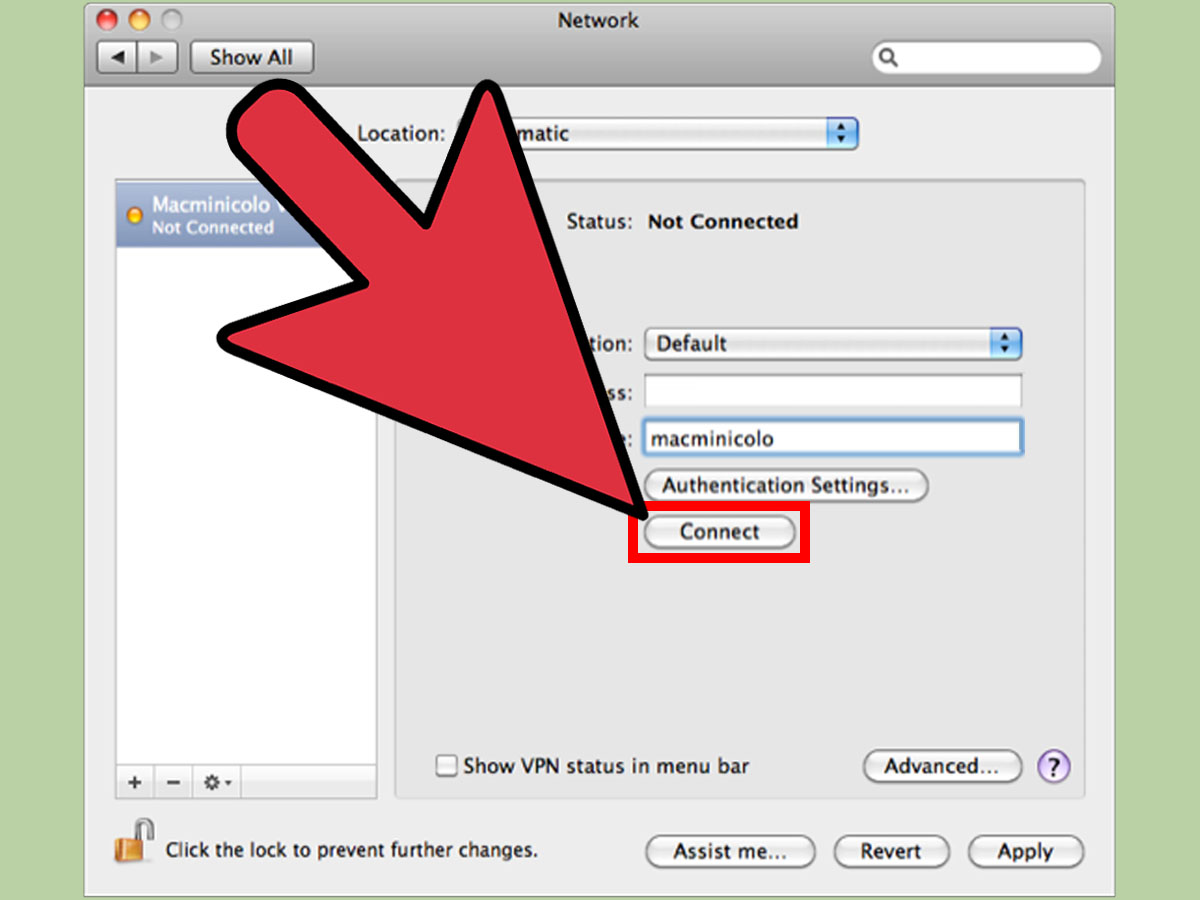
Windows and macOS both include built-in VPN configuration screens. These are useful when you already have a VPN server address, VPN type, username, password, certificate, or shared secret. On Windows, VPN settings are under Network & Internet. On macOS, VPN configurations are added from Network settings. However, built-in VPN clients usually connect to an existing VPN server; they do not automatically turn two ordinary computers into a modern peer-to-peer VPN. That is why WireGuard or a mesh VPN is often easier for this specific goal.
Common Problems and How to Fix Them
No Handshake
If WireGuard shows no handshake, check the basics first. Confirm that Computer B has the correct endpoint and port. Make sure the public keys are copied to the correct peer sections. Verify that UDP port 51820 is forwarded to Computer A’s local IP address. Also check whether Computer A’s local firewall allows WireGuard traffic.
Handshake Works, But No Traffic Passes
This usually means routing or firewall rules are wrong. Confirm that the VPN IP addresses are correct and that AllowedIPs matches the peer’s VPN address. Try temporarily allowing ping through the firewall for testing. If you are accessing file sharing or Remote Desktop, ensure those services are enabled on the private VPN network profile.
It Works at Home, But Not While Traveling
Some networks block UDP or restrict unusual outbound traffic. Try a mesh VPN if you need reliable access from hotels, campuses, or public Wi-Fi. You can also change the WireGuard listening port, but do not assume every network will cooperate. Public networks have moods. Some are helpful. Some behave like a bouncer guarding a nightclub for packets.
The Public IP Keeps Changing
Use Dynamic DNS. Most home internet connections do not guarantee a permanent public IP address unless you pay for one. A Dynamic DNS service maps a hostname to your current IP so Computer B can always find Computer A even after the ISP changes the address.
Security Best Practices for a Two-Computer VPN
A secure VPN setup depends on more than encryption. Use modern protocols such as WireGuard, OpenVPN, or IKEv2 rather than outdated options. Avoid PPTP for serious use because it is considered obsolete and weak by modern security standards. Use strong device passwords, full-disk encryption where practical, and automatic updates. If remote access is important, enable multi-factor authentication for accounts that can access sensitive services.
Do not expose Remote Desktop, SMB file sharing, databases it is considered obsolete and weak by modern security standards. Use strong device passwords, or admin panels directly to the public internet. Put them behind the VPN instead. This is one of the biggest benefits of a computer-to-computer VPN: services can stay private. Also, review firewall rules regularly. If a rule was created for testing and is no longer needed, remove it. Security improves when your network is boring in exactly the right ways.
Real-World Examples
Example 1: Home Desktop and Travel Laptop
You keep files on a home desktop and want to access them while traveling. Install WireGuard on both machines. Make the home desktop the reachable peer, forward UDP port 51820 to it, and set up Dynamic DNS. On the travel laptop, connect to the home computer’s VPN address. Once connected, map a shared folder or use Remote Desktop through 10.8.0.1.
Example 2: Two Small Office Computers
A small business needs one office computer to access a private app running on another computer in a different location. A WireGuard tunnel can connect the two devices directly. For easier administration, a mesh VPN may be better because it simplifies device approval and avoids router configuration. The business should still use strong account security and remove access when employees or devices change.
Example 3: Developer Laptop and Home Lab Server
A developer wants to reach a home lab server without publishing development tools to the internet. WireGuard is ideal here. The server gets 10.8.0.1, the laptop gets 10.8.0.2, and development services listen only on the VPN interface. This keeps experimental dashboards, databases, and admin panels away from public scans.
Experience Notes: What Setting Up a Two-Computer VPN Teaches You
The first experience most people have with setting up a VPN between two computers is not technical triumph. It is usually confusion. You install the app, paste keys, turn on the tunnel, and then stare at the screen as if the computers should applaud. They do not. Networking is quiet when it works and deeply quiet when it does not. The trick is learning how to test one layer at a time.
A good habit is to start with the smallest possible goal: make Computer B ping Computer A’s VPN IP address. Do not begin by testing file sharing, remote desktop, printers, game servers, and a private media library all at once. That is how troubleshooting turns into archaeology. First prove the tunnel works. Then prove one service works. Then add convenience features.
Another lesson is that most VPN problems are not mysterious. They are usually one of five things: wrong key, wrong IP, wrong port, wrong firewall rule, or wrong assumption about the network. The “wrong assumption” category is the sneakiest. You may assume your home router has a public IP, but your ISP may place you behind carrier-grade NAT. You may assume hotel Wi-Fi allows UDP, but it may block it. You may assume your firewall trusts the VPN interface, but your operating system may classify it as public and block sharing. Computers are very literal creatures. They do exactly what they are told, even when what they are told is nonsense.
Port forwarding is another rite of passage. Router interfaces vary wildly. One router calls it “Port Forwarding.” Another calls it “Virtual Server.” Another hides it under “Applications & Gaming,” because apparently your file server needed a dramatic stage name. The key details are always the same: forward the correct protocol, usually UDP for WireGuard, from the external port to the internal IP address of the host computer. If the host computer’s local IP changes, the port forward breaks. That is why a DHCP reservation is your friend.
Dynamic DNS is also worth setting up early. Many beginners test with their current public IP address and everything works beautifully. Then, days later, the connection fails because the ISP changed the IP. Dynamic DNS prevents this by giving the connecting computer a stable hostname. It is not glamorous, but neither is a doorbell, and you still want one if people need to find your house.
From a practical security perspective, the biggest mindset shift is this: a VPN is not just for privacy; it is for reducing exposure. Instead of opening Remote Desktop or file sharing to the whole internet, you expose only the VPN port and keep private services private. This is a much better design. The internet is full of automated scanners looking for exposed services. They do not care that your server is “just for personal use.” Bots have no manners.
Finally, remember that simpler is often safer. If you only need two computers to communicate, avoid building a giant network with routes you do not understand. Use split tunneling unless you specifically need all traffic to pass through the VPN. Label your configuration files clearly. Keep a secure backup of public information and replace private keys if a device is lost. When something changes, document it. Future you will be grateful, and future you is already tired.
Conclusion
Setting up a VPN between two computers is one of the most useful networking projects you can learn. It gives you secure remote access, protects private services from public exposure, and makes two devices behave as if they are sitting on the same trusted network. The cleanest manual method is usually WireGuard: install it on both computers, generate keys, assign tunnel IPs, configure peers, forward a UDP port if needed, and test the connection. For users who want less router drama, a mesh VPN such as Tailscale or ZeroTier can make the process easier.
The most important rule is to build the VPN with purpose. Know what you want to access, open only what you need, keep software updated, and protect your keys. A well-built two-computer VPN should feel boring after setup. Boring is good. Boring means the encrypted tunnel is doing its job quietly while you get your files, manage your server, or connect to your desktop without inviting the entire internet over for snacks.

