
Beauty Tools & Accessories
How to Play Fortnite on Split-Screen Mode: Xbox, PS4, PS5
Sep
Fortnite is famous for letting squads drop into chaos from almost anywhere: a console, a PC, a phone, a cloud session, and probably a toaster if Epic ever feels ambitious enough. But sometimes the best way to play is still the old-school way: two people, one couch, one screen, and one shared mission to avoid being eliminated by someone dressed as a banana with elite aim.
If you want to play Fortnite split-screen on Xbox, PS4, or PS5, the good news is simple: yes, you can. Epic Games now refers to this feature as Local Multiplayer, but most players still search for it as Fortnite split-screen mode. The feature lets two players use the same PlayStation or Xbox console, two controllers, and two separate console accounts to join supported Fortnite experiences together.
The slightly less magical news? Split-screen is not available everywhere, not every Fortnite mode supports it, and a few setup rules can trip you up if you try to sprint through the process like you are escaping the storm. This guide explains exactly how to play Fortnite in split-screen mode on Xbox, PS4, and PS5, what you need before you start, which modes work, and how to fix the most common problems.
What Is Fortnite Split-Screen Mode?
Fortnite split-screen mode, officially described by Epic as Local Multiplayer, allows two players to play on the same console and TV at the same time. The screen is divided horizontally, giving Player 1 one half and Player 2 the other. It is not the giant full-screen view you get when playing solo, but it is a very convenient way to play with a friend, sibling, partner, roommate, or that one cousin who claims they are “just warming up” after every elimination.
Split-screen is especially useful for families and casual players because it removes the need for a second console. Instead of buying another PlayStation or Xbox, installing Fortnite again, and setting up another display, you can connect a second controller, sign in with a second account, and start playing supported modes from the same living room.
Can You Play Fortnite Split-Screen on Xbox, PS4, and PS5?
Yes. Fortnite split-screen works on supported PlayStation and Xbox consoles, including PS4, PS5, Xbox One, Xbox Series X, and Xbox Series S. The setup process is very similar across these systems: start Fortnite, go to the lobby, connect a second controller, choose the second player’s console account, link an Epic Games account when prompted, and enter a supported game.
However, split-screen is not supported on PC, Nintendo Switch, mobile devices, or cloud gaming sessions. This is one of the most common misunderstandings. Fortnite may be cross-platform, but couch co-op is still a console-only feature for PlayStation and Xbox. If you are on a Switch, laptop, tablet, or phone, you will need another device for the second player.
What You Need Before Starting Fortnite Split-Screen
Before you invite Player 2 to the couch battlefield, make sure you have the basics ready. Split-screen is easy once everything is prepared, but missing one account or controller can turn a two-minute setup into a dramatic household tech-support episode.
Basic Requirements
- A supported PlayStation or Xbox console
- Fortnite installed and updated
- Two working controllers
- Two separate console accounts
- Two Epic Games accounts, or the ability to link one when prompted
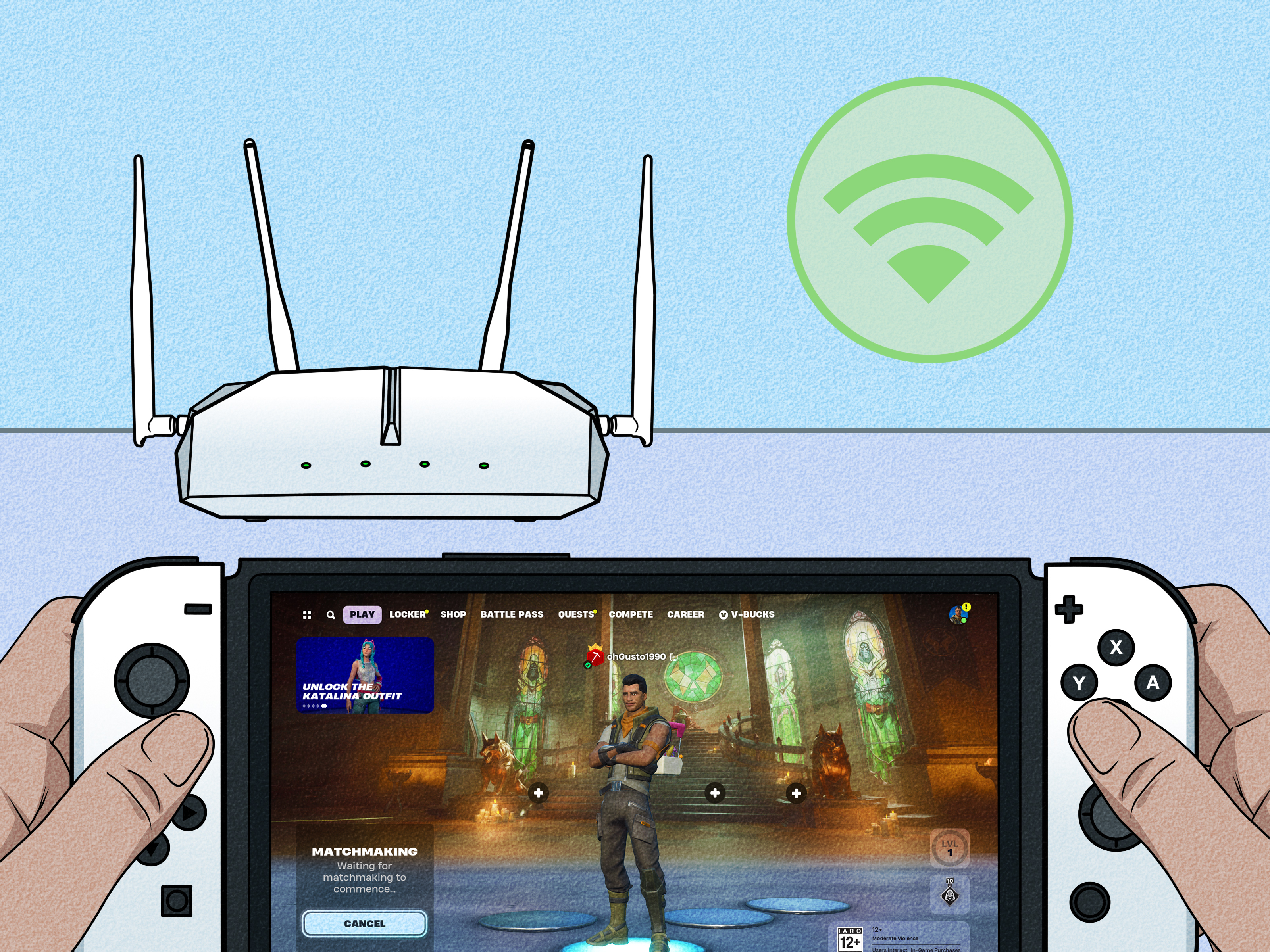
- A stable internet connection
- A supported Fortnite mode or experience
Guest accounts and quick-play console accounts are not supported. Player 2 needs a real console profile, not a temporary guest login. This matters because Fortnite uses account linking to save progress, cosmetics, quests, Battle Pass progress, and locker items.
How to Play Fortnite Split-Screen on PS4
Playing Fortnite split-screen on PS4 is straightforward once both players have accounts ready. The PS4 may not be the newest console on the block, but it can still handle a couch co-op Fortnite session like a champassuming your internet is stable and both controllers are charged.
Step-by-Step Setup for PS4
- Turn on your PS4 and sign in as Player 1.
- Launch Fortnite and wait until you reach the main lobby.
- Turn on the second DualShock 4 controller.
- Select a different PlayStation account for Player 2.
- If Fortnite asks Player 2 to link an Epic Games account, follow the on-screen instructions.
- Wait for Player 2 to appear in the Fortnite lobby.
- Choose a supported mode or experience.
- Start the match and enjoy split-screen play.
On PlayStation, the second player may need to hold the on-screen join button shown in the lobby. The exact button prompt can change depending on updates, so follow the prompt shown at the bottom of the screen rather than relying on old screenshots or outdated videos.
How to Play Fortnite Split-Screen on PS5
Fortnite split-screen on PS5 works much like it does on PS4, but the newer hardware generally provides a smoother experience. The better performance helps because split-screen asks the console to render two viewpoints at once. In plain English: your PS5 is doing double duty, and unlike most group projects, it actually does the work.
Step-by-Step Setup for PS5
- Start your PS5 and sign in with the main player’s PlayStation Network account.
- Open Fortnite and enter the lobby.
- Turn on the second DualSense controller.
- Choose a separate PSN account for Player 2.
- Link Player 2’s Epic Games account if Fortnite asks for it.
- Wait until Player 2 appears in the lobby beside Player 1.
- Select a supported game mode.
- Ready up and launch the match.
If Player 2 does not appear, check that the second controller is assigned to a different user profile. On PS5, it is easy to accidentally connect the second controller to the same user, which is about as helpful as bringing two pickaxes to a sniper fight.
How to Play Fortnite Split-Screen on Xbox
Fortnite split-screen also works on Xbox One, Xbox Series X, and Xbox Series S. Xbox players do not need to overcomplicate the process. The key is making sure Player 2 signs in with a separate Xbox account and has an Epic Games account linked when required.
Step-by-Step Setup for Xbox One, Series X, and Series S
- Turn on your Xbox console and sign in as Player 1.
- Launch Fortnite and go to the lobby.
- Turn on the second Xbox controller.
- Sign Player 2 into a separate Xbox profile.
- Follow any Epic Games account-linking prompts.
- Wait for Player 2 to show up in the Fortnite lobby.
- Choose a supported Fortnite mode.
- Ready up and start playing split-screen.
Fortnite is free to play, and free-to-play online titles generally do not require a paid Xbox Game Pass subscription just to play online multiplayer. That makes Fortnite split-screen on Xbox one of the easiest ways to enjoy local co-op without adding another monthly bill to the household subscription museum.
Which Fortnite Modes Support Split-Screen?
Supported modes can change as Fortnite evolves, but the current rule is simple: split-screen works only in experiences that support Local Multiplayer. Epic’s support guidance includes examples such as Battle Royale, Zero Build, LEGO Fortnite Odyssey, LEGO Fortnite Brick Life, and other supported experiences on PlayStation and Xbox.
To find compatible games inside Fortnite, check Discover for experiences marked with a Local Players tag or browse rows such as Great for Local Multiplayer. This is the safest method because Fortnite changes often. A mode that works today may be adjusted later, and a new local-friendly experience may appear after an update.
Modes and Platforms at a Glance
| Feature | Supported? | Notes |
|---|---|---|
| PS4 split-screen | Yes | Requires two controllers and two separate accounts. |
| PS5 split-screen | Yes | Works through Local Multiplayer in supported experiences. |
| Xbox split-screen | Yes | Works on Xbox One and Xbox Series X/S. |
| PC split-screen | No | Fortnite does not support local split-screen on PC. |
| Nintendo Switch split-screen | No | Not available for local couch co-op in Fortnite. |
| Mobile split-screen | No | Mobile devices do not support Fortnite Local Multiplayer. |
| Solos | No | Split-screen requires two players, so Solos are not supported. |
| Ranked Mode | No | Ranked is not supported for Local Multiplayer. |
Important Limitations of Fortnite Split-Screen
Fortnite split-screen is fun, but it is not identical to playing on two separate consoles. The shared-screen format comes with a few limitations that players should know before dropping in.
The Lobby and Menus Are Not Fully Shared
Local Multiplayer mainly activates inside supported matches. The lobby and submenus are not fully shared in the same way as regular gameplay. This means one player may control certain menu actions while the other waits. It is normal, not a sign that your controller has joined the witness protection program.
Inventory Is Not Shared
Each player has their own inventory. You cannot magically share weapons, ammo, shields, or items just because you are sitting three feet apart. If Player 1 has a legendary weapon and Player 2 has a fishing rod and optimism, that is a teamwork conversation, not a technical issue.
Same Language Settings Are Required
Both players must use the same language settings for Local Multiplayer to work correctly. If split-screen is not launching and everything else looks right, check the language settings on both accounts.
If One Player Leaves, the Session Ends
If either player disconnects or exits the match, the local multiplayer session can end. Make sure both players are ready before matchmaking. Also, charge your controllers. A dead controller in the final circle is not a tragedy; it is a preventable comedy.
How to Fix Fortnite Split-Screen Not Working
If Fortnite split-screen is not working on Xbox, PS4, or PS5, do not panic. Most problems come from account setup, unsupported modes, unstable internet, or temporary Fortnite issues after updates.
1. Check That You Are on a Supported Console
Split-screen only works on PlayStation and Xbox consoles. If you are trying on PC, Nintendo Switch, mobile, or cloud gaming, the feature will not appear.
2. Use a Real Second Account
Guest accounts and quick-play accounts are not supported. Player 2 needs a separate console account. If the account is brand new, Fortnite may ask you to link it to an Epic Games account before Player 2 can join.
3. Choose a Supported Mode
If the mode does not support Local Multiplayer, Player 2 may not be able to join or the experience may show as locked. Try Battle Royale, Zero Build, LEGO Fortnite experiences, or another game marked with the Local Players tag.
4. Restart Fortnite
Close Fortnite completely and reopen it. This simple fix solves many lobby and controller recognition issues, especially after an update.
5. Restart the Console
A full console restart can clear temporary glitches. On Xbox, you can also power cycle the console. On PlayStation, restart from the power menu rather than simply entering rest mode.
6. Check Your Internet Connection
Fortnite Local Multiplayer still requires a stable internet connection. If your connection is weak, laggy, or dropping, split-screen may fail or disconnect during matchmaking.
7. Check Parental Controls
If Player 2 is using a child or teen account, parental controls may block certain experiences, communication features, or multiplayer access. Review Epic Games, PlayStation, or Xbox family settings if you see locked-content messages.
Tips for a Better Fortnite Split-Screen Experience
Split-screen changes how Fortnite feels. You have less screen space, smaller visual details, and more couch-based communication. Use these tips to make the experience smoother.
Use a Large TV
A bigger screen makes split-screen much easier. Fortnite has lots of movement, visual effects, loot icons, and distant enemies. On a small display, spotting opponents can feel like trying to identify a mosquito from across a football field.
Adjust Brightness and HUD Settings
Make sure both players can clearly see the map, inventory, health bars, and enemy movement. If the image looks too dark or cluttered, adjust brightness and interface settings before the match.
Use Headsets Carefully
Two players in the same room can coordinate by talking out loud, but headsets may still help with directional audio. Just remember that open microphones can create echo if both players are in the same party chat.
Pick Complementary Roles
Split-screen works best when players cooperate. One player can focus on close-range fights while the other watches distance. One can build or drive while the other tracks enemies. Communication beats chaosalthough chaos does make excellent clips.
Real-World Experience: What It Actually Feels Like to Play Fortnite Split-Screen
Playing Fortnite in split-screen mode sounds simple on paper, but the real experience has its own personality. It is part gaming session, part team-building exercise, and part negotiation over who accidentally stole the good shotgun. The biggest change is screen awareness. When you play alone, the entire display belongs to you. In split-screen, your field of view feels smaller, and small details become easier to miss. A player hiding behind a tree, a sniper glint, or a loot label across the room may not stand out as clearly as it would on a full screen.
That does not make split-screen bad. In fact, it can make Fortnite more social and more fun. Sitting next to your teammate means communication is instant. You do not need to say, “Enemy northwest, behind the rock near the hill beside the suspicious bush.” You can just point and say, “There!” Very scientific. Very effective. This makes split-screen great for casual Duos, relaxed family sessions, and teaching a newer player how the game works.
For beginners, split-screen is one of the best ways to learn Fortnite because the more experienced player can guide the newer one in real time. Instead of explaining over voice chat, Player 1 can show Player 2 where to land, when to rotate, how to use shields, and why standing still in an open field is basically sending enemies a handwritten invitation. Parents playing with kids may also appreciate being able to see what is happening on the same screen, especially when managing game time, communication, or age-appropriate experiences.
The main drawback is performance and visibility. Even on newer consoles, split-screen can feel more visually crowded than solo play. Fast fights may be harder to read, especially in busy areas with builds, explosions, vehicles, and multiple squads. The best solution is to play smart rather than loud. Land in slightly calmer areas, gather loot before rushing fights, and avoid forcing every battle like you are auditioning for a highlight reel. Use markers often, communicate clearly, and agree on a basic plan before leaving the Battle Bus.
Another practical tip: sit at a comfortable distance from the TV. If you are too far away, the smaller split-screen view becomes difficult to read. If you are too close, your eyes may feel like they are doing cardio. A large TV helps a lot, but good positioning matters too. Make sure both players can see their half of the screen without leaning, squinting, or silently blaming the furniture.
Finally, split-screen Fortnite is at its best when you treat it as a fun co-op session rather than a sweaty competitive grind. Ranked mode is not supported, and honestly, that is probably healthy for everyone’s blood pressure. Use Local Multiplayer for casual wins, funny moments, teaching sessions, LEGO adventures, Zero Build runs, and Battle Royale matches where the main goal is shared fun. A Victory Royale is fantastic, but laughing because both players panicked and jumped into the same car during a storm rotation is also part of the experience.
Conclusion
Fortnite split-screen mode on Xbox, PS4, and PS5 is one of the easiest ways to bring couch co-op back into a modern online game. With two controllers, two separate console accounts, linked Epic Games accounts, and a supported Fortnite experience, two players can jump into the same match from one console and one TV.
The feature is not available on PC, Nintendo Switch, mobile, cloud gaming, Solos, Ranked Mode, Save the World, or unsupported experiences, so the most reliable approach is to look for Local Multiplayer support inside Fortnite’s Discover section. Once everything is set up, split-screen can be a surprisingly fun way to play, especially for families, friends, and anyone who believes teamwork is easier when your teammate is close enough to hear your dramatic snack requests.
Note: Fortnite changes frequently, so always check the in-game Local Players tag and current lobby prompts if a button, mode, or menu looks different after an update.

