
Hair Care
How to Delete a Mobile Legends Account: Complete Guide
Aug
Thinking about deleting your Mobile Legends account? Maybe ranked matchmaking has tested your soul, maybe you want a clean gaming break, or maybe you simply want your personal data handled properly. Whatever the reason, deleting a Mobile Legends: Bang Bang account is not as simple as tossing the app into the digital trash can and declaring victory. Uninstalling the game removes the app from your phone, but your MLBB account can still exist on the server, quietly waiting like a jungler in a bush.
This complete guide explains how to delete, cancel, unlink, or protect your Mobile Legends account the right way. It also covers what happens after account cancellation, how to request personal data deletion, what to do before you delete anything, and common mistakes that make players think their account is gone when it is definitely still alive and wearing your favorite skin.
What “Delete a Mobile Legends Account” Really Means
Before you start tapping buttons, it is important to understand the difference between three actions: uninstalling the app, unlinking third-party login accounts, and applying for account cancellation. These are often mixed together, but they are not the same thing.
Deleting the App Is Not Deleting the Account
If you remove Mobile Legends: Bang Bang from your Android phone, iPhone, tablet, or emulator, you are only deleting the local app files. Your game profile, heroes, skins, rank history, diamonds, friends list, and account bindings can still remain on the game servers. When you reinstall the game and log back in with the same Moonton, Google, Facebook, TikTok, Apple, or VK account, your profile may return.
In plain English: uninstalling MLBB is like leaving the party. Deleting your account is like asking the host to remove your name from the guest list forever. Very different levels of commitment.
Unlinking Is Not Full Deletion Either
Unlinking removes a third-party login method, such as Facebook, Google Play Games, TikTok, Apple ID, or VK, from your Mobile Legends account. This can help if you want to improve account security, stop using a certain login method, or prepare the account before selling your phone. However, unlinking does not automatically erase your Mobile Legends account.
Account Cancellation Is the Closest In-Game Option
Mobile Legends uses an account cancellation process through the in-game Account Center. Depending on your region, app version, and account status, this may appear as Cancel Account, Account Cancellation, or a similar option. This process usually requires you to read the cancellation conditions, confirm your decision, and wait through a review or cooling-off period.
Because game interfaces change, always read the exact cancellation page shown inside your own Mobile Legends app before confirming. The small print is not decoration; it is the boss fight before deletion.
Before You Delete Your Mobile Legends Account
Deleting or canceling a Mobile Legends account can be permanent. Before you proceed, take a few minutes to prepare. Future-you may thank present-you for not speed-running regret.
1. Save Your Account Details
Take screenshots or notes of your Account ID, Server ID, nickname, bound email, purchase history, and recent login methods. If something goes wrong, these details can help customer support verify ownership. This is especially important if your account has rare skins, high rank history, or years of progress.
2. Use or Document Paid Items
Mobile Legends accounts may include purchased diamonds, skins, battle emotes, passes, and other virtual items. Once account cancellation is complete, access to those items can be lost. Refunds are not guaranteed, and most game currencies and virtual goods are treated as non-refundable after purchase. If you recently bought diamonds by accident, handle the purchase issue first instead of jumping straight to deletion.
3. Secure the Account First
If your account is hacked, stolen, frozen, banned, or under security review, deletion may not be the best first move. You may need to recover the account, remove unauthorized bindings, or contact customer support before submitting a cancellation request. Trying to cancel a compromised account without resolving ownership can make the process messier than a five-person mid-lane fight at level one.
4. Decide Whether You Want Deletion or a Break
If you are simply burned out, consider logging out, uninstalling the app, muting notifications, or setting screen-time limits first. Account cancellation is a serious step. A gaming break is reversible. A completed account deletion may not be.
How to Delete a Mobile Legends Account Through Account Center
The exact menu names can vary slightly by version, region, and whether you are using the standard global version or a regional version such as Mobile Legends: Bang Bang.US. Still, the general process is usually similar.
Step 1: Open Mobile Legends
Launch Mobile Legends: Bang Bang on the device where your account is already logged in. Make sure you have a stable internet connection. Do not start this process while your Wi-Fi is doing its best impression of a potato.
Step 2: Tap Your Profile Icon
From the main lobby, tap your profile avatar in the upper-left corner. This opens your profile page, where you can view account details and settings.
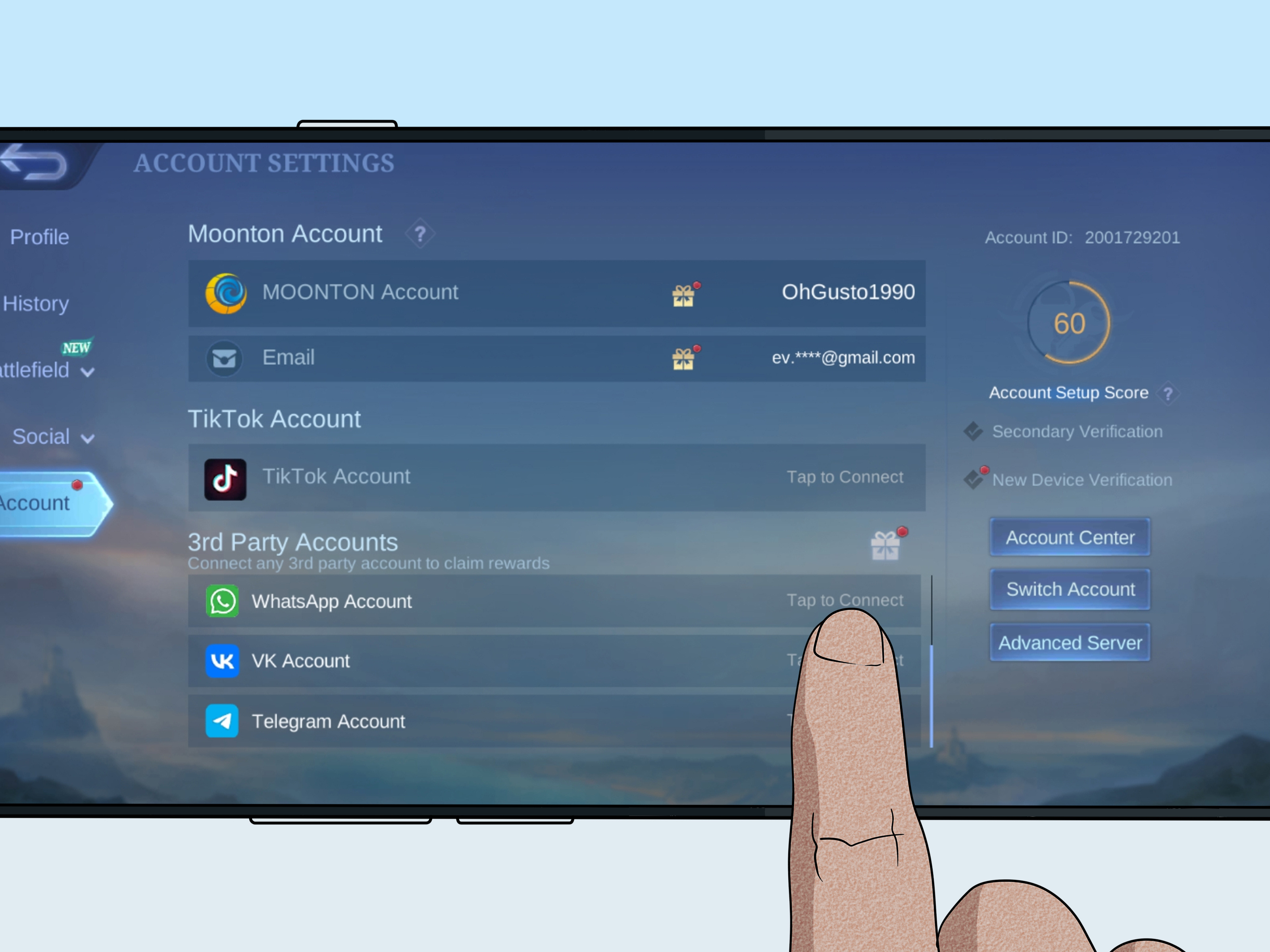
Step 3: Go to the Account Tab
Look for the Account tab. This is where Mobile Legends keeps account binding, switching, security, and account-management tools.
Step 4: Open Account Center
Tap Account Center. This area is commonly used for managing account security, connected login methods, password settings, and cancellation-related options.
Step 5: Choose Cancel Account
If your account and region support the feature, you should see an option such as Cancel Account or Account Cancellation. Tap it. The game may open a browser-style page or an in-app web page with cancellation rules.
Step 6: Read the Cancellation Conditions
Mobile Legends may require that your account is in normal standing before cancellation. For example, an account may need to be free of certain security risks, recent bans, frozen status, or unresolved account problems. The exact requirements can change, so read the conditions shown on your screen carefully.
Step 7: Confirm That You Understand the Consequences
You may need to check a box confirming that you have read the account cancellation agreement and meet the cancellation conditions. Do not treat this like a game update pop-up. Read it, because it explains what you may lose and how the waiting period works.
Step 8: Submit the Request
After confirming, submit the account cancellation request. The game may log you out or show a message that your request is under review. In many cases, there is a waiting or cooling-off period before deletion is finalized.
Step 9: Do Not Log Back In During the Waiting Period
This part is crucial. Logging back into the account during the cancellation or cooling-off period may cancel or interrupt the deletion process. If you are serious about deleting your Mobile Legends account, resist the urge to “just check.” That tiny peek can become the gaming equivalent of texting your ex “u up?” and restarting the whole drama.
How to Request Personal Data Deletion
Account cancellation and personal data deletion are related, but they may not always be identical. A canceled game account may become inaccessible, while certain data may be retained for legal, security, fraud-prevention, payment, or dispute-resolution reasons. If your main goal is privacy, you should also consider submitting a formal personal data deletion request.
Contact Moonton’s Data Protection Channel
Moonton’s privacy materials direct users to contact its data protection email for privacy rights requests. When writing your request, keep it clear, polite, and specific. Mention that you want to exercise your right to delete or erase personal data associated with your Mobile Legends account.
Include Verification Information
To protect users, support teams may require identity or account verification before making privacy changes. Be prepared to provide your account ID, server ID, registered email, approximate account creation date, device model history, and proof of purchase if needed. Do not send passwords. A real support team should not need your password to verify your identity.
Use a Simple Email Template
You can adapt this example:
Subject: Request to Delete Mobile Legends Account and Personal Data
Hello,
I would like to request deletion or erasure of the personal data associated with my Mobile Legends: Bang Bang account. My account details are:
Nickname: [Your nickname] Account ID: [Your Account ID] Server ID: [Your Server ID] Bound email or login method: [Your login method]
Please let me know what information you need to verify ownership and process this request. Thank you.
If you are playing a regional version, such as a U.S.-specific version, check the app store listing, in-game customer service area, and privacy policy for the correct support contact. Publishers and support channels can vary by market.
How to Unlink Facebook, Google, TikTok, Apple, or VK From Mobile Legends
If you do not want to fully delete your Mobile Legends account, unlinking third-party accounts may be the better option. This can help protect privacy, clean up old login methods, or stop your MLBB profile from being connected to a social account you no longer use.
Steps to Unlink a Third-Party Account
- Open Mobile Legends: Bang Bang.
- Tap your profile icon in the upper-left corner.
- Go to the Account tab.
- Open Account Center.
- Choose Disconnect Third-Party Account or a similar option.
- Select the account you want to unlink, such as Facebook, Google Play, TikTok, Apple, or VK.
- Follow the verification steps.
Important Warning About Unlinking
Do not unlink your only login method unless you have another secure method already bound. If you remove the only account that lets you sign in, you could lock yourself out. Before unlinking Facebook or Google, make sure your Moonton account email is active, verified, and protected with a strong password.
How to Delete Mobile Legends Data From Your Phone
If your goal is to remove local game files, cached data, and app storage from your device, you can do that without deleting your actual account. This is useful when selling a phone, freeing storage, or fixing a glitch.
On Android
- Open Settings.
- Go to Apps or Apps & Notifications.
- Select Mobile Legends: Bang Bang.
- Tap Storage.
- Choose Clear Cache or Clear Data.
- Uninstall the app if you want to remove it completely from the device.
Clearing data may log you out locally, but it does not necessarily delete your server-side account.
On iPhone or iPad
- Open Settings.
- Go to General.
- Tap iPhone Storage or iPad Storage.
- Select Mobile Legends: Bang Bang.
- Choose Delete App.
On iOS, deleting the app removes the app and its local documents from the device. Your MLBB account may still exist if it is bound to a login method.
Common Problems When Deleting a Mobile Legends Account
The Cancel Account Button Is Missing
If you cannot find the cancellation option, update the game, check Account Center again, and confirm you are logged into the correct account. Some versions, regions, or account statuses may show different menus. You can also use in-game customer service to ask where the cancellation feature is located for your account.
Your Account Is Banned or Frozen
A banned, frozen, or risky account may not pass cancellation conditions. Resolve the ban appeal, security lock, or account recovery issue first. If you believe the account was compromised, use account recovery rather than deletion as your first step.
You Logged In During the Cooling-Off Period
If you log back in while your account is waiting for cancellation, the deletion request may be stopped or reset. The safest approach is to submit the request, uninstall the app, avoid all login attempts, and wait until the stated period ends.
You Want to Start a New Account
Starting fresh may require more than deleting the app. You may need to log out, switch accounts, clear local app data, or use a different login method. However, do not abuse account systems, use stolen accounts, or buy and sell accounts. Those shortcuts often lead to security problems and support headaches.
Should You Delete, Unlink, or Just Take a Break?
The best option depends on your goal. If you are worried about privacy, use account cancellation and submit a data deletion request. If you only want to stop logging in through Facebook or Google, unlink the third-party account. If you are frustrated after a losing streak, maybe uninstall the app for a week and drink water like a responsible adult hero.
Choose Account Cancellation If:
- You no longer want access to the MLBB account.
- You understand that skins, diamonds, ranks, and progress may be lost.
- You are comfortable waiting through the review or cooling-off period.
- You will not log back in during the cancellation process.
Choose Unlinking If:
- You want to keep your account but remove Facebook, Google, TikTok, Apple, or VK access.
- You are changing phones or social accounts.
- You want better login security without losing progress.
Choose a Break If:
- You still like the game but need distance.
- You are deleting because of one bad ranked session.
- You might regret losing rare skins or long-term progress.
Security Tips Before and After Account Deletion
Whether you delete your Mobile Legends account or simply unlink it, account security matters. First, change the password of any bound email or Moonton account. Second, remove suspicious devices or sessions if the option is available. Third, avoid sharing screenshots that show your full account ID, server ID, or purchase receipts in public groups.
If you contacted support, keep copies of your request, confirmation messages, and ticket numbers. If deletion is denied, these records help you follow up without starting from zero. Also, do not trust random “account deletion services” on social media. Anyone asking for your password, verification code, or payment to delete your account is waving a red flag large enough to be seen from the Land of Dawn.
Real-World Experience: What It Feels Like to Delete a Mobile Legends Account
Deleting a Mobile Legends account sounds technical, but for many players it is surprisingly emotional. This is not just a random app with a few settings. It may be an account you used for years, with favorite heroes, legendary skins, old squad memories, late-night comebacks, and matches that somehow lasted longer than a family dinner. Even if the game has frustrated you, pressing the cancellation button can feel like closing a tiny chapter of your online life.
A common experience is hesitation. Players often open Account Center ready to delete everything, then suddenly remember the first skin they bought, the friend who invited them to ranked, or that one impossible comeback where the base had one hit left. At that moment, account deletion becomes less like cleaning storage and more like deciding whether to throw away a scrapbook. That is why it helps to pause before submitting the request. Ask yourself whether you want permanent deletion or simply a healthier relationship with the game.
Another real-world issue is confusion between uninstalling and deleting. Many players delete the app, reinstall it months later, and are shocked when the old account returns. This happens because the account was never actually canceled; the app was only removed from the phone. In practice, anyone who wants a true account reset should focus on account cancellation, account unlinking, and data deletion requests rather than relying on uninstalling alone.
The waiting period can also test your patience. Some players submit a cancellation request and then log back in just to check the status. Unfortunately, logging in during a cooling-off period may interrupt the process. The smarter move is to write down the submission date, take screenshots of confirmation pages, uninstall the game, and avoid temptation. If your thumb automatically opens MLBB when bored, move the app icon away or delete the app after submitting the request. Yes, your muscle memory may complain. It will survive.
From a practical perspective, the smoothest deletion experiences happen when players prepare first. They verify their email, collect account details, settle security issues, and read the cancellation conditions before confirming. The messiest experiences happen when someone rushes in angry after a losing streak, forgets which account is bound, removes the wrong login method, or deletes the app before saving account information. In other words, delete with a plan, not with tilt.
The best advice is simple: treat your Mobile Legends account like any other online account with value. Protect it before deleting it, document it before requesting changes, and understand what you are giving up. If you are done with the game for good, account cancellation can provide closure. If you are only tired, a break may be enough. Either way, the goal is the same: you should control your gaming account, not the other way around.
Conclusion
Deleting a Mobile Legends account requires more than uninstalling the app. To properly remove or cancel your MLBB account, go through Profile > Account > Account Center > Cancel Account, read the cancellation rules, submit the request, and avoid logging back in during the waiting period. If your main concern is privacy, also send a personal data deletion request through the official privacy or support channel connected to your region.
For players who are not completely sure, unlinking third-party accounts or taking a break may be safer than permanent deletion. Mobile Legends can be intense, but your account choices should be calm, informed, and free from post-defeat rage. Delete carefully, protect your data, and make sure the decision fits what you truly want.
SEO Tags
Note: Menu names and cancellation conditions may change by region, app version, account status, and publisher. Always read the account cancellation page shown inside your own Mobile Legends app before confirming deletion.

