
Beauty Unlocked
How to Connect Your Xbox One to the Internet: 7 Steps
Sep
Connecting an Xbox One to the internet should be one of those “plug it in and start gaming” moments. Usually, it is. Occasionally, however, your console decides it has never heard of Wi-Fi, your password suddenly feels 47 characters longer than it looked on your phone, or your NAT type starts speaking in riddles.
The good news is that getting an Xbox One online is straightforward whether you use Wi-Fi or a wired Ethernet connection. Once connected, your console can access the Xbox network, download games and updates, use multiplayer features, stream entertainment apps, sync game data, and communicate with friends.
Microsoft’s current Xbox support interface directs console owners through Profile & system > Settings > General > Network settings, where the console provides wireless setup, connection testing, NAT information, and other diagnostic tools.
Below is a complete seven-step guide to connecting your Xbox One to the internet, followed by troubleshooting advice and real-world setup experiences that can save you from spending an evening rebooting the router like it personally offended you.
What You Need Before Connecting Your Xbox One
Before opening any menus, make sure your home internet connection is actually working. Test another device such as a phone, laptop, or tablet. If nothing can access the internet, the Xbox is probably innocent for once.
For a wireless connection, you will need your Wi-Fi network name, also called the SSID, plus the network password. For a wired connection, you need an Ethernet cable long enough to reach from the Xbox One to your router, gateway, switch, or compatible mesh node.
The Xbox One was designed with both Ethernet and Wi-Fi networking. Microsoft documented Gigabit Ethernet and 802.11n wireless connectivity, including access to the 5 GHz wireless band on Xbox One hardware.
How to Connect Your Xbox One to the Internet in 7 Steps
Step 1: Turn On Your Xbox One and Check Your Home Network
Turn on the Xbox One and your television or monitor. At the same time, check your modem and router. Their normal internet or connection indicator lights should be active.
If your phone or computer is already browsing websites through the same home network, you have confirmed that your internet service is functioning. That simple test is important because it separates an Xbox connection problem from a whole-house internet outage.
If the entire network appears offline, restart your modem or gateway according to your internet provider’s instructions before troubleshooting the console. Xbox Support also recommends power cycling network hardware as part of wireless connection troubleshooting.
Step 2: Decide Between Wi-Fi and Ethernet
Your next decision is whether to connect wirelessly or use an Ethernet cable.
Wi-Fi is convenient because no cable has to cross the room. It is the logical choice when your Xbox is far from the router or running Ethernet would require redesigning your living room around one stubborn piece of wire.
Ethernet is generally the better option for connection consistency. Connect one end of an Ethernet cable to a LAN port on your router or gateway and the other end to the Ethernet port on the Xbox One. The console should detect the wired network automatically.
Major internet providers also recommend wired connections for gaming when practical because Ethernet avoids many problems caused by wireless signal strength and interference. Verizon, for example, recommends connecting gaming consoles directly to a router when possible, while its gaming guidance notes that wired networking can offer lower latency and more consistent performance than Wi-Fi.
Step 3: Open the Xbox Network Settings
For Wi-Fi setup, press the Xbox button on your controller to open the guide.
Navigate through:
- Profile & system
- Settings
- General
- Network settings
If your Xbox is not connected, the network screen provides the option to configure a wireless connection. This same area also contains network tests, NAT information, bandwidth statistics, and advanced networking options.
Do not worry if your screen looks slightly different because of a system update. The labels may evolve, but Xbox currently keeps its primary connectivity controls under the General and Network settings area.
Step 4: Select Your Wi-Fi Network and Enter the Password
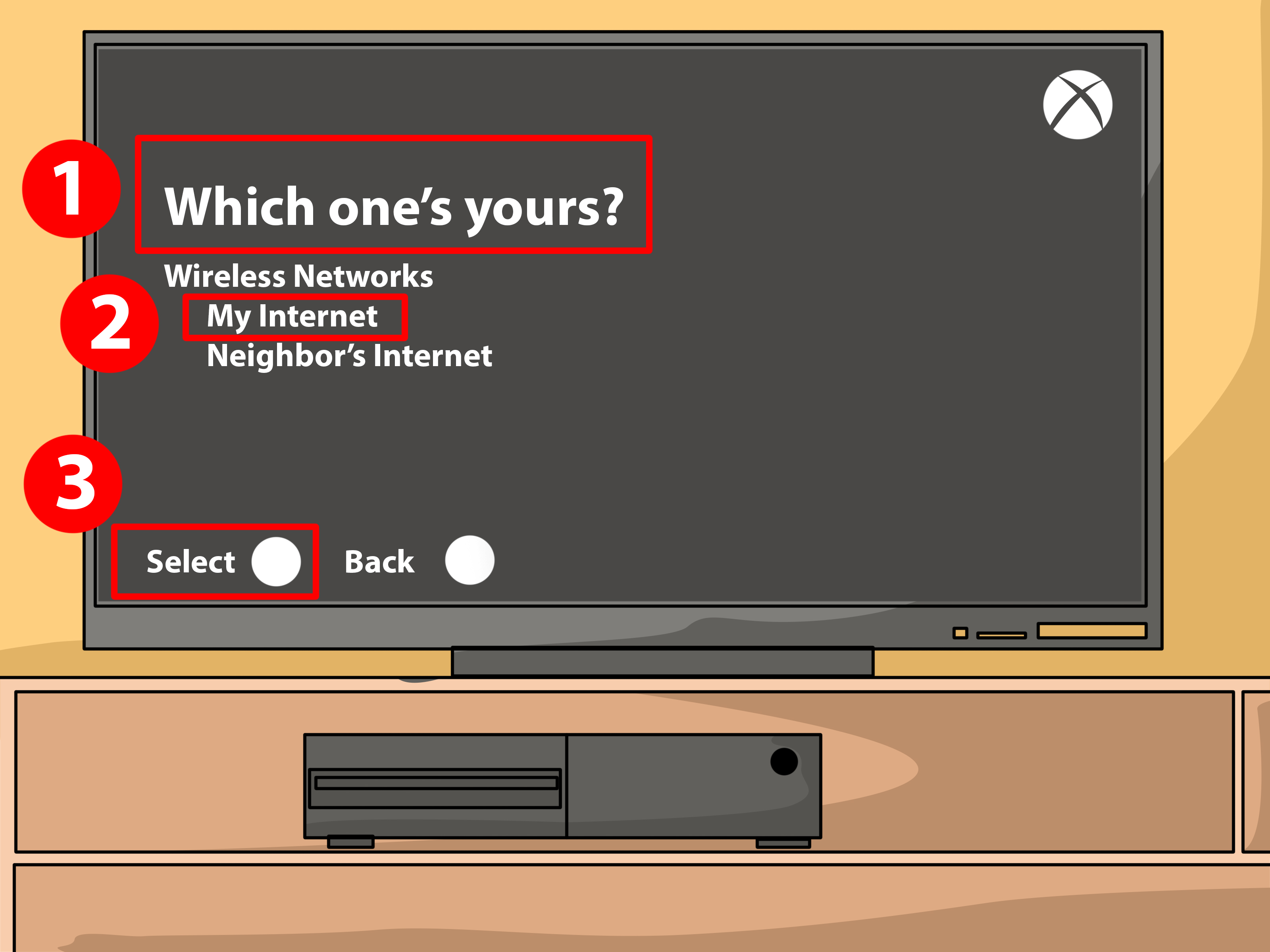
Choose Set up wireless network. The Xbox One will scan for nearby Wi-Fi networks and display the network names it can detect.
Select your home Wi-Fi network and carefully enter its password. Wi-Fi passwords are case-sensitive, so uppercase letters, lowercase letters, numbers, and symbols matter.
If you do not remember your password, check the label on your router or gateway if you still use its original credentials. You can also view or change the Wi-Fi password through your router or internet provider’s management app. Microsoft maintains separate instructions for locating a saved wireless network password when necessary.
Be especially careful when distinguishing characters such as 0 and O, 1 and l, or a hyphen and underscore. Nothing tests a gamer’s patience quite like typing a 20-character password three times only to discover that the fifth character was an uppercase letter.
Step 5: Let the Xbox Establish the Internet Connection
After you submit the correct password, your Xbox One should connect to the router and then access the internet.
If you are using Ethernet, there is normally no Wi-Fi password to enter. Once the cable is connected properly and your router is providing addresses automatically, the Xbox can typically configure the necessary network information without manual intervention.
A normal home network usually assigns the console its IP address, gateway, and DNS information automatically. Xbox does provide advanced settings for manually configuring IP and DNS information, but most households should leave these settings automatic unless they have a specific networking reason to change them.
Once internet access is available, your console may prompt you to sign in to your Microsoft/Xbox account or download system and game updates.
Step 6: Test the Network Connection and NAT Type
Do not stop simply because the Wi-Fi symbol looks happy. Run the Xbox network tests.
Return to Settings > General > Network settings and choose the available connection test. Xbox uses this area to identify network errors and display the current connection status.
Also check the NAT Type. NAT, or Network Address Translation, affects how easily your console can communicate with other devices and multiplayer services over the internet.
An Open NAT generally provides the fewest multiplayer restrictions. Moderate or Strict NAT can sometimes cause difficulty joining certain multiplayer sessions, communicating with particular players, or hosting games. Xbox provides a dedicated NAT troubleshooting process from the Network settings screen.
If NAT problems appear, do not immediately start forwarding random router ports you found in a ten-year-old forum post. First restart your equipment, check for double NAT, and verify your router configuration. Many current routers support UPnP, which allows applications and gaming devices to automatically create appropriate network mappings. Linksys, for example, documents UPnP specifically as a technology used by online gaming applications.
Step 7: Optimize the Connection for Gaming
Congratulations: your Xbox One is online. Now make the connection good enough that your character does not teleport backward every time somebody in the house opens a streaming app.
If possible, use Ethernet for competitive multiplayer gaming. When Wi-Fi is necessary, place the router in an open, reasonably central location rather than inside a cabinet, behind a television, on the floor, or surrounded by large objects.
Xfinity, AT&T, NETGEAR, and Verizon all emphasize router placement and physical obstructions as major factors in wireless performance. Walls, furniture, metal, distance, neighboring networks, and household electronics can weaken or interfere with Wi-Fi signals.
If your router has separate 2.4 GHz and 5 GHz networks, try 5 GHz when the Xbox is relatively close to the router. The 5 GHz band generally provides higher throughput and experiences less congestion, while 2.4 GHz typically reaches farther through a home. Xbox Support itself recommends 5 GHz for several gaming and streaming scenarios when available.
What to Do If Your Xbox One Will Not Connect to Wi-Fi
If the seven steps above do not work, resist the urge to blame Microsoft, your ISP, the router manufacturer, and Mercury retrograde simultaneously. Troubleshoot one layer at a time.
Restart the Xbox, Modem, and Router
A full restart clears temporary connection problems surprisingly often. Restart the Xbox and power-cycle your network hardware. Xbox Support specifically includes restarting network hardware among its wireless troubleshooting procedures.
Check the Xbox Service Status
Your home network can be functioning perfectly while an Xbox service is experiencing an outage. Microsoft provides an Xbox Status page showing current service disruptions involving Xbox services, games, and apps. Checking it can prevent an hour of troubleshooting a router that did absolutely nothing wrong.
Move the Xbox or Router Closer Together
If the network appears but repeatedly disconnects, signal quality may be the problem. Reduce the distance between the console and router or remove major physical obstacles if possible.
The 2.4 GHz band generally reaches farther, while 5 GHz can provide better performance at shorter distances. Thick walls, metal objects, furniture, nearby routers, cordless devices, and other electronics can contribute to wireless interference.
Try Ethernet as a Diagnostic Test
Even if you ultimately want Wi-Fi, temporarily connecting the Xbox directly to the router with Ethernet is an excellent troubleshooting method.
If Ethernet works immediately but Wi-Fi does not, you have narrowed the problem to wireless configuration, interference, signal strength, or the router’s Wi-Fi environment rather than the internet service itself.
Check for Double NAT
Double NAT commonly occurs when two devices on the home network are both acting as routersfor example, an ISP gateway connected to a second Wi-Fi router that is also performing routing.
Xbox has a dedicated diagnostic for situations where Double NAT detected appears in Network settings. Depending on your equipment, the solution may involve changing the network configuration or placing one router/gateway into the appropriate bridge or access-point mode.
Review Advanced Settings Only When Necessary
Xbox exposes advanced IP, DNS, MAC address, and related network options. These controls are useful for troubleshooting unusual networks, but manually changing values is rarely the best first move.
Start with automatic settings. If your ISP, network administrator, or router configuration specifically requires custom DNS or static addressing, then use the Xbox Advanced settings page.
Wi-Fi vs. Ethernet for Xbox One: Which Is Better?
For pure convenience, Wi-Fi wins. For predictable gaming performance, Ethernet normally wins.
A wired connection is not affected by Wi-Fi channel congestion, distance from the access point, or most household radio interference. It is therefore especially attractive for competitive shooters, fighting games, racing games, and other titles where inconsistent latency becomes painfully obvious.
Wi-Fi remains perfectly practical for many Xbox One setups. If your router is nearby, the signal is strong, and your household network is not overloaded, wireless gaming can work very well. Verizon and AT&T both recommend wired networking for stationary high-bandwidth devices when practical, while modern Wi-Fi guidance emphasizes strong signal placement when wireless connectivity is required.
Real-World Xbox One Internet Setup Experiences
Technical instructions look beautifully tidy on paper: choose the network, enter the password, connect, done. Real homes are less cooperative. Routers live in basements, TVs sit against thick walls, somebody starts a 4K movie during your multiplayer match, and the Ethernet cable is always six feet shorter than necessary.
Experience 1: The Xbox Connects, but Multiplayer Feels Terrible
One common situation is an Xbox that technically passes the internet test but produces lag, delayed actions, voice-chat interruptions, or random multiplayer disconnects.
The useful lesson is that “connected” and “good connection” are not the same thing. A weak Wi-Fi signal may still successfully reach the internet while delivering inconsistent latency. In this situation, testing Ethernet can reveal the problem quickly. If gaming immediately becomes smoother over a cable, there is little reason to start changing DNS servers or reinstalling games. The wireless link deserves your attention first.
Experience 2: Moving the Router Solves More Than Buying Faster Internet
Another classic setup involves a fast internet plan combined with miserable Wi-Fi. The homeowner pays for plenty of bandwidth, yet the Xbox struggles because the router sits behind a television, inside a cabinet, or three rooms away.
Moving the router into a higher, more open position can improve the connection without changing the internet plan at all. This matches guidance from major networking companies and ISPs: wireless performance depends heavily on distance, obstructions, and interference, not merely the maximum speed printed on your monthly bill.
Experience 3: Switching From 2.4 GHz to 5 GHz HelpsUntil It Does Not
Suppose the Xbox is in the same room as a dual-band router. Moving it from 2.4 GHz to 5 GHz may provide a cleaner, faster connection because 5 GHz is typically better suited to high-bandwidth activity at shorter range.
Move the console to the opposite end of the house, however, and the result can reverse. Because 2.4 GHz travels farther and penetrates obstacles more effectively, it may be the more stable choice at long range. This is why blindly declaring one Wi-Fi band “better” misses half the story. The correct band depends on your environment.
Experience 4: The Password Is CorrectExcept It Is Not
A surprisingly large percentage of apparent networking disasters boil down to credentials. Perhaps the router was replaced recently. Perhaps somebody changed the password but kept the same network name. Perhaps the label shows a zero that looks suspiciously like the letter O.
Before resetting the router, verify the network name and password on another device. Re-enter the password slowly on the Xbox. It is not glamorous troubleshooting, but neither is spending 45 minutes adjusting router settings before discovering a typo.
Experience 5: NAT Problems Appear After Installing a New Router
A second router or mesh system can improve Wi-Fi coverage but sometimes creates a new problem when the original ISP gateway continues routing traffic. Suddenly, the Xbox reports double NAT or multiplayer behavior changes.
The important lesson is to understand which device is actually functioning as the router. Adding more network equipment does not automatically improve a network if multiple devices begin performing overlapping routing functions. Xbox’s built-in NAT diagnostics are valuable here because they point toward the network architecture rather than simply reporting “internet broken.”
Experience 6: The Best Fix Is Often the Simplest One
Home networking invites overengineering. Search long enough and you will encounter custom DNS servers, manual IP assignments, port-forwarding lists, QoS rules, alternate MAC addresses, channel analysis, firmware discussions, and enough acronyms to qualify as a second language.
Those tools have legitimate uses, but most Xbox One internet problems should be approached in a simpler order: confirm that the internet works, restart the equipment, verify the password, improve Wi-Fi signal strength, test Ethernet, run the Xbox network test, inspect NAT status, and only then investigate advanced router configuration.
That sequence matters because every successful test removes possibilities. Troubleshooting becomes less like randomly pressing buttons and more like solving a very small mystery in which the usual suspects are the cable, Wi-Fi signal, password, router, or service provider.
Conclusion
Learning how to connect your Xbox One to the internet does not require networking expertise. In most homes, the process comes down to opening Settings > General > Network settings, choosing the Wi-Fi network and entering its passwordor connecting an Ethernet cableand then testing the connection.
For the best gaming experience, do not focus only on download speed. Connection stability, Wi-Fi signal strength, latency, router placement, interference, and NAT configuration can all matter. Start simple, test one change at a time, and use the Xbox console’s built-in network diagnostics before reaching for complicated router settings.
Once everything is working, you can return to the important business: downloading a suspiciously enormous game update five minutes before your friends expect you online.

