
Beauty Unlocked
How to Change Password from Lock Screen on Windows
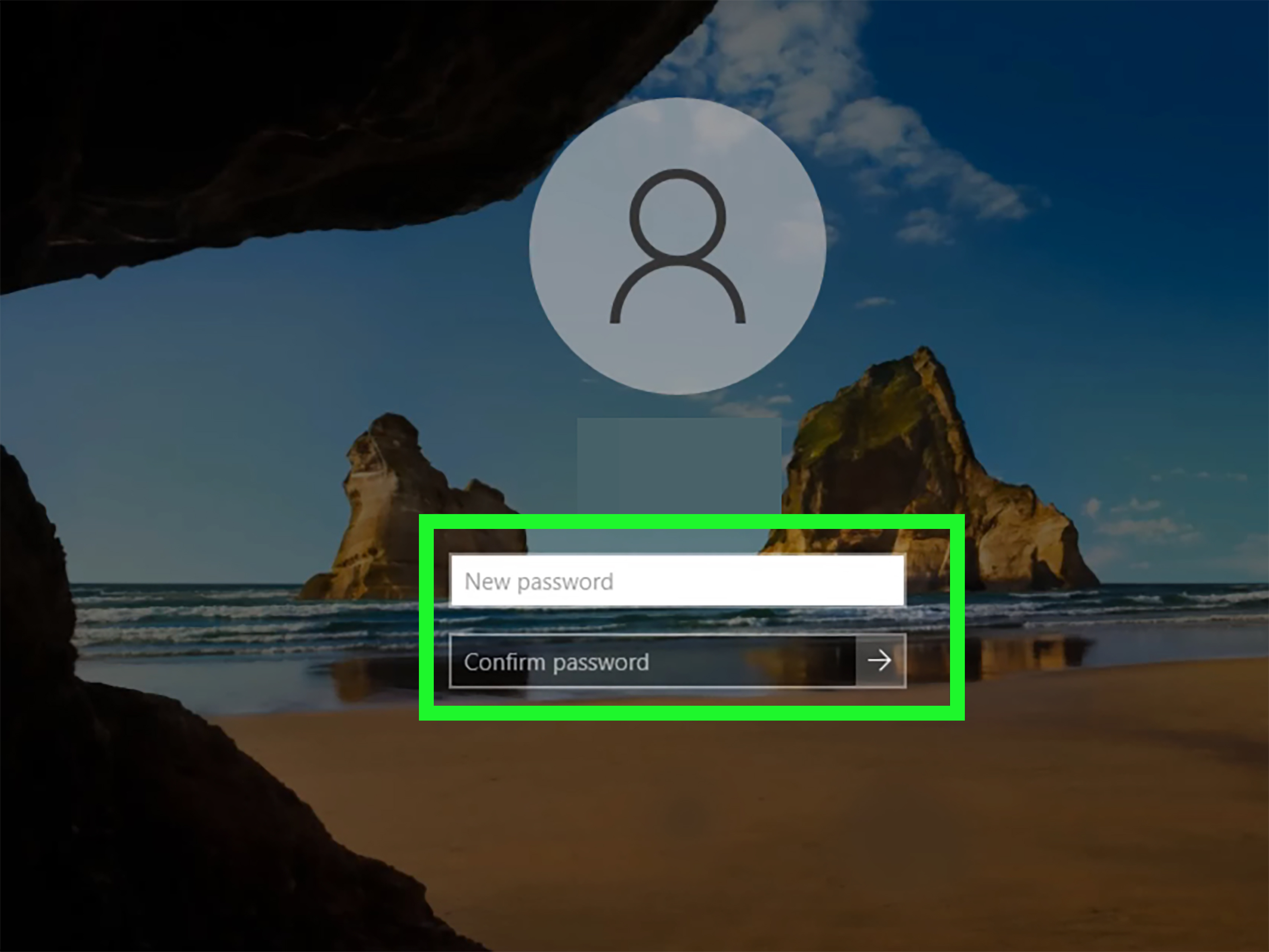
Aug
Getting locked out of a Windows computer has a special talent for happening at the worst possible moment. Perhaps you have a meeting in five minutes, an unfinished report on the desktop, or a browser containing 37 tabs you are emotionally unprepared to lose. Then Windows looks at you calmly and says, in effect, “Password, please.”
The good news is that Windows 11 and Windows 10 include several legitimate ways to change or reset a password from the lock screen. The exact method depends on whether you use a Microsoft account, a local Windows account, or an organization-managed work or school account. Your password is also different from your Windows Hello PIN, even though both may unlock the same computer.
This guide explains how to change a password from the Windows lock screen, how to recover a forgotten password, and what to do when the expected reset option does not appear. The instructions focus on built-in recovery tools rather than questionable “password bypass” tricks that can damage files, weaken security, or turn a minor inconvenience into an all-day repair project.
First, Identify Your Windows Sign-In Method
Before resetting anything, determine which type of credential Windows is requesting. Choosing the wrong recovery path is one of the most common reasons a password reset appears not to work.
| Sign-in type | How to recognize it | Typical recovery method |
|---|---|---|
| Microsoft account | The account name usually shows an email address | Use “I forgot my password” and verify your identity online |
| Local account | The account may show only a username | Answer security questions or use a password reset disk |
| Work or school account | The PC is managed by an employer, school, or organization | Use organizational self-service recovery or contact IT |
| Windows Hello PIN | The sign-in box asks for a PIN rather than a password | Select “I forgot my PIN” or switch to the password option |
On the sign-in screen, select Sign-in options to view the available methods. The key-shaped icon normally represents the account password. The keypad-style icon represents a Windows Hello PIN. Other icons may represent facial recognition, fingerprint authentication, a security key, or a picture password.
Can You Change a Password Directly from the Lock Screen?
You can reset a forgotten password from the Windows sign-in screen in many situations. However, Windows usually does not provide a general “change password” button on the basic lock screen when you already know the current password.
There is an important difference:
- Changing a password normally requires the current password and is performed after signing in.
- Resetting a password is used when the password has been forgotten, expired, or cannot be accepted.
If you know the existing password, sign in and press Ctrl + Alt + Delete, then select Change a password. You can also open Settings > Accounts > Sign-in options > Password > Change.
If the password has expired on an organization-managed computer, Windows may automatically request a new password during sign-in. In that situation, enter the old password, type the new password twice, and follow the organization’s password rules.
Method 1: Reset a Microsoft Account Password from the Lock Screen
This is the most common recovery method on modern Windows computers. A Microsoft account is connected to an email address and may also be used for Outlook, OneDrive, Microsoft 365, Xbox, or other Microsoft services.
Steps to reset the password
- Wake the computer and open the Windows sign-in screen.
- Select the correct user account.
- Click Sign-in options if Windows is currently asking for a PIN.
- Select the Password icon.
- Choose I forgot my password.
- Confirm the email address associated with the Microsoft account.
- Select an available verification method, such as a recovery email address, phone number, authenticator approval, or security code.
- Complete the identity verification process.
- Create and confirm a new Microsoft account password.
- Return to the sign-in screen and enter the new password.
The computer generally needs an internet connection to complete this process. On the lock screen, look for the network icon in the lower-right corner. Connect to Wi-Fi or plug in an Ethernet cable before starting the reset.
What if “I forgot my password” is missing?
First, confirm that you selected the password icon rather than the PIN icon. Some Windows configurations also provide a Web sign-in option under Sign-in options. That method can open an online authentication flow from the sign-in screen.
You may also reset the Microsoft account password from another phone, tablet, or computer. After changing it online, connect the locked PC to the internet and enter the new password.
If Windows continues rejecting the new password, restart the computer and try again. Also confirm that Caps Lock is off, the keyboard language is correct, and you are not accidentally entering the new password into the PIN field.
Method 2: Reset a Local Account Password with Security Questions
A local account exists only on the individual computer. It is not automatically connected to an online Microsoft identity. Windows can allow a local account password reset from the lock screen when security questions were configured for that account.
Steps for a local account
- On the Windows sign-in screen, select the local account.
- Choose the password sign-in option.
- Enter an incorrect password once and press Enter or select the arrow.
- Click OK after the incorrect-password message appears.
- Select Reset password.
- Answer the security questions exactly as they were originally configured.
- Enter a new password.
- Confirm the new password and sign in.
Security-question answers are not necessarily graded for spelling creativity. They must match the saved answers. If you originally typed “St. Louis” and now enter “Saint Louis,” Windows may treat the answers as different.
If the Reset password option never appears, the account may not have security questions, the computer may use an older account configuration, or the selected user may be an organization-managed account rather than a standard local account.
Method 3: Use a Windows Password Reset Disk
A password reset disk is a USB recovery tool created in advance for a local Windows account. It cannot normally be created after you are already locked out, which makes it similar to a fire extinguisher: wonderfully useful, provided you bought it before the kitchen started smoking.
Password reset disks apply to local accounts, not Microsoft accounts. The disk generally remains usable even if the local account password has changed since the recovery disk was created.
How to use the reset disk
- Insert the previously created password reset USB drive.
- Enter an incorrect password on the sign-in screen.
- Select Reset password.
- When the Password Reset Wizard opens, select Next.
- Choose the correct USB drive from the list.
- Enter and confirm a new password.
- Add a password hint that helps you without revealing the password to everyone who sees the screen.
- Finish the wizard and sign in with the new password.
Store the reset USB drive in a secure location. Anyone who possesses it and has physical access to the computer may be able to reset the associated local account password.
Method 4: Reset a Work or School Password
Business and school computers may use Active Directory, Microsoft Entra ID, or a hybrid identity system. Recovery options are controlled by the organization, so the lock screen may behave differently from a personal Windows PC.
If self-service password reset has been enabled, the sign-in screen may show a link such as Reset password, Forgot password, or Can’t access your account? Select it and complete the organization’s verification process.
Possible verification methods include:
- An authenticator notification
- A phone call or text message
- A security code sent to a registered email address
- Security questions
- A temporary access credential issued by the IT department
The computer may need to connect to the company network before it can validate a new password. In an office, connect by Ethernet or approved Wi-Fi. When working remotely, you may need a sign-in-screen VPN supplied by your organization.
If self-service recovery is unavailable, contact the company or school help desk. Do not attempt to replace system accessibility files, edit offline account databases, or follow random command-line bypass videos. On a managed PC, those actions may violate policy, trigger security alerts, or damage encrypted data.
How to Change a Known Password After Signing In
When you still know your password, changing it after signing in is faster and less dramatic than pretending you forgot it.
Use Ctrl + Alt + Delete
- Sign in to Windows.
- Press Ctrl + Alt + Delete.
- Select Change a password.
- Enter the current password.
- Enter the new password twice.
- Press Enter or select the arrow.
This method is especially useful for domain-connected work computers because it sends the password change through Windows’ secure sign-in interface.
Use Windows Settings
- Open Settings.
- Select Accounts.
- Choose Sign-in options.
- Expand Password.
- Select Change.
- Verify the current password and create a new one.
Menu wording can vary slightly between Windows versions and device configurations, but the Password section remains under Accounts and Sign-in options.
Windows Password vs. Windows Hello PIN
A Windows Hello PIN is not simply a shorter version of your Microsoft account password. The PIN is tied to a particular device and protected by that computer’s security hardware and Windows configuration. Your Microsoft account password can be used across Microsoft services, while the PIN generally unlocks only the enrolled device.
If you forgot the PIN but remember the password:
- Select Sign-in options.
- Choose the password icon.
- Sign in with your account password.
- Open Settings > Accounts > Sign-in options.
- Select PIN (Windows Hello) and create a new PIN.
If the sign-in screen displays I forgot my PIN, you can use that option and verify your identity. Resetting the PIN does not necessarily change the Microsoft account password.
What to Do When Password Recovery Does Not Work
Check the internet connection
Online Microsoft account recovery cannot finish without a working connection. Use the network control on the sign-in screen, reconnect Wi-Fi, or connect an Ethernet cable.
Check the keyboard layout
The lock screen may be using a different keyboard language. Characters such as quotation marks, slashes, and symbols can move between layouts. Check the language indicator near the lower-right corner of the screen.
Turn off Caps Lock and Num Lock
A password is case-sensitive. Laptop number-pad modes can also cause letter keys to produce numbers. Type carefully and use the password-reveal button when available.
Restart the computer
A newly changed online password may not be recognized immediately by a PC that has been asleep or disconnected. Restart it, connect to the internet, and try the new password again.
Try the previous password while offline
A Windows computer can sometimes rely on cached credentials when it cannot reach the online or organizational account service. If you recently changed a Microsoft, work, or school password elsewhere, the PC may still expect an older cached password while offline. Connect the device to the appropriate network and retry the new password.
Use another administrator account
If another authorized administrator account exists on a personal computer, that administrator may be able to reset a local user’s password. However, an administrator reset can affect access to files protected by certain encryption technologies or stored credentials. Use the account’s normal recovery method whenever possible.
Consider Windows recovery only as a last resort
When a local account has no security questions, no reset disk, no accessible administrator, and no supported recovery path, resetting or reinstalling Windows may be the remaining option. Depending on the chosen recovery method, applications, settings, and personal files can be removed.
Before resetting the PC, confirm whether the drive uses BitLocker or device encryption. You may need the BitLocker recovery key to access the drive or complete recovery. A Windows password reset and a BitLocker recovery request are two different problems.
Password Practices That Prevent Another Lockout
After regaining access, spend a few minutes improving account recovery. Future-you will be grateful, and future-you is famously difficult to contact during an emergency.
- Update the recovery phone number and email address on your Microsoft account.
- Enable an authenticator app or another strong verification method.
- Create a password reset disk if you intentionally use a local account.
- Store the BitLocker recovery key somewhere separate from the computer.
- Use a password manager to generate and store a unique passphrase.
- Set up Windows Hello face, fingerprint, or PIN authentication.
- Avoid password hints that reveal the password to anyone standing nearby.
A strong password does not have to resemble a cat walking across a keyboard. A long, unique passphrase is often easier to remember and harder to guess than a short password overloaded with predictable substitutions.
Frequently Asked Questions
Can I change my Windows password without logging in?
You can reset a forgotten password from the sign-in screen when using a recoverable Microsoft account, a local account with security questions, a local account with a password reset disk, or an organization that supports self-service password reset. A normal password change generally requires signing in or completing identity verification.
Why does the new Microsoft password not unlock my PC?
The computer might be offline, displaying the PIN field, using an incorrect keyboard layout, or relying temporarily on cached credentials. Connect it to the internet, select the password icon, restart the PC, and enter the new password carefully.
Can I use Command Prompt from recovery mode to reset the password?
Official recovery tools are safer. Command-line bypass instructions found online may modify protected system files, fail on encrypted drives, violate workplace policies, or create unauthorized access. Use Microsoft account recovery, security questions, a reset disk, another authorized administrator, or organizational support.
Will changing my Windows password delete my files?
A standard password change or supported account recovery normally does not delete personal files. Resetting or reinstalling Windows can remove applications, settings, and potentially files, depending on the selected recovery option. Encryption can also complicate access after an administrator forcibly resets a local password.
Is my PIN changed when I reset my Microsoft account password?
Not necessarily. The Microsoft account password and Windows Hello PIN are separate credentials. You may continue using the existing PIN, or Windows may ask you to verify the account and create a new PIN.
Real-World Experiences with Windows Lock-Screen Password Recovery
In practical troubleshooting, the hardest part is rarely clicking the correct button. The real challenge is identifying what Windows thinks the user is trying to enter. Many people say, “My password suddenly stopped working,” when the screen is actually requesting a PIN. They enter the Microsoft account password into a four- or six-digit PIN field several times, become increasingly suspicious of the computer, and eventually conclude that Windows has developed personal feelings about them.
The first habit that saves time is checking Sign-in options. Switching from the PIN icon to the password icon often resolves the issue immediately. This commonly happens after a Windows update, a hardware security change, or several failed facial-recognition attempts. The computer has not forgotten the account; it has simply changed which credential it is requesting.
Another frequent situation involves a Microsoft account password that was changed on a phone. The user returns to a sleeping laptop, enters the new password, and receives an incorrect-password message. The laptop may still be offline or operating with cached sign-in information. Connecting it to Wi-Fi and restarting usually gives Windows a clean opportunity to validate the updated credential. In some cases, signing in once with the existing Windows Hello PIN is enough to reach the desktop and synchronize the account.
Local accounts create a different kind of adventure. Security questions are helpful only when the answers remain memorable. A user might know that the answer involved a first pet but not remember whether the original entry was “Buddy,” “buddy,” or “Buddy the dog.” When creating security answers, consistency is more valuable than cleverness. The answers should also be difficult for strangers to discover through social media.
Password reset disks are extremely effective but surprisingly rare. People tend to learn about them approximately seven minutes after they needed one. For computers that must use local accounts, creating a reset USB drive during initial setup is a sensible precaution. Label it discreetly, store it securely, and do not leave it plugged into the computer like a decorative accessory.
Work laptops bring network dependencies into the story. An employee may change a company password through a web portal, then discover that the laptop accepts neither the old nor new password. The device may need to contact a domain controller, Microsoft Entra ID, or a corporate VPN service. Connecting to the organization’s approved network often solves the mismatch. When it does not, IT support is the right next step because administrators can see account status, password policies, lockout events, and device-management information that the user cannot.
One lesson appears repeatedly: avoid rushing into a factory reset. A reset may be appropriate when all supported recovery methods are unavailable, but it should not be the opening move. First confirm the account type, test the correct sign-in option, connect to the internet, review security questions, locate any reset disk, and check for another authorized administrator account. Also locate the BitLocker recovery key before changing startup or recovery settings.
The best recovery experience usually belongs to users who prepared before the problem occurred. They have updated verification methods, a working authenticator app, a recorded encryption key, and a password manager. Their lockout lasts minutes. Everyone else begins an archaeological expedition through old phone numbers, forgotten email addresses, and USB drives labeled “miscellaneous.”
Once access is restored, document what worked. Record whether the device uses a Microsoft account, local account, or work account; confirm the recovery email and phone number; and test Windows Hello. A small amount of preparation turns the next lock-screen problem from a crisis into a mildly annoying coffee break.
Conclusion
To change or reset a password from the Windows lock screen, begin by identifying the account and credential type. Microsoft account users can select I forgot my password and verify their identity online. Local account users may answer security questions or use a previously created password reset disk. Work and school users may have an organization-provided self-service recovery option.
If you still know the password, sign in and use Ctrl + Alt + Delete > Change a password or the Password section under Windows Sign-in options. Remember that a Windows Hello PIN is separate from the account password, so always confirm which credential the screen is requesting before beginning recovery.
Built-in recovery methods are safer than unofficial bypass tricks. They protect your files, preserve account security, and reduce the chance that a forgotten password becomes a forgotten password plus a broken Windows installation.
Note: Button names and available recovery options can vary by Windows edition, device configuration, account type, installed updates, and organizational security policy.

