
Beauty Tools & Accessories
How to Access Your Company Email Account at Home
Jul
Leaving the office should not mean leaving your inbox behind. Whether you are working remotely, checking an urgent message after dinner, or hunting for the attachment your boss insists was “definitely included,” accessing your company email account at home is usually straightforward once you know which system your employer uses.
The important catch is that company email is not the same as personal email. Your employer may require multi-factor authentication, a virtual private network (VPN), an approved device, a security profile, or remote desktop access. The correct method is the one your company authorizesnot the one that appears after clicking random settings until something finally stops showing an error.
This guide explains the most common ways to access work email from home, including Microsoft 365, Outlook, Google Workspace, Exchange, mobile apps, VPN connections, and remote desktops. It also covers common login problems and the security habits that help keep company data out of the wrong hands.
First, Identify Your Company Email System
Before changing any settings, determine which service hosts your work email. The apps you normally use at the office are often the biggest clue.
Microsoft 365 or Exchange Online
If your company uses Outlook, Teams, OneDrive, or other Microsoft 365 services, your mailbox is probably hosted through Microsoft 365 or Exchange Online. Employees can commonly sign in through their organization’s Microsoft 365 portal using a work or school account, then open Outlook from the available apps. Your organization may also require two-step verification.
Google Workspace
If your work inbox looks like Gmail but your address ends with your company’s domain, such as name@company.com, you may be using Google Workspace. A Workspace account can usually be accessed through Gmail in a browser or through approved mobile apps, although administrators may require device enrollment, endpoint verification, or additional authentication.
A Private or On-Premises Email Server
Some companies operate their own Exchange servers or use specialized email hosting providers. In that case, you may need a custom webmail address, a company VPN, remote desktop software, or specific server information supplied by your IT department.
Do not guess mail server names or copy settings from an unrelated online tutorial. Email configuration is one of those areas where “close enough” usually means “still not connected.”
Method 1: Access Company Email Through Webmail
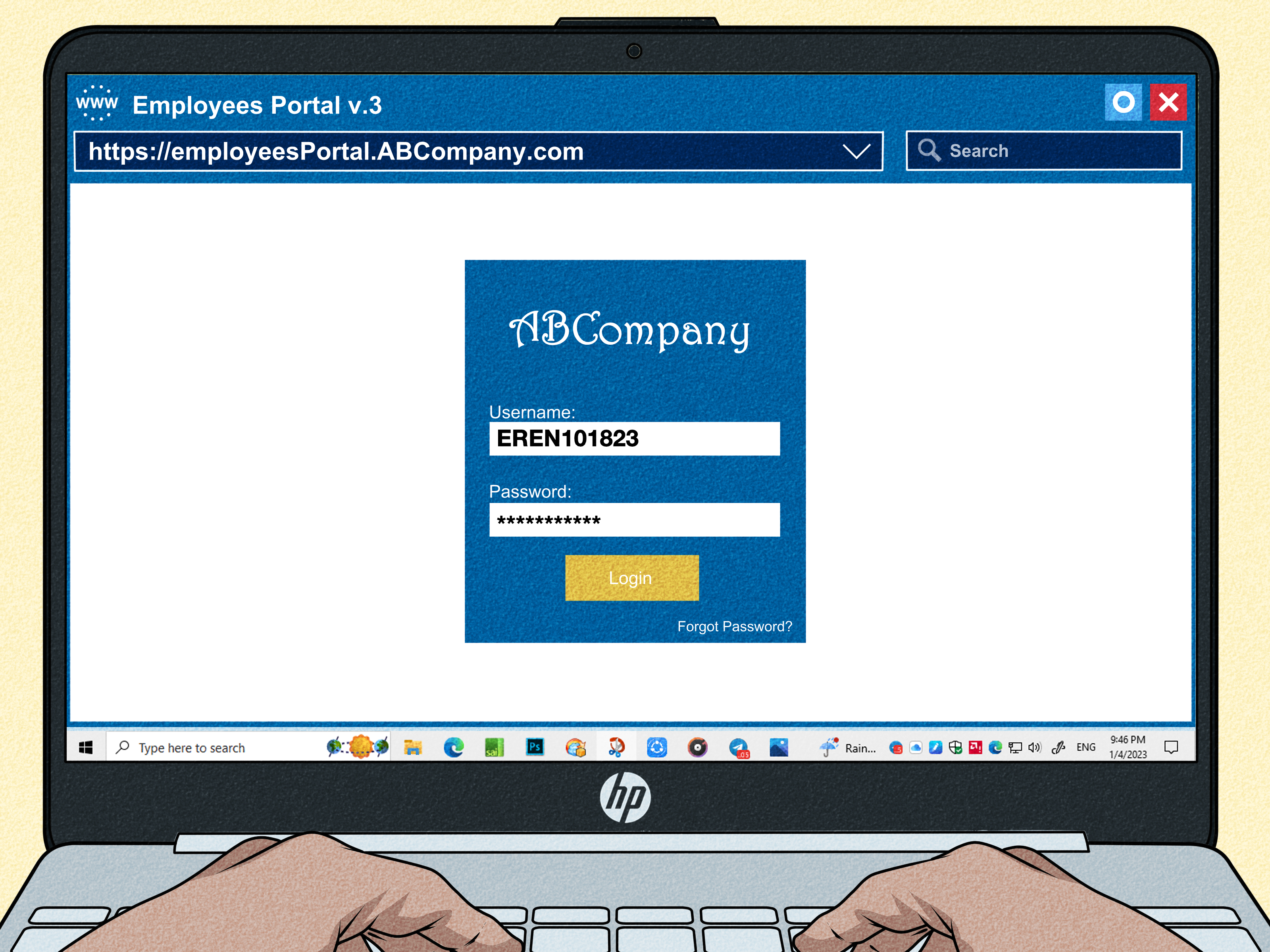
For most employees, webmail is the easiest way to access a company email account at home. You use a browser, sign in, and open your inbox without permanently configuring an email program on the computer.
Accessing Microsoft 365 Email
- Open a modern browser on a trusted computer.
- Go to your company’s approved Microsoft 365 sign-in page.
- Enter your full company email address.
- Enter your work password.
- Complete any multi-factor authentication prompt.
- Open Outlook from the Microsoft 365 app menu.
If your employer uses single sign-on, you may be redirected to a company-branded authentication page. That can be perfectly normal. What is less normal is an email claiming your account will self-destruct in seven minutes unless you click a mysterious login link.
For safety, use a known bookmark, your company’s intranet, or an address provided directly by IT rather than signing in through unexpected links in email messages.
Accessing Google Workspace Email
- Open Gmail or your company’s approved Google Workspace login page.
- Enter your complete work email address.
- Enter your work password.
- Complete the required verification step.
- Confirm that you are viewing the correct company account.
A sign-in from a home computer may trigger additional verification even when the same account works normally at the office. Organizations can apply security policies based on devices and other access conditions, so an extra security check does not automatically mean your account is broken.
Using Custom Webmail
Companies that use private hosting may provide an address such as webmail.company.com or another vendor portal. Use only the official address supplied by your employer. If you do not know the correct URL, ask IT rather than searching for an unofficial login page.
Method 2: Set Up Work Email in Outlook
If you regularly work from home, the Outlook desktop or mobile app may be more convenient than opening a browser every time you need to check email.
On a Windows PC or Mac
Open Outlook, choose the option to add an account, and enter your company email address. In a modern Microsoft 365 environment, Outlook will often detect the account automatically and send you through your organization’s normal authentication process.
If Outlook suddenly asks for server names, port numbers, or security settings, check your company’s instructions before proceeding. Microsoft has removed Basic authentication from many Exchange Online protocols, so some older configurations that depended only on a username and password no longer work. Modern authentication methods such as OAuth are used for supported connections.
On Android
In Outlook for Android, open the settings, add an email account, enter your work address, and follow the sign-in prompts. If your organization supports a manual Exchange, IMAP, or POP setup, you may need server information from your administrator.
On iPhone or iPad
You can use the Outlook app or, when company policy permits, Apple’s built-in Mail app. Apple devices support Microsoft Exchange accounts through the Mail account settings. Your organization may still require a device passcode, security profile, or management enrollment before synchronization is allowed.
Method 3: Add a Google Workspace Account to Your Phone
Google Workspace users can generally add their company account to the Gmail app. On Android, an employer may use a separate work profile to keep business apps and data apart from personal content. On iOS, organizations may require account enrollment or mobile device management.
A typical setup looks like this:
- Open the Gmail app.
- Select the option to add another account.
- Choose Google.
- Enter your full company email address.
- Complete the password and multi-factor authentication steps.
- Follow any official device-security requirements.
If your company blocks email access from personal devices, do not try to bypass the restriction by automatically forwarding messages to a personal account. That can move confidential information outside approved systems and may violate company security or retention policies.
Method 4: Connect Through a Company VPN
A virtual private network creates a protected connection between your remote device and company resources. Some businesses require employees to connect to a VPN before accessing internal webmail, file servers, older Exchange systems, or other applications that are not available directly on the public internet.
A typical process involves opening the company-approved VPN client, signing in with your corporate credentials, completing multi-factor authentication, and then opening the email or internal service you need. Secure remote access commonly combines encrypted connections, strong authentication, access controls, and device-security checks.
Do not assume that every company email account requires a VPN. Cloud-based Microsoft 365 and Google Workspace mailboxes often support direct secure access. Follow your employer’s instructions because using an unnecessary VPN can slow traffic, while skipping a required one can leave internal systems unreachable.
Method 5: Use Remote Desktop Access
Some organizations do not permit company email or sensitive files to be stored on personal devices. Instead, employees connect remotely to an office computer or virtual desktop and use Outlook inside that controlled environment.
Remote desktop access may require a VPN, a secure gateway, and multi-factor authentication. This approach allows company information to remain inside the organization’s managed environment rather than being downloaded directly to the home computer. Strong authentication is commonly added to remote desktop systems to reduce the risk of unauthorized access.
Use only remote-access software approved by your employer. A random free remote-control program is not a clever replacement for the corporate system. It is more like handing someone a spare office key because the official badge reader seemed mildly inconvenient.
What You Need Before Signing In From Home
- Your full work email address: Many systems require the complete address rather than a short username.
- Your current password: Recently changed passwords may also need to be updated in saved apps and VPN clients.
- Your MFA method: This may include an authenticator app, push notification, security key, passkey, or another approved method.
- An approved device: Some companies allow only managed laptops, registered phones, or devices that meet security requirements.
- A secure internet connection: Your home network should use modern Wi-Fi encryption and a strong router password.
- VPN or remote-access software: Install these tools only when your company requires them.
NIST and CISA both recommend strong authentication, particularly multi-factor authentication, for remote enterprise access. MFA requires additional verification beyond a password, making a stolen password less useful to an attacker.
How to Access Work Email Safely at Home
Use a Company-Managed Device When Possible
A managed laptop can receive company security updates, endpoint protection, configuration policies, and technical support. A personal computer may be allowed, but it can create additional risks if it is shared with family members, missing updates, or running questionable software.
Secure Your Home Wi-Fi
Use WPA2 or WPA3 encryption, protect the router with a strong administrative password, and install router updates when available. The Federal Trade Commission recommends using modern encryption to protect a home wireless network.
Never Blindly Approve an MFA Request
An unexpected authentication prompt may mean someone else is trying to sign in with your password. Do not approve the request merely to stop your phone from buzzing. Reject it and contact your company’s IT or security team if the activity appears suspicious.
Watch for Phishing Messages
Attackers often imitate password-expiration notices, payroll messages, shared documents, and IT alerts. The FTC recommends avoiding unexpected links and attachments and contacting an organization through a known legitimate channel when a message appears suspicious.
Keep Work Email Out of Personal Accounts
Avoid automatically forwarding company messages to your personal Gmail, Outlook.com, or another private mailbox. The convenience may come at the cost of exposing confidential information outside approved security and data-retention systems.
Common Problems When Accessing Company Email at Home
Your Password Works at Work but Not at Home
You may be using the wrong login page, an old saved password, or an account that requires another authentication step outside the office. Confirm the exact provider and official sign-in page before resetting anything.
You Keep Getting Asked for a Verification Code
A new device or sign-in environment may trigger additional identity checks. Complete the approved verification process. If codes are being sent to a phone you no longer control, contact IT instead of repeatedly guessing or attempting to disable security.
Outlook Cannot Connect to the Server
Check your internet connection and determine whether the company requires a VPN. If the account was manually configured with older POP, IMAP, or Exchange settings, authentication requirements may have changed. Legacy Basic authentication is no longer supported in many Exchange Online scenarios.
Your Phone Says the Device Is Not Compliant
Your employer may require a screen lock, encryption, a current operating system, a work profile, or device-management enrollment. Follow the official instructions rather than removing security controls just to make the inbox synchronize.
Webmail Works, but the Email App Does Not
This usually points to an app configuration problem rather than a disabled account. Update the app, remove outdated stored credentials, and add the account again using the provider’s normal modern sign-in process. Enter server settings manually only when your administrator specifically provides them.
You Suspect the Account Has Been Compromised
Change the password through the official company process, reject unexpected MFA requests, notify your IT or security team, and review recent sign-in activity when that option is available. Microsoft work and school accounts, for example, provide tools for reviewing recent sign-in activity.
Experience-Based Lessons About Accessing Company Email From Home
One of the most common lessons from helping people access work email remotely is that the real problem is often account identity rather than technology. Someone opens a Microsoft login page with a company address but enters a password belonging to a personal Microsoft account. Another person opens Gmail while signed into a personal account and wonders why the company inbox has vanished. Before changing settings, confirm three things: the exact email address, the provider, and the official login page.
Another valuable lesson is to test remote access before it becomes urgent. The worst possible moment to discover that an authenticator app is still connected to an old phone is ten minutes before a major deadline. Anyone who may need to work from home should test the login process, MFA method, VPN client, and device requirements while normal IT support is available. A calm two-minute test can prevent a frantic two-hour troubleshooting session later.
People also tend to overcomplicate email setup. The sight of an error message can inspire an immediate search for server names, ports, encryption types, and obscure protocol settings. In many modern Microsoft 365 and Google Workspace environments, the best starting point is much simpler: enter the company email address and follow the organization’s official authentication flow. Manual configuration is often the exception rather than the default.
Security prompts deserve the same practical mindset. Multi-factor authentication can feel like an extra hurdle when you are trying to answer one quick email, but an unexpected approval request can also serve as an early warning that someone else has obtained your password. Treat unexplained prompts as security events, not annoying pop-ups.
It also helps to keep work and personal accounts visibly separate. Different browser profiles, clearly labeled inboxes, or a dedicated mobile work profile can prevent surprisingly common mistakes. Without that separation, it is easy to send a business document from a personal address, upload a confidential file to personal cloud storage, or reply to a client from the wrong identity.
Finally, the best remote email setup is usually boringand that is a compliment. You should be able to open the approved app or portal, authenticate, read your messages, and get back to work. A system that depends on secret forwarding rules, shared passwords, disabled security settings, or software downloaded from an ancient forum post may technically function for a while, but it is fragile and difficult to support.
The most reliable experience comes from creating a simple routine. Keep the official login page bookmarked, maintain access to your approved MFA method, update company apps, lock your device when stepping away, and know how to contact IT. Once those basics are in place, checking company email from home becomes exactly as exciting as it should be: not very.
Conclusion
To access your company email account at home, start by identifying the email platform and using your employer’s approved remote-access method. For many employees, that means signing into Microsoft 365 or Google Workspace through a browser. Others may need Outlook, a mobile work profile, a company VPN, a managed device, or remote desktop access.
The safest method is also usually the easiest to maintain: use official login pages, keep devices updated, respect multi-factor authentication, avoid forwarding company mail to personal accounts, and contact IT when organization-specific security controls prevent access. Your inbox should travel with your jobnot with every questionable workaround the internet can invent.
Note: Exact login addresses, VPN requirements, device-management rules, and mobile access policies vary by employer. Always follow your organization’s IT and information-security policies when accessing company email from home.

