
Body Care
Can You Flip Cameras on Omegle? Your Questions Answered
Jul
Note: The original Omegle website shut down in November 2023. This guide explains how camera flipping worked when Omegle was active, why many people still ask the question, and what to do on browser-based random video chat alternatives that use similar camera permissions.
So, Can You Flip Cameras on Omegle?
Technically, yes and no. If you are asking about the original Omegle, the answer today is: no, because Omegle no longer operates as a live video chat service. You cannot open the original Omegle, start a real video chat, and flip from your front camera to your back camera the way you might in FaceTime, Snapchat, Instagram, or Google Meet.
But if you are asking about the old Omegle experience, or about Omegle-style random video chat sites, the better answer is: camera flipping depends on your device, browser, and the video chat platform. Omegle itself was never famous for having a shiny “flip camera” button. It was more like the internet’s folding chair: simple, functional, slightly chaotic, and not exactly luxurious.
On a laptop or desktop, “flipping cameras” usually means switching from one camera device to another, such as changing from your built-in webcam to a USB webcam. On a phone or tablet, it usually means switching between the front-facing selfie camera and the rear-facing camera. Those sound similar, but browsers handle them differently.
The short version: if the site gives you a camera switch button, use it. If it does not, you may need to change the default camera in your browser settings, refresh the page, or restart the chat. If you are using an iPhone or iPad in Safari, options may be more limited than they are in a dedicated mobile app.
What Happened to Omegle?
Omegle was a free anonymous chat website launched in 2009. Its big idea was simple: click a button and talk to a stranger through text or video. No account, no profile photo, no carefully curated bio about hiking and “good vibes only.” Just instant random conversation.
For years, Omegle became one of the best-known random video chat platforms online. People used it for jokes, language practice, social experiments, music performances, boredom relief, and sometimes deeply weird late-night internet adventures that probably should have stayed in the family laptop’s search history forever.
However, the platform also faced serious safety problems, especially around misuse, explicit content, grooming, and abuse involving minors. In November 2023, Omegle shut down after 14 years. Its founder said the financial and psychological burden of operating and defending the platform had become unsustainable.
That matters because many search results still talk about Omegle as if it is alive and asking for camera permissions. It is not. Any current site using “Omegle” in its name is either an alternative, a clone, a fan-style replacement, or a separate platform. Treat those sites carefully and do not assume they have the same ownership, safety standards, or privacy policies as the original.
How Camera Switching Worked on Omegle-Style Video Chats
Most browser-based video chat sites use a technology called WebRTC. WebRTC allows websites to capture audio and video from your device and stream it in real time without making you install a separate plugin. That is why a video chat can open directly in Chrome, Safari, Firefox, or Edge after you grant camera and microphone permission.
When a site asks to use your camera, the browser becomes the gatekeeper. It checks which cameras are available, asks for permission, and then lets the site use one of them. The site can request a front camera, rear camera, or default webcam, but the final experience depends on how the site was built and how your browser supports camera selection.
That is why two people can have completely different results. One person on Android Chrome may see a smooth camera swap option. Another person on iPhone Safari may feel like they are negotiating with a tiny digital bouncer who only says, “Nope, not today.”
Can You Flip the Camera on Omegle on iPhone?
On the original Omegle, mobile video support was limited and inconsistent. Many older guides suggested using desktop mode on Safari or Chrome, but that was never a perfect solution. Even when a browser could open a video chat page, it did not always offer a reliable way to switch between the front and rear camera.
On modern iPhones, Safari requires websites to ask for camera and microphone permission. You can review camera and microphone access in Settings > Privacy & Security, then choose Camera or Microphone. Safari website settings may also let you choose whether websites can ask, be denied, or be allowed.
How to Try Switching Cameras on iPhone
If you are using an Omegle alternative in Safari, try this:
- Open the video chat site in Safari.
- Allow camera and microphone access when Safari asks.
- Look for a camera switch icon inside the video chat screen.
- If there is no switch button, tap the AA or site settings area and check website permissions.
- Close the tab, reopen the site, and see if the browser asks you to choose a camera.
- If nothing works, try the platform’s official app if it has one.
On iPhone, the most reliable camera flipping usually happens inside apps built specifically for video chat. Browser-based random chat sites can work, but they often have fewer camera controls than native apps.
Can You Flip the Camera on Android?
Android usually gives users more flexibility with browser camera selection, especially in Chrome. If a random video chat site supports switching cameras, Android Chrome is often one of the better places to try it.
To check permissions, open Chrome, tap the three-dot menu, go to Settings > Site settings, then choose Camera or Microphone. Make sure the site is not blocked. If it is blocked, change the permission to allow access, then refresh the page.
How to Flip Cameras on Android Video Chat Sites
- Open the site in Chrome.
- Grant camera and microphone access.
- Look for a flip camera icon, usually shaped like a camera with rotating arrows.
- If the site does not show one, leave the chat and reload the page.
- Check Chrome’s camera permissions and make sure the site is allowed.
- Close other apps that may already be using the camera.
If your Android phone still refuses to switch cameras, the problem may be the website rather than your phone. Some sites request the default camera only and never build a user-friendly switch button. In that case, your phone is not being stubborn; the website is just wearing flip-flops to a marathon.
Can You Flip Cameras on a Laptop or Desktop?
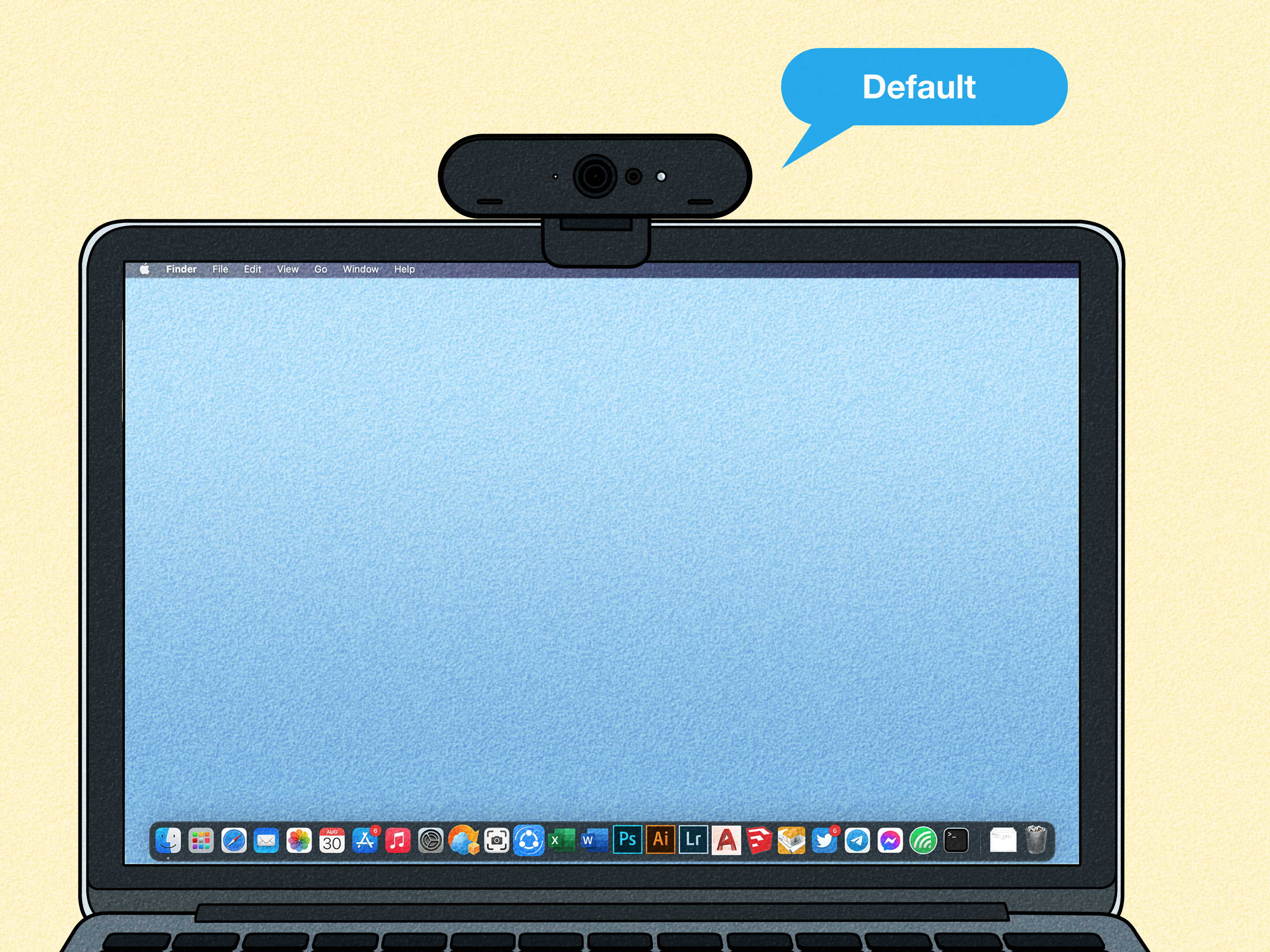
On a laptop or desktop, camera flipping is usually not about front versus rear cameras. Most computers have one built-in webcam. If you have an external webcam plugged in, you may be able to switch between the built-in camera and the external one.
In Chrome on desktop, you can choose a default camera by going to Settings > Privacy and security > Site settings > Camera. From there, choose the camera you want from the dropdown menu. After changing it, refresh the video chat site.
In Microsoft Edge, camera and microphone permissions are managed under site permissions. If a site cannot use your camera, check Settings > Cookies and site permissions or the privacy and site permissions area, then review camera access for that website.
In Firefox, camera and microphone access can be controlled through Settings > Privacy & Security > Permissions. You can review which sites are allowed or blocked, remove old permissions, and force Firefox to ask again the next time you visit.
Why Is My Camera Reversed or Mirrored?
Many users say “flip camera” when they actually mean “mirror camera.” These are not the same thing.
Switching cameras means changing from one physical camera to another, such as front camera to back camera, or laptop webcam to external webcam.
Mirroring means reversing the image horizontally, like looking in a mirror. Your right hand appears on the right side of your preview, even though other people may see the non-mirrored version.
Video chat apps often mirror your own preview because people are used to seeing themselves that way. It feels natural, like checking your hair in a mirror before realizing your hair has chosen violence. However, the other person may see the correct non-mirrored feed. This is why text on a shirt, sign, or notebook may look backward to you but normal to the other viewer.
How to Fix Camera Problems on Omegle Alternatives
If your camera will not switch, load, or behave like a civilized piece of technology, try these fixes.
1. Check Browser Permissions
The most common issue is blocked camera permission. If you accidentally clicked “Block,” the site cannot use your camera until you change the setting. Go into your browser’s privacy or site settings and remove the block.
2. Refresh the Page
After changing camera permissions, refresh the site. In some cases, you may need to fully close the tab and open the site again. Browsers do not always update camera access instantly.
3. Close Other Apps
If Zoom, Google Meet, Teams, FaceTime, Discord, or another app is already using your camera, the browser may not be able to access it. Close other video apps, then try again.
4. Choose the Right Camera in Browser Settings
On desktop Chrome, select your preferred camera in the camera settings menu. If you have an external webcam, make sure it is plugged in before opening the browser.
5. Restart the Browser
Sometimes the fastest fix is the oldest fix in the book: turn it off and back on again. Restart the browser, reopen the site, and allow camera access when prompted.
6. Update Your Browser
Outdated browsers can have camera permission bugs. Update Chrome, Safari, Firefox, or Edge to the latest version available for your device.
7. Avoid Suspicious “Omegle” Clones
Because the original Omegle is gone, be careful with sites that borrow its name. Some may be legitimate alternatives, while others may have weak moderation, unclear privacy practices, aggressive ads, or unsafe content. Before allowing camera access, check the site’s reputation, privacy policy, and safety features.
Is It Safe to Use Camera-Based Random Chat Sites?
Random video chat can be fun, but it comes with real privacy and safety risks. You are showing your live camera feed to strangers. That means you should avoid revealing personal details in the background, such as your address, school name, workplace badge, family photos, mail, location clues, or anything that could identify you.
Use a neutral background when possible. Do not show documents, screens, passwords, private messages, or other people without permission. If a platform has reporting and blocking tools, know where they are before starting a chat. If someone makes you uncomfortable, disconnect immediately. You do not owe a stranger politeness at the expense of your safety.
Parents should be especially cautious. Anonymous video chat platforms are often not suitable for children or younger teens, even when a site claims to have moderation. Camera-based stranger chat can expose users to explicit content, manipulation, scams, harassment, and grooming attempts. Safety settings help, but they are not magic armor.
Frequently Asked Questions
Does Omegle still exist?
The original Omegle shut down in November 2023. Sites currently using similar names are not the original Omegle service.
Can I flip from front camera to back camera on Omegle?
Not on the original Omegle today, because it no longer operates. On Omegle alternatives, you can flip cameras only if the site and browser support camera switching.
Why do I not see a flip camera button?
The site may not include one, your browser may not expose multiple cameras, or your camera permission may be blocked. Try checking site permissions, refreshing the page, or using a different browser.
Can I flip the camera in Chrome?
On desktop Chrome, you can choose a default camera in site settings. On Android Chrome, many sites can access front and rear cameras, but the website must provide a way to switch between them.
Can I flip the camera in Safari?
Safari supports website camera permissions, but camera switching depends heavily on the website and device. On iPhone and iPad, a dedicated app often gives better camera controls than a browser page.
Is mirroring the same as flipping?
No. Mirroring reverses the image horizontally. Flipping cameras switches from one physical camera to another. If your face preview looks reversed, that may simply be a mirror preview.
Real-World Experience: What It Feels Like Trying to Flip Cameras on Omegle-Style Sites
Anyone who has tried to switch cameras on a browser-based random chat site knows the experience can feel surprisingly dramatic. You enter the chat thinking, “I just want to show the back camera for two seconds,” and suddenly you are deep in browser settings, phone permissions, reload buttons, and existential questions about why technology can send robots to Mars but cannot find the rear camera without a small emotional crisis.
On a phone, the biggest frustration is inconsistency. One site may show a clear flip icon right inside the video window. Tap it, and the camera switches instantly. Beautiful. Elegant. A rare moment when the internet behaves like it went to finishing school. Another site may offer no switch button at all. You refresh. You rotate the phone. You try desktop mode. You whisper encouraging words to Chrome. Nothing happens.
On iPhone, Safari can feel especially strict. That is not always a bad thing because strong permission controls protect your privacy. But if you want quick camera switching, the experience can be less flexible than using a dedicated app. You may allow camera access correctly and still find that the website only uses the front camera. In that case, the issue is usually not your iPhone. It is the way the website requested camera access.
Android tends to feel more forgiving. Chrome on Android often works better with websites that support multiple cameras. Still, the site must actually build the feature. A browser can make camera access possible, but it cannot magically add a flip button to a poorly designed video chat page. That is like buying premium gasoline for a shopping cart.
On desktop, the experience is more predictable. If you have only one webcam, there is nothing to flip. If you have two cameras, such as a laptop webcam and a USB webcam, you can usually choose the preferred one in browser settings. The catch is that many video chat sites only detect the camera when the page first loads. So if you change the default camera after joining, you may need to refresh or start a new chat.
The most practical lesson is simple: set your camera before joining. Check permissions, close other video apps, select the correct camera, and test your preview if the site offers one. Do not wait until you are connected to a stranger and then begin a frantic settings safari. Nobody looks calm when their face is frozen mid-blink while they mutter, “Wait, why is it using that camera?”
Another useful habit is keeping your background boring. A plain wall is excellent. A tidy desk is fine. A room full of personal documents, school logos, street-facing windows, and family photos is not ideal. Camera flipping can accidentally reveal more than you meant to show, especially when switching to the rear camera. Before using any random video chat site, point the rear camera around the room and ask yourself, “Would I want a stranger to see this?” If the answer is no, rearrange first.
Finally, remember that not every technical problem deserves an hour of your life. If a platform makes camera switching difficult, try another browser, use the site’s app, or choose a different service with clearer controls. A good video chat platform should make camera and microphone settings easy to find. If basic controls are hidden, broken, or suspiciously confusing, that may be a sign to leave. The internet is large. Your patience is not.
Conclusion
So, can you flip cameras on Omegle? On the original Omegle, no, because the service is no longer active. On Omegle-style alternatives, maybe. The ability to switch cameras depends on the website, browser, operating system, and device. Android Chrome and desktop browsers often provide more flexibility, while iPhone Safari may be more limited unless the site is designed well.
If you are trying to switch cameras, look for an in-chat flip icon first. If that fails, check browser permissions, choose the correct default camera, refresh the page, close other camera apps, and update your browser. Also remember the difference between switching cameras and mirroring your preview. One changes the camera source; the other just changes how the image appears.
Most importantly, use random video chat sites carefully. The camera is not just a feature; it is a window into your space. Make sure you control what strangers can see, and do not give camera access to websites you do not trust.

