
Beauty Tools & Accessories
How to Edit a Company Page on LinkedIn
Aug
A LinkedIn Company Page is part digital storefront, part recruiting booth, and part public résumé for your organization. When the logo is blurry, the website link is outdated, or the About section still celebrates a product discontinued three years ago, visitors notice.
Fortunately, editing a company page on LinkedIn is straightforward once you have the correct admin permissions and know where LinkedIn has hidden the controls this week. This guide explains how to edit a LinkedIn Company Page on desktop and mobile, optimize important business details, and solve common editing problems.
Before You Edit a LinkedIn Company Page
LinkedIn Company Pages are managed through individual LinkedIn profiles. There is no separate company username and password. You sign in to your personal account, open the organization’s Page, and work through its admin view.
This setup is considerably safer than passing one mysterious company password around the office like a ceremonial stapler.
Confirm That You Have the Correct Admin Role
To edit company information, you generally need super admin access. A super admin can modify available Page fields, manage other administrators, create Showcase Pages, and control high-level settings.
A content admin can publish and manage posts, events, comments, jobs, and other content but cannot edit every company-information field. An analyst mainly has access to performance data.
LinkedIn Page permissions verified against current LinkedIn Help documentation.
If you can publish a post but cannot change the company description, you probably have content admin access rather than super admin access. Ask an existing super admin to update your role instead of repeatedly refreshing the Page and questioning your life choices.
Request Admin Access When Necessary
If the Company Page already exists but you are not an administrator, visit its public Page, open the More menu, and select Request admin access.
LinkedIn may ask you to confirm that you are authorized to represent the organization. You may also need to list the company as your current employer, follow the Page, or verify your company email address. Existing super admins can then review and approve your request.
Admin-access workflow verified against LinkedIn Help.
For abandoned Pages with no active administrator, LinkedIn may offer another recovery process or request supporting information. Make sure your personal LinkedIn profile accurately shows your relationship with the company before contacting support.
How to Edit a Company Page on LinkedIn Using a Desktop
Desktop is usually the best option for a complete LinkedIn Company Page update. The larger layout makes it easier to compare fields, review branding, test links, and avoid writing a lengthy company description with two thumbs.
Step 1: Sign In to the Correct LinkedIn Profile
Sign in to LinkedIn with the personal profile that has super admin access to the Company Page.
If you manage Pages for several organizations, confirm that you are using the correct account before making changes. Updating the wrong company’s tagline is a memorable way to introduce yourself to a new client.
Step 2: Open the LinkedIn Page Admin View
From the LinkedIn home feed, find the My Pages or Manage pages area, which commonly appears on the left side of the desktop interface. Click the name of the company you want to manage.
LinkedIn will open the relevant admin view based on your assigned role. If the Page is missing, click See all or confirm that your profile still has admin access.
Step 3: Select Edit Page
In the Page’s left-side admin menu, click Edit page. LinkedIn will display a panel or editing workspace containing the sections available for that Page.
Common sections include Page information, company details, locations, custom buttons, languages, branding, and other organization-specific settings.
Step 4: Choose the Section You Want to Update
Open the appropriate tab and make the required changes. Match every update to an approved source such as the company website, legal business record, brand guide, recruiting materials, or current marketing brief.
Do not change every field merely because the fields are available. Accurate information is more valuable than enthusiastic improvisation.
Step 5: Save the Changes
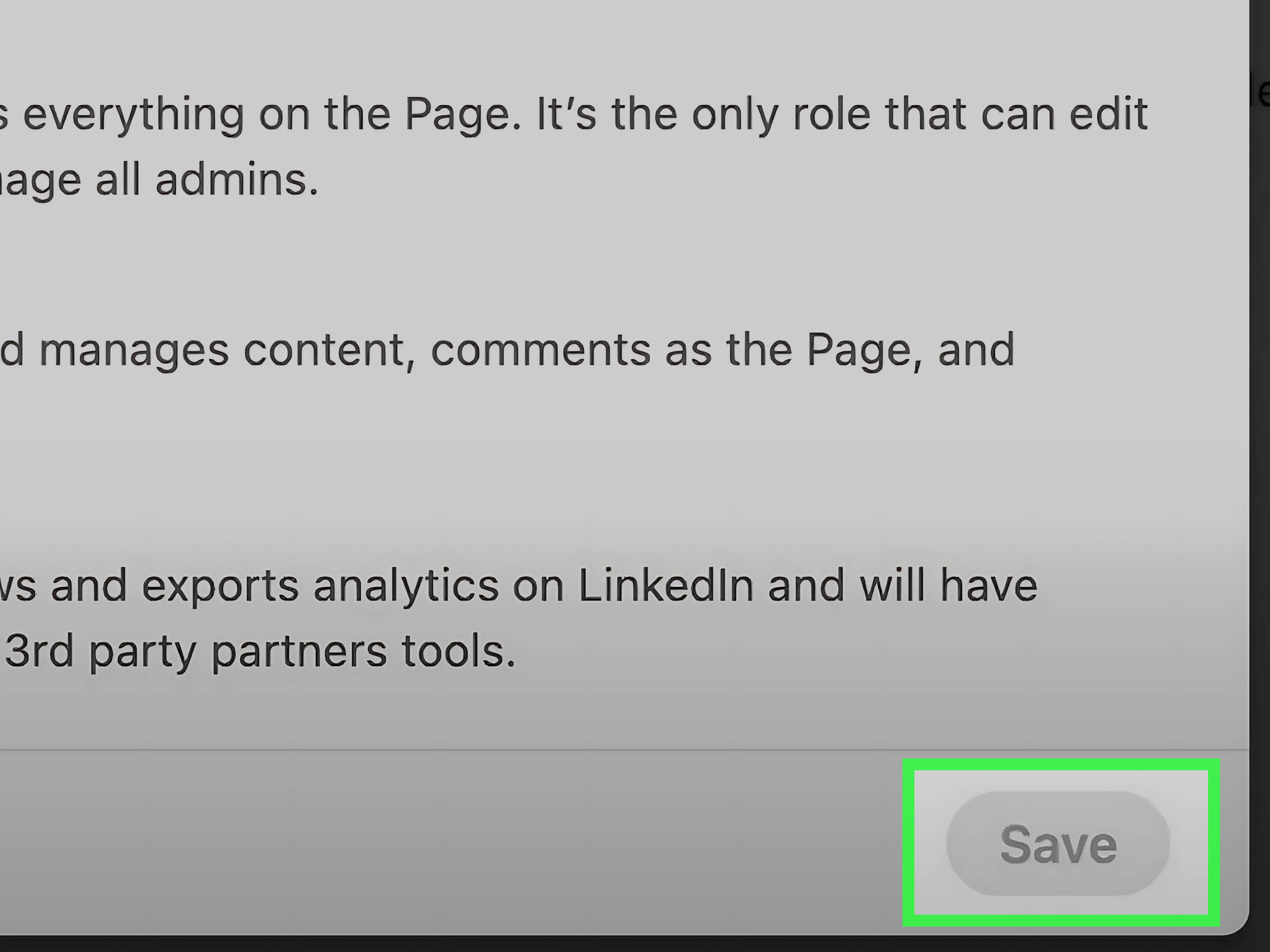
Click Save after completing each section. Saving sections individually makes it easier to identify a field that contains an error or unsupported information.
Step 6: Review the Public Page
After saving, view the Page as a regular LinkedIn member. Check links, image cropping, spacing, capitalization, spelling, and mobile readability.
Saving confirms that LinkedIn accepted your update. Reviewing confirms that the result does not look like it was assembled during an airport layover.
Core desktop editing steps verified against LinkedIn Help.
How to Edit a LinkedIn Company Page on Mobile
You can make many Company Page updates from the LinkedIn mobile app. Tap your profile picture, locate the Pages you manage, and select the appropriate company.
From the Page admin view, open Dashboard and choose Edit page. Select the relevant section, enter your changes, and tap Save.
Mobile editing works well for correcting a phone number, replacing a logo, updating a website link, or fixing an urgent typo. For a major rebrand, multi-location review, or complete About-section rewrite, desktop is more comfortable and less likely to produce a description containing the accidental phrase “premium cloud sausages.”
Some paid-media roles do not provide a normal Page admin view in the mobile app. If editing controls are missing, confirm your admin role and try the desktop version before assuming the Page is broken.
What You Can Edit on a LinkedIn Company Page
The exact options depend on the Page type, account features, and subscription. However, most organizations should regularly review the following areas.
Company Name
Use the organization’s official public-facing name. A minor correction, such as fixing a typo or updating a business suffix, may be simple. A significant change involving a merger, acquisition, company split, or major rebrand may require additional documentation or assistance from LinkedIn support.
Changing the Page name does not automatically change its public LinkedIn URL. It also does not rewrite the employer name displayed in every current or former employee’s Experience section.
LinkedIn Public URL
A clean public URL makes your LinkedIn Company Page easier to recognize and share. From the Page info section, edit the LinkedIn public URL so it matches the company name as closely as availability allows.
Avoid confusing abbreviations unless the abbreviation is already central to the brand. For example, a recognizable company called Northern Technology Partners might use a URL based on its full name rather than an unclear string such as “ntp-global-x.”
LinkedIn limits how frequently a Page URL can be changed. Search engines may also need time to recognize the new address, and an old URL may eventually become available to another Page.
After changing the URL, update links in your website footer, email signatures, recruiting documents, campaign templates, social profiles, and online directories.
Current Page-name, URL, and image requirements verified against LinkedIn Help.
Company Logo
Upload a sharp, current logo that remains recognizable when displayed at a small size. LinkedIn recommends a square logo image and supports standard image formats such as PNG and JPEG.
Avoid uploading a logo containing tiny slogans or complicated details that disappear when reduced. Test transparent logos against both light and dark interfaces. A simplified brand mark may work better than the full ceremonial version containing the founding year, three stars, and a Latin motto.
Cover Image
The cover image stretches across the top of the Company Page. It can communicate a value proposition, display a product, highlight company culture, promote hiring, announce an event, or reinforce the organization’s visual identity.
Because LinkedIn may crop the image differently across screen sizes, keep important text, faces, and logos away from the edges. Limit the amount of text and preview the result on both desktop and mobile.
Do not turn the cover image into a miniature billboard containing twelve sentences, four phone numbers, and a motivational quote from the founder’s dentist.
Company Tagline
The tagline appears near the top of the Page and should explain what the organization does in clear language. A useful formula is:
What you provide + who you serve + meaningful outcome.
For example, “Software solutions for modern businesses” is vague. “Inventory software that helps independent retailers prevent stockouts” is more specific and closely matches the language a potential customer might search.
About Description
The About section should quickly answer five questions:
- What does the company do?
- Who does it help?
- What makes it different?
- Where does it operate?
- What should the visitor do next?
Lead with the customer benefit rather than a long corporate autobiography. Use short paragraphs, specific language, and verifiable proof points. Mention major services, products, markets, qualifications, or customer groups where relevant.
Include important industry terms naturally, but do not repeat the same keyword until the paragraph begins to sound like a malfunctioning sales robot.
Website Address
Confirm that the website field uses the correct secure URL and directs visitors to an active page. Depending on the Company Page’s objective, the best destination might be the homepage, contact page, careers section, product page, or campaign landing page.
Test the link while logged out of internal company systems. A link that works only for employees is not especially helpful to prospective customers.
Industry, Company Size, and Company Type
Select the closest available industry category and update the company size or company type whenever the organization changes. These details help visitors understand the business and help LinkedIn categorize the Page appropriately.
Company Locations
Add the headquarters and other important operating locations. Review office names, phone numbers, postal information, and geographic descriptions.
A visitor should not need detective training to discover that the “Boston office” moved to Austin eighteen months ago.
Custom Button and Call to Action
Depending on available Page features, you may be able to configure a button such as Visit website, Contact us, Learn more, or another call to action.
Send users to a page that fulfills the promise. A “Contact us” button should not lead to a generic homepage where the contact form is hiding behind six animated banners.
Specialties
Where available, specialties can reinforce the company’s areas of expertise. Use recognizable phrases that customers, candidates, and partners actually use.
A marketing agency might include specialties such as content marketing, search engine optimization, paid advertising, email marketing, and brand strategy. Avoid internal department names that mean little outside the organization.
Language Options
If the company operates in multiple markets, localized Page information can improve accessibility and clarity. Every translation should be reviewed by someone who understands both the language and the brand.
Automatic translation may produce grammatically acceptable text that still sounds as though the company was founded by a confused refrigerator manual.
How to Optimize the Company Page While You Edit
Use Relevant Keywords Naturally
LinkedIn Company Page optimization starts with accurate wording. Include the organization’s primary product category, service, audience, and location where they naturally belong in the tagline and About section.
For example, a Chicago cybersecurity firm might mention “cybersecurity consulting,” “risk assessments,” “regulatory compliance,” and “Chicago” in relevant sentences. It does not need to repeat “Chicago cybersecurity consulting company” in every paragraph.
Keep Business Information Consistent
Use the same official company name, website address, core description, founding information, and brand positioning across LinkedIn, the company website, major directories, and other social platforms.
Consistency reduces confusion for customers, job seekers, search engines, and AI-powered discovery tools. It also prevents awkward situations in which LinkedIn says the company has 200 employees while the website proudly describes a “small team of twelve.”
Match the Company’s Visual Identity
The logo, cover image, capitalization, voice, and message should feel like the same company visitors encounter on the website.
If the website is calm and professional but the LinkedIn banner looks like a discount fireworks flyer, one of them is wearing the wrong outfit.
Write for Several Audiences
A LinkedIn Company Page may be visited by customers, job seekers, employees, journalists, investors, vendors, and industry peers. The About section should be broad enough to orient all of them without becoming vague.
Posts, Product Pages, and Showcase Pages can then address more specific audiences, services, or initiatives.
Connect Page Updates to a Content Strategy
A perfectly edited Page with no recent activity can still feel abandoned. After updating the company information, publish useful content such as:
- Expert insights and educational tips
- Product or service announcements
- Case studies and customer results
- Original research and industry analysis
- Job openings and recruiting updates
- Employee stories and workplace content
- Events, webinars, and company milestones
Current guidance from LinkedIn-focused marketing resources consistently emphasizes complete information, clear branding, useful content, relevant keywords, and regular Page reviews rather than treating Company Page setup as a one-time project.
Optimization guidance synthesized from LinkedIn, HubSpot, Sprout Social, Hootsuite, Canva, Adobe, Buffer, Forbes, SocialPilot, Later, Semrush, Mailchimp, Constant Contact, and Ahrefs.
Common Problems When Editing a LinkedIn Company Page
The Edit Page Option Is Missing
First, confirm that you opened the Page admin view rather than the public Company Page. Next, check whether your role is super admin.
A content admin may manage posts without having permission to edit company details. You can also try the desktop site, update the LinkedIn app, sign out and back in, or open LinkedIn in a private browser window.
Your Changes Will Not Save
Check for required fields, unsupported characters, invalid URL formatting, file-size limits, and image-format problems. Save one section at a time so you can identify the troublesome field.
If a text section repeatedly fails, paste the content through a plain-text editor before entering it again. This removes hidden formatting copied from word processors or websites.
You Cannot Change the Company Name
Name changes may receive additional scrutiny, particularly for large, established, or verified Pages and for rebrands involving mergers or acquisitions.
Prepare official documentation and contact LinkedIn support if the standard editor does not permit the change.
The Logo Looks Blurry
Upload a high-resolution square file that follows LinkedIn’s current image recommendations. Remove tiny text and unnecessary decorative details. Preview the logo beside an actual Page post because that is often where small-image problems become obvious.
The Cover Image Is Cropped
Keep important content near the center and away from the edges. Test the Page at several browser widths and on a mobile device.
Never approve a banner based solely on the giant design monitor used by the creative team. Your audience may be viewing it on a phone while balancing coffee and existential dread.
The Old Information Still Appears
Confirm that the field was saved and refresh the public Page. Search engines, cached previews, and third-party services may take longer to display updated information.
Remember that changing the Page name and changing the public URL are separate actions.
Employees Are Connected to the Wrong Page
Company information displayed in a member’s Experience section comes from that member’s personal profile. Updating the Company Page will not automatically rewrite every employee’s work history.
Ask employees to edit their Experience sections and select the correct organization from LinkedIn’s suggested company list.
A Practical LinkedIn Company Page Editing Checklist
- Confirm that you have super admin access.
- Verify the official company name.
- Review the LinkedIn public URL.
- Test the website and call-to-action links.
- Upload an approved, high-resolution logo.
- Preview the cover image on desktop and mobile.
- Rewrite the tagline for clarity and specificity.
- Update the About section with current services.
- Add relevant keywords without stuffing them.
- Review industry, size, type, and specialties.
- Check headquarters and other locations.
- Confirm phone numbers and contact information.
- Check spelling, capitalization, and dates.
- Review the Page as a regular visitor.
- Record the update and responsible owner internally.
Conclusion
Learning how to edit a company page on LinkedIn is mostly a matter of permissions, preparation, and careful review. Sign in with an authorized personal profile, open the Page’s super admin view, select Edit page, update the appropriate fields, save the changes, and inspect the public result.
The best edits are not merely cosmetic. They make the company easier to understand, easier to find, and easier to trust. Keep the description current, maintain working links, use a recognizable visual identity, and review the Page whenever the business changes.
Your LinkedIn Company Page should represent the organization operating todaynot a digital time capsule featuring an old logo, a closed office, and a tagline approved during the era of fax machines.
Experience-Based Lessons From Editing LinkedIn Company Pages
The most common mistake in a LinkedIn Page update is starting inside LinkedIn rather than starting with an approved source of truth. A company asks someone to “freshen up the Page,” and that person begins improvising. Twenty minutes later, the Page has a new tagline, the website presents a different value proposition, and the sales deck tells a third story.
A better process is to collect the approved company name, one-sentence positioning statement, service list, locations, logo files, website URL, and brand terminology before opening the editor. The actual clicking is easy. Deciding what is accurate is the real work.
Another useful lesson is to separate urgent corrections from strategic improvements. Fix a broken link, incorrect phone number, misspelled product, or outdated office immediately. Save larger rewrites for a scheduled review involving marketing, leadership, recruiting, or legal stakeholders when appropriate.
Bundling every decision into one emergency edit creates delays. It also invites the classic committee sentence: “We empower innovative transformation through future-ready excellence.” Nobody knows exactly what it means, but everyone remembers approving it.
Visual updates require more testing than many teams expect. A cover image can look excellent in a design file and awkward on the live Page because LinkedIn crops images differently across devices. Keep text limited, protect the central safe area, and preview the image at several browser widths.
Logos deserve similar care. Thin lettering, tiny taglines, and transparent marks may lose clarity when displayed as a small icon beside posts. A simplified logo variation often performs better than the complete corporate seal.
Page ownership is another practical concern. Organizations sometimes discover that one former employee is still the only super admin. Nothing feels quite as modern as learning that the key to your corporate identity belongs to Kevin, who left in 2022 and now raises alpacas.
Maintain at least two trusted super admins, review access periodically, and remove permissions when responsibilities change. Give content admins the access they need to publish without assigning complete Page control unnecessarily.
It is also wise to maintain a simple change log. Record what changed, who approved it, when it went live, and which external links must be updated. This is especially useful after a rebrand, relocation, or public URL change.
Without a log, teams often correct LinkedIn but forget recruiting PDFs, email templates, partner directories, social icons, and website footers. Months later, analytics show traffic disappearing into an outdated address, and everyone suddenly becomes deeply interested in documentation.
Finally, evaluate every edit from a visitor’s perspective. Give the Page a five-second test: Can someone understand what the company does, who it serves, and where to go next? Then perform a credibility test: Are the logo, employee associations, locations, website, description, and recent posts consistent?
A strong LinkedIn Company Page does not need to make the organization sound enormous or revolutionary. It needs to be clear, current, and believable. In practice, those qualities outperform inflated language because potential customers and candidates are not searching for “synergistic ecosystems.” They are searching for a company that solves a recognizable problem and appears awake.
SEO Metadata

