
Beauty Unlocked
How to Change the Keyboard Language on a Samsung Galaxy
May
Let’s be honest: nothing humbles a person faster than trying to type in two languages on the wrong keyboard layout. One second you’re sending a polished text, and the next second your Samsung Galaxy is serving up a chaotic soup of accents, symbols, and mysterious autocorrect choices that feel personally insulting.
The good news is that changing the keyboard language on a Samsung Galaxy is usually simple once you know where Samsung hid the settings. The slightly less good news is that there are a few different things people mean when they say “change the keyboard language.” Do you want to add another language to Samsung Keyboard? Switch the language while typing? Use Gboard instead? Or change the entire phone’s language? Samsung gives you options. Samsung also gives you menus inside menus, because apparently we all needed a little adventure.
This guide breaks it all down in plain English. You’ll learn how to add a language, switch between languages while typing, set a new default keyboard language, troubleshoot common problems, and understand the difference between your keyboard language and your device language. By the end, your Galaxy should be multilingual and considerably less dramatic.
Why You Might Want to Change the Keyboard Language
There are plenty of reasons to update your keyboard language settings on a Samsung phone. Maybe you text family in Spanish but use English for work. Maybe you’re learning Korean, French, Vietnamese, or Arabic and want to practice without manually hunting for every accented character like it’s a scavenger hunt. Maybe your keyboard somehow switched languages on its own and now every sentence looks like it was typed by a confused time traveler.
Whatever the reason, Samsung Galaxy phones support multiple keyboard languages, and both Samsung Keyboard and Gboard make it possible to switch between them pretty quickly. The trick is knowing which keyboard you’re using and where the language settings live.
First, Know the Difference: Keyboard Language vs. Phone Language
This is the big one. Changing the keyboard language does not always change the language of your whole Samsung Galaxy. If you only want to type in another language, you usually need to adjust the keyboard settings. If you want your menus, settings, app labels, and system text to appear in another language, then you need to change the device language.
Think of it like this:
- Keyboard language affects how you type, what characters you see, and how autocorrect behaves.
- Phone language affects the entire interface of your Galaxy device.
That distinction matters because a lot of people go into Language settings expecting the keyboard to change instantly, then wonder why the text suggestions are still stuck in English. Your phone is not broken. It’s just being very literal.
How to Change the Keyboard Language on Samsung Keyboard
If you’re using the built-in Samsung Keyboard, this is the most direct way to add or change languages.
Step 1: Open Settings
Start on your Home screen and open Settings. Scroll down to General management. On many Galaxy devices, this is where Samsung keeps all the language and input tools.
Step 2: Open Samsung Keyboard Settings
Tap Samsung Keyboard settings. On some Galaxy models or One UI versions, you may need to go to Language and input or On-screen keyboard first, then choose Samsung Keyboard.
Step 3: Tap “Languages and types”
Inside Samsung Keyboard settings, tap Languages and types. This is the area where Samsung lets you manage input languages, layouts, and the method used to switch between them.
Step 4: Select “Manage input languages”
Tap Manage input languages. You’ll usually see two sections:
- Downloaded languages already available on your phone
- Available languages you can download
Turn on the switch next to any language you want to use. If the language is not downloaded yet, tap the download icon first, then enable it.
Step 5: Start Typing and Switch Languages
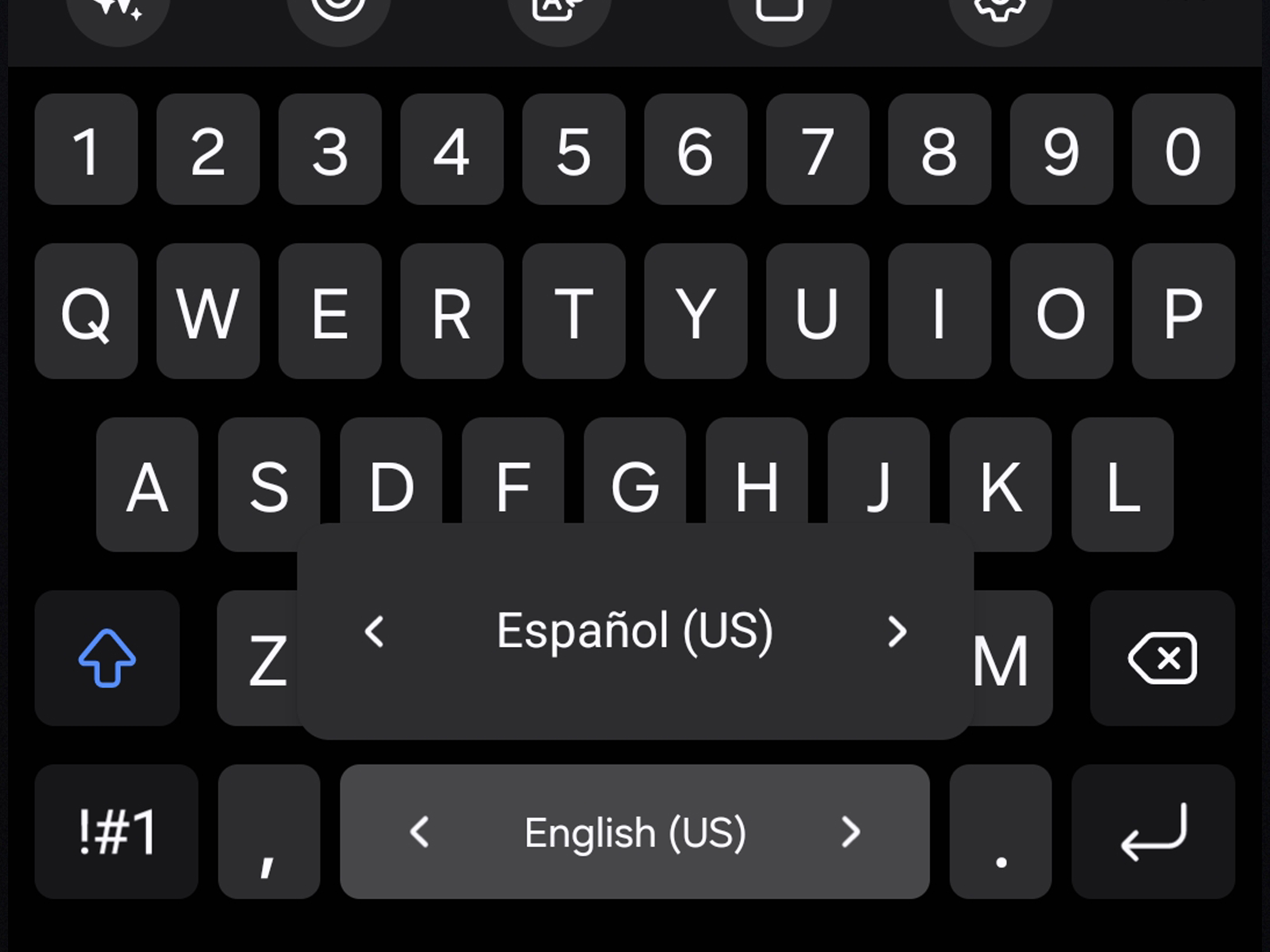
Open any app with a text field, like Messages, Notes, Gmail, or WhatsApp. Bring up the keyboard. On many Samsung Galaxy phones, you can switch languages by swiping left or right on the space bar. On some versions, you may see a globe icon or a language key instead. Tap that to move between enabled languages.
That’s it. Your keyboard can now type in the languages you added, and autocorrect or predictions may adapt based on the active language.
How to Change the Keyboard Language on Gboard
Many Samsung Galaxy owners switch from Samsung Keyboard to Gboard, Google’s keyboard app. Some people prefer its predictions, multilingual typing, voice typing, or general vibe. Gboard tends to feel a little more flexible, and plenty of Android users treat it like a favorite hoodie: not glamorous, but dependable.
If your Galaxy is using Gboard, here’s how to change the language.
Step 1: Open Settings
Go to Settings. Depending on your device, you may find the path under General management or System.
Step 2: Open On-Screen Keyboard Settings
Tap Language and input, Keyboard, or On-screen keyboard. Then select Gboard.
Step 3: Tap “Languages”
Inside Gboard settings, tap Languages. Then choose Add Keyboard or select a language from the list.
Step 4: Choose the Language and Layout
Select your language and then pick the keyboard layout you want, such as QWERTY, AZERTY, QWERTZ, or another supported format. Tap Done.
Step 5: Switch Languages While Typing
When Gboard is open, you can usually switch languages by tapping the globe icon or touching and holding it. On some setups, swiping the space bar also works.
Gboard also supports multilingual typing in some language combinations, which means it can suggest words from more than one language without forcing you to switch every two seconds like a frantic game show contestant.
How to Change the Default Keyboard on a Samsung Galaxy
Sometimes the issue is not the language at all. Sometimes you just want to switch from Samsung Keyboard to Gboard, Microsoft SwiftKey, or another keyboard app entirely.
To change your default keyboard:
- Open Settings.
- Tap General management.
- Tap Keyboard list and default.
- Tap Default keyboard.
- Select the keyboard you want to use.
Once you do that, your chosen keyboard will appear whenever you tap into a text field. This is helpful if you prefer Gboard for multilingual typing or want another app with better personalization features.
How to Change the Entire Phone Language on a Samsung Galaxy
If you want your whole phone to use a different language, not just the keyboard, do this instead:
- Open Settings.
- Tap General management.
- Tap Language.
- Tap Add language if needed.
- Select your preferred language.
- Tap Apply if you want to make it the default device language.
Once applied, menus and system text may switch to the new language. Some apps may still follow their own language settings, but the phone itself should reflect the new default.
What to Do If You Can’t Find the Right Language
Sometimes a language does not appear immediately, and that can happen for a few reasons.
The language needs to be downloaded
In Samsung Keyboard, some languages appear under Available languages rather than Downloaded languages. Tap the download icon first. Without that step, the switch may not appear.
You’re in the wrong keyboard menu
If you installed Gboard but are looking in Samsung Keyboard settings, or vice versa, you’ll waste several perfectly good minutes wondering why the options don’t match the tutorial. Check which keyboard is currently set as default before making changes.
Your menu labels vary by One UI version
Samsung loves consistency the way cats love baths. In other words, not always. Menu names can vary slightly depending on your Galaxy model, Android version, and One UI update. If you do not see the exact labels above, look for similar options such as Language and input, On-screen keyboard, Keyboard list and default, or Manage input languages.
Common Problems When Changing Keyboard Language
The keyboard keeps switching back
This usually means multiple languages are enabled and the switch gesture is easy to trigger. If you keep accidentally changing languages while typing, go back into your keyboard settings and remove languages you rarely use. Less chaos, more peace.
The autocorrect is wrong
Autocorrect follows the active keyboard language. If you are typing in English with the Spanish keyboard selected, your phone is not being rude; it is doing exactly what you told it to do. Check the active language on the space bar or the globe icon before blaming the machine.
The language key is missing
Some Samsung or Gboard setups only show the language switch key when more than one language is enabled. Add at least two languages, then reopen the keyboard and check again.
The downloaded language won’t activate
Try turning the language off and on again, restarting the phone, or updating the keyboard app. If you use a third-party keyboard, opening the Play Store and checking for updates can solve weird behavior surprisingly often.
Best Practices for Multilingual Typing on Samsung Galaxy
Once your keyboard languages are set up, a few habits can make the experience smoother.
- Keep only the languages you actually use. Ten enabled languages may sound impressive, but it turns the space bar into a roulette wheel.
- Use the correct layout. Many languages offer more than one layout. Choose the one that matches how you actually type.
- Check voice typing language settings too. If dictation is important, update those separately in Samsung Keyboard or Gboard.
- Consider Gboard for mixed-language typing. Some users find it handles multilingual prediction more gracefully.
- Restart after major changes. It is old-school advice, but it still works more often than anyone wants to admit.
Which Is Better for Language Switching: Samsung Keyboard or Gboard?
There is no universal winner, but there is a practical answer.
Samsung Keyboard works well if you want something built in, integrated with Galaxy features, and easy to access through Samsung’s settings. It’s convenient, already installed, and handles basic language switching well.
Gboard is a strong choice if you want robust multilingual support, fast switching, and Google’s ecosystem of typing features. Many Galaxy users prefer it for predictive text, voice typing, and smoother handling across multiple languages.
In everyday use, the best keyboard is the one that lets you type without wanting to throw your phone dramatically onto a couch. Not the floor. We’re trying to solve keyboard problems, not create screen-replacement problems.
Final Thoughts
Changing the keyboard language on a Samsung Galaxy is not difficult, but it does get confusing when Samsung Keyboard, Gboard, device language, and default keyboard settings all overlap. Once you separate those pieces, the process becomes much more logical.
If you use Samsung Keyboard, go to General management, open Samsung Keyboard settings, then add languages under Languages and types. If you use Gboard, head into On-screen keyboard, open Gboard, and manage languages there. If you want to change the entire phone language, use the Language menu instead of the keyboard menu.
The end result is worth it. You get cleaner autocorrect, easier multilingual typing, better communication, and one less reason to angrily retype the same sentence three times. For a small settings tweak, that is a pretty good return on investment.
Real-World Experiences With Changing Keyboard Language on a Samsung Galaxy
One of the most common experiences Galaxy users report is assuming the keyboard language will change automatically when the phone language changes. Then they open Messages, start typing, and realize the keyboard is still stuck in the old language with the same old autocorrect habits. That moment usually produces a deep sigh and a trip back into Settings. It is a tiny lesson in how Samsung separates the typing experience from the whole system experience.
Another frequent scenario happens with bilingual households. Someone uses English for work, Spanish for family chats, and maybe another language for relatives abroad. Once two or three keyboard languages are enabled, the phone suddenly becomes far more useful. The difference is especially noticeable in messaging apps, where proper accents, local spellings, and correct predictions save time and reduce the number of awkward typo-filled texts that need a follow-up explanation.
Students and language learners also tend to benefit a lot from this feature. A person studying French might add a French layout just to make accents easier. Someone learning Korean or Arabic may want a separate layout to practice real typing instead of copying text from websites. In those cases, switching the keyboard language on a Samsung Galaxy becomes less of a technical adjustment and more of a daily learning tool. It makes practice easier because the right characters are already where they should be.
There is also the classic “Why is my keyboard suddenly weird?” experience. This often happens after a software update, after installing Gboard, or after accidentally swiping the space bar and changing the language without noticing. Users often think the keyboard is malfunctioning when it is really just operating in another language layout. The fix is usually simple, but the confusion is very real. A missing apostrophe, a different symbol layout, or unexpected word suggestions can make the keyboard feel completely foreign in seconds.
Many users eventually discover a personal preference between Samsung Keyboard and Gboard. Some stick with Samsung because it is built in and works well enough. Others move to Gboard because it feels faster or handles multilingual input more smoothly. That choice usually comes from lived experience rather than brand loyalty. People try one, get annoyed by something, switch to the other, and then stay with whatever causes fewer daily headaches. In the world of phone keyboards, that is basically a glowing review.
The overall experience is usually positive once the settings are understood. Most frustration comes from not knowing which menu controls what. Once that mystery is solved, changing the keyboard language on a Samsung Galaxy becomes a quick maintenance task instead of a tiny personal crisis acted out in the Settings app.
SEO Tags

