
Beauty Tools & Accessories
Simple Ways to Connect a Panasonic TV to Mobile: 7 Steps
Jul
Connecting a Panasonic TV to a mobile phone should be a five-minute job, not an evening-long argument with your Wi-Fi router. Unfortunately, Panasonic televisions have used several smart-TV platforms over the years, so the correct method depends on your TV model, phone, and preferred type of connection.
Some Panasonic TVs include Google Cast, Apple AirPlay, Miracast-style screen mirroring, or Panasonic’s own mobile features. Older models may have none of those options but can still work with a streaming device or HDMI adapter. In other words, the solution is usually available; you simply need to choose the right door instead of repeatedly knocking on the refrigerator.
This seven-step guide explains how to connect a Panasonic TV to a mobile device using Android screen mirroring, Google Cast, AirPlay, app-based casting, HDMI cables, and mobile remote-control apps. It also includes practical troubleshooting advice for missing devices, black screens, lag, weak Wi-Fi, and other common annoyances.
Understand the Main Ways to Connect a Phone to a Panasonic TV
Before changing settings, it helps to understand the difference between casting and mirroring. The terms are often treated as twins, but they are more like cousins who show up at the same family reunion wearing similar shirts.
- Casting sends a selected video, song, or photo to the TV. The television or streaming device handles playback, so you can often use your phone for other tasks.
- Screen mirroring duplicates nearly everything displayed on your phone, including menus, notifications, websites, and compatible apps.
- AirPlay is Apple’s wireless technology for streaming media or mirroring an iPhone or iPad.
- Google Cast lets compatible Android and iOS apps send media to a Google Cast-enabled TV or streaming device.
- HDMI connection uses a physical cable and an adapter compatible with the phone’s USB-C or Lightning port.
For regular movie watching, app-based casting generally provides better reliability than mirroring. For presentations, browser pages, photos, video calls, or demonstrations, full-screen mirroring may be more useful.
How to Connect a Panasonic TV to Mobile in 7 Steps
Step 1: Identify Your Panasonic TV Model and Smart Platform
Start by finding the TV’s exact model number. It may be printed on a label behind the television or displayed under a menu such as Settings > System > About, Device Preferences, or System Information.
The model matters because Panasonic televisions may use Google TV, Android TV, Fire TV, My Home Screen, or an older VIERA interface. Available connection features can therefore vary even when two TVs look almost identical from across the room.
Search the TV menus for one or more of these options:
- Apple AirPlay and HomeKit
- Google Cast or Chromecast built-in
- Mirroring or Screen Mirroring
- Wireless Display
- Devices
- Panasonic TV Remote settings
Do not assume that every smart Panasonic TV supports every phone. A television can run Netflix perfectly while lacking AirPlay, Miracast, or native Android screen mirroring. “Smart TV” is a broad label, not a solemn promise that every device in your house will instantly become best friends.
Step 2: Connect the Phone and TV to the Same Wi-Fi Network
Most wireless connection methods require the Panasonic TV and mobile phone to be connected to the same local Wi-Fi network. Open the network settings on both devices and compare the network names carefully.
A dual-band router may display separate names for its 2.4 GHz and 5 GHz networks. In many homes, devices on both bands can communicate normally. However, guest networks, access-point isolation, privacy settings, or unusual router configurations may prevent devices from discovering one another.
On the Panasonic TV, open Settings or Menu, select Network, and confirm that the television has an active connection. On the phone, temporarily turn off mobile data if necessary so that you can verify it is actually using Wi-Fi.
If the TV is connected by Ethernet, wireless casting can still work as long as the wired TV and wireless phone are on the same home network and the router permits communication between them.
Step 3: Use Screen Mirroring for a Compatible Android Phone
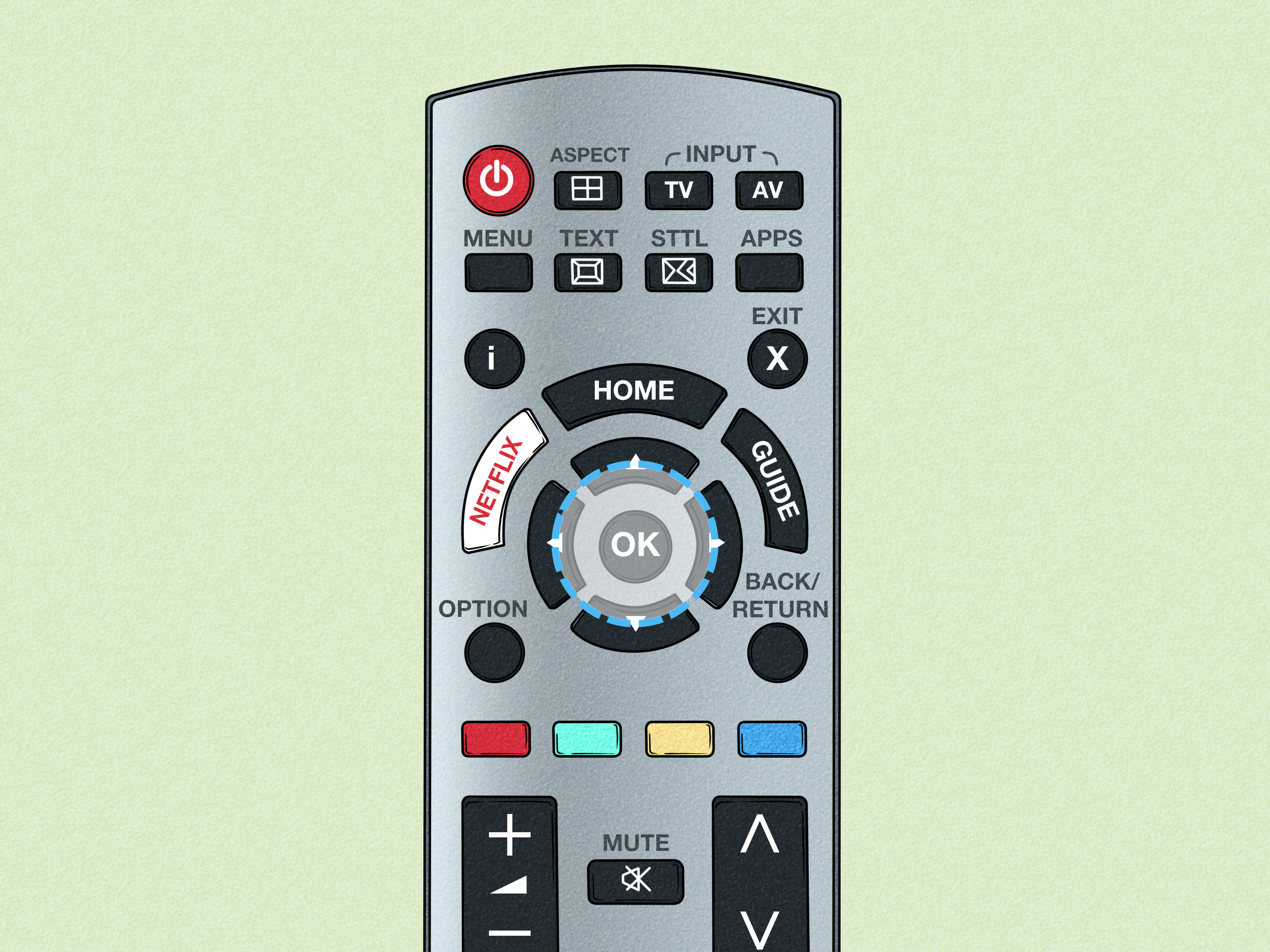
Many older Panasonic smart TVs include a dedicated Mirroring application. On those models, press the Apps or Home button on the remote, open the Mirroring feature, and approve the prompt that prepares the TV to receive a connection.
Next, open the Android phone’s Quick Settings panel or display settings. Depending on the manufacturer, the feature may be called:
- Smart View
- Screen Cast
- Cast
- Wireless Display
- Screen Sharing
- Multi Screen
Select the Panasonic TV’s name or model number when it appears. The television may display a permission request. Choose Allow, Yes, or OK with the Panasonic remote.
After the connection is established, rotate the phone horizontally for widescreen content and enable full-screen playback in the app. Keep in mind that not all Android phones support the same wireless-mirroring standard. Some phones favor Google Cast, while certain televisions expect Miracast. Two devices may therefore be excellent individually but communicate like strangers sharing an elevator.
Step 4: Connect an iPhone Using AirPlay
If the Panasonic TV supports Apple AirPlay, make sure AirPlay is enabled in the TV settings. Depending on the television platform, the setting may appear under Display & Sounds, Apple AirPlay and HomeKit, Network, or a similar menu.
To mirror an iPhone or iPad:
- Connect the Apple device and Panasonic TV to the same Wi-Fi network.
- Open Control Center on the iPhone or iPad.
- Tap Screen Mirroring.
- Select the Panasonic TV.
- Enter the AirPlay code displayed on the TV if requested.
For a single video or photo, open the compatible app, tap its AirPlay or sharing icon, and select the TV. Streaming the individual item is often smoother than duplicating the entire phone screen.
If the Panasonic TV does not include AirPlay, an Apple TV box, compatible Roku device, or another AirPlay-enabled receiver connected through HDMI can add the feature. Third-party mirroring apps are another possibility, but performance, privacy practices, advertising, and support for protected video services can vary.
Step 5: Cast Directly from YouTube and Other Supported Apps
Panasonic Google TV and Android TV models may include Google Cast. Other Panasonic TVs can gain Google Cast through an external Google streaming device connected to an HDMI port.
To cast from a supported mobile app, place both devices on the same Wi-Fi network, open the app, and look for the rectangular Cast icon with curved lines in one corner. Tap it, select the Panasonic TV or attached streaming device, and start the video.
App-based casting is usually the best option for long videos. Once playback begins, the TV retrieves and plays the stream while the phone acts as a controller. You can pause, seek, adjust subtitles, or choose another video without continuously transmitting every pixel from the phone.
On an iPhone, some Google Cast apps may need permission to access devices on the local network. Check Settings > Privacy & Security > Local Network if the Cast icon appears but cannot find the television.
If one app can cast but another cannot, the connection may be fine. The second app may not support casting, may require a different subscription, or may restrict playback because of licensing rules.
Step 6: Use a USB-C or Lightning-to-HDMI Adapter
A wired HDMI connection is the dependable backup when wireless features are unavailable or unstable. It is especially useful in hotels, classrooms, offices, or homes where the Wi-Fi router behaves as though it has recently discovered free will.
For a compatible USB-C phone, connect a USB-C-to-HDMI adapter or cable to the phone, plug an HDMI cable into the adapter, and connect the other end to an available HDMI port on the Panasonic TV. Then press the TV’s Input or AV button and select that HDMI port.
For an iPhone with a Lightning connector, use a compatible Lightning Digital AV adapter and an HDMI cable. For a newer USB-C iPhone, use a suitable USB-C-to-HDMI adapter or cable.
Not every Android phone can output video through USB-C. The connector’s shape alone does not guarantee video support, so check the phone manufacturer’s specifications before purchasing an adapter.
Some streaming services protect their content with digital-rights technology. A cheap or incompatible adapter may produce audio without video, a resolution warning, or a beautifully rendered black rectangle. A reputable adapter that supports the required video-protection standard is generally the safer choice.
Also note that plugging a normal USB charging cable into the TV’s USB port usually does not mirror the phone. The TV may charge the device or read supported media files, but USB is not automatically a video input.
Step 7: Pair the Phone as a Remote and Test the Connection
Once media sharing works, consider pairing the phone as a remote control. Panasonic features vary by model, but supported televisions may work with a Panasonic remote app. Panasonic Google TV models may also pair with the Google TV mobile app.
In the Google TV app, choose the option to connect to a nearby TV, select the Panasonic model, and enter the pairing code shown on the television. The phone can then provide directional controls, playback buttons, and a much friendlier keyboard for entering passwords or searching for movie titles.
Test the completed connection with a personal photo or short, nonprotected video before launching a two-hour movie. Confirm that picture orientation, sound, volume, subtitles, and playback controls work correctly.
When finished, stop casting from the app, disconnect from the Screen Mirroring menu, or press the remote’s Home or Return button. Disconnecting properly reduces the chance that tomorrow’s alarm screen, shopping list, or message notification will make an unexpected appearance on a 65-inch display.
Which Connection Method Is Best?
| Goal | Recommended Method | Why It Works Well |
|---|---|---|
| Watch YouTube or supported streaming apps | Google Cast or in-app AirPlay | The TV handles playback, reducing phone battery use and interruptions. |
| Show the entire Android screen | Mirroring, Smart View, or Google Home screen casting | Displays menus, browsers, presentations, and compatible apps. |
| Mirror an iPhone | AirPlay | Provides native wireless integration on compatible Panasonic TVs. |
| Connect an older nonsmart TV | HDMI adapter or streaming device | Adds modern connectivity without replacing the television. |
| Present with minimal delay | Wired HDMI | A physical connection is less dependent on Wi-Fi quality. |
Common Panasonic TV Mobile Connection Problems
The TV Does Not Appear on the Phone
Confirm that both devices are on the same network and that the TV’s AirPlay, Google Cast, or Mirroring feature is enabled. Restart the phone and television, then restart the router if necessary. Also disable any VPN temporarily because it may interfere with local device discovery.
Guest Wi-Fi networks frequently block communication between connected devices. Move both the phone and television to the primary home network. Router settings such as client isolation can create the same problem.
The Video Is Choppy or Delayed
Move the router closer to the TV, reduce network congestion, and close unnecessary apps on the phone. Casting directly from a supported video app is often smoother than mirroring the entire screen.
A small delay is normal during wireless screen mirroring, so it may not be suitable for fast-paced mobile gaming. A wired adapter generally provides a more responsive experience, although results still depend on the phone and adapter.
There Is Sound but No Picture
Protected streaming content may refuse to display through screen mirroring or an unsupported adapter. Try the service’s native TV app, use its Cast or AirPlay button, or connect through certified HDMI equipment.
For a wired connection, verify that the TV is set to the correct HDMI input and test another HDMI port or cable.
The Picture Does Not Fill the Screen
Rotate the phone to landscape orientation and activate full-screen mode in the app. Check the Panasonic TV’s aspect-ratio or picture-format settings, but avoid aggressive zoom modes that cut off subtitles, menus, or people’s foreheads.
Bluetooth Connects but the Screen Is Missing
Bluetooth on many televisions is designed primarily for audio devices, remotes, keyboards, or selected audio-link functions. Pairing a phone by Bluetooth does not usually mirror its display. Use AirPlay, Google Cast, Miracast-style mirroring, or HDMI for video.
Real-World Experiences Connecting a Panasonic TV to a Phone
The easiest connection experiences usually begin with a quick compatibility check. People often spend half an hour tapping the Cast button before realizing that the Panasonic TV is an older VIERA model with Mirroring but no Google Cast. Once the TV’s Mirroring app is opened first, the set suddenly appears on the Android phone. The technology was not broken; it was merely waiting in a menu nobody thought to visit.
In another common situation, an iPhone and a newer Panasonic TV both support AirPlay, yet the TV never appears in Control Center. The culprit is frequently a guest Wi-Fi network. Hotels, offices, apartment complexes, and even some home routers isolate wireless devices for security. Both products can access the internet perfectly while being unable to see each other. Moving them to the same private network often solves the mystery immediately.
App-based casting also tends to produce a better movie-night experience than full-screen mirroring. When a video is mirrored, every notification can appear on the television, the phone must remain active, and weak Wi-Fi may create visible stuttering. With direct casting, the TV or streaming device handles the video. The phone becomes a convenient remote and can usually be locked without ending playback. This is especially helpful when someone sends a message containing spoilers during the opening scene.
Wired adapters remain surprisingly useful. A USB-C-to-HDMI adapter can rescue a presentation when an office network blocks device discovery. It can also connect a phone to an older Panasonic TV that has an excellent panel but very few smart features. The main lesson is to test the adapter before an important event. Some Android phones have USB-C ports that support charging and data but not video output, and bargain adapters may fail with protected streaming content.
Home Wi-Fi quality makes a noticeable difference. A television installed in a basement or at the far end of a house may connect successfully but mirror video poorly. Moving the router, adding a properly positioned access point, or using Ethernet for the TV can make casting much more stable. The TV does not necessarily need to use Wi-Fi; a wired TV and wireless phone can still communicate when they belong to the same local network.
It is also wise to distinguish a failed connection from an app restriction. Personal photos may mirror perfectly while a subscription video app produces a black screen. That pattern usually indicates content protection rather than a faulty Panasonic TV. Opening the streaming service’s TV app or using its official Cast or AirPlay control is normally more successful.
Finally, pairing the phone as a remote is one of those small upgrades that quickly becomes indispensable. Typing a complicated Wi-Fi password with arrow buttons is a character-building exercise nobody requested. A mobile keyboard makes searches faster, and the phone remains useful when the physical remote disappears into the sofa’s private collection of coins, crumbs, and mysterious plastic pieces.
Conclusion
The simplest way to connect a Panasonic TV to a mobile phone depends on the television’s platform and built-in features. Begin by checking the model, connect both devices to the same home network, and then choose Android mirroring, Google Cast, AirPlay, or a wired HDMI adapter.
Use direct casting for supported streaming apps, full-screen mirroring for presentations and personal content, and HDMI when reliability matters more than convenience. When the TV cannot be found, check the Wi-Fi network, permissions, TV receiver settings, router isolation features, software updates, and device compatibility before assuming anything is broken.
Note: Menu names and supported connection methods vary by Panasonic model, region, production year, mobile operating system, and installed software version. Consult the operating instructions for the exact TV model when a feature mentioned here is not displayed.

