
Body Care
How to Use and Edit Your Status on WhatsApp: Complete Guide
Jun
WhatsApp Status is one of those features that looks simple until you actually need to use it well. One minute you are casually posting a blurry photo of your lunch, and the next minute you are wondering who saw it, why your boss viewed it, whether you can edit the typo, and how to delete the whole thing before your dignity leaves the building.
The good news is that WhatsApp Status is easy once you understand the basics. It lets you share temporary text, photos, videos, GIFs, voice updates, links, stickers, and music-enhanced moments with selected contacts. These updates live in the Updates tab and disappear automatically after 24 hours. Think of it as a lighter, more private version of social media Stories, except your audience is usually people who already have your phone number. In other words, choose wisely.
This complete guide explains how to use WhatsApp Status, how to edit a status before posting, what to do when you need to fix a status after posting, how privacy controls work, and how to make your updates more useful, polished, and less likely to cause a family group chat investigation.
What Is WhatsApp Status?
WhatsApp Status is a temporary update that can include text, images, short videos, GIFs, voice messages, music, links, emojis, drawings, and stickers. Your contacts can view it for 24 hours unless you delete it earlier. After that, it disappears from the Status section automatically.
Status is different from a regular WhatsApp message. A message goes to a specific person or group. A Status update is posted to your selected audience, and people can view it when they choose. It is also different from your WhatsApp About line, which is the short profile-style text such as “Available,” “Busy,” or “At the gym pretending I like cardio.”
Common Ways People Use WhatsApp Status
- Sharing personal moments, travel photos, meals, celebrations, and daily updates.
- Posting quick announcements, such as business hours, event reminders, or product availability.
- Sharing quotes, thoughts, jokes, memes, or short voice notes.
- Promoting small business offers without sending direct messages to everyone.
- Letting close contacts know what you are up to without starting 47 conversations.
How to Create a WhatsApp Status
The exact layout may vary slightly between iPhone and Android, but the process is generally the same.
How to Post a Photo or Video Status
- Open WhatsApp.
- Tap the Updates tab.
- Tap My Status or the camera icon.
- Take a new photo or video, or choose one from your gallery.
- Edit the media with text, stickers, drawings, emojis, filters, captions, or music if available.
- Review your audience settings.
- Tap the send button to publish.
WhatsApp currently supports Status videos up to 90 seconds. If your video is longer, WhatsApp may trim it or require you to shorten it before posting. For the smoothest result, edit your video before uploading so the best part appears first. Your audience may love you, but they may not wait 47 seconds for the dog to finally do the funny thing.
How to Post a Text Status
- Open WhatsApp and go to Updates.
- Tap the pencil or text icon.
- Type your message.
- Change the font, background color, or text style if the options appear.
- Add emojis or links if needed.
- Tap send.
Text statuses are great for short announcements, quotes, jokes, reminders, and business notes. For example, a bakery could post: “Fresh cinnamon rolls until 2 PM. Come early or blame your alarm clock.” That is clear, useful, and just dramatic enough to be memorable.
How to Post a Voice Status
Voice Status lets you record a short audio update and share it as your Status. This is useful when a written update feels too flat or when you want people to hear your tone. A voice update can work well for personal news, quick instructions, language practice, small business updates, or a dramatic review of the coffee you just bought.
To create one, open the Status composer, choose the voice option when available, record your message, review it, and post. Keep voice updates short and clear. A Status is not a podcast episode. Nobody opened WhatsApp expecting a three-act audio documentary about your missing charger.
How to Edit Your WhatsApp Status Before Posting
The best time to edit your WhatsApp Status is before you publish it. WhatsApp gives you several editing tools inside the Status composer, especially for photos and videos.
Editing Tools You Can Use
- Text: Add captions, labels, jokes, prices, dates, or short explanations.
- Stickers: Add expressive stickers, emojis, location-style labels, or decorative elements.
- Drawing tool: Circle something important, underline text, or draw an arrow with the confidence of a sleepy cartoonist.
- Crop and rotate: Adjust the frame so your subject is clear.
- Music: Add a song clip to supported photo or video statuses.
- Caption: Add a short message beneath the status media.
- Link preview: Paste a link into a text status to give viewers more context.
Before you tap send, check three things: spelling, audience, and context. Spelling matters because “I’m hiring a manger” and “I’m hiring a manager” are very different business updates. Audience matters because your close friends and your dentist do not always need the same content. Context matters because a mysterious sad quote can create more incoming messages than a power outage.
Can You Edit a WhatsApp Status After Posting?
This is the question most people ask after they notice a typo, a bad crop, or a person in the background making the exact face one should not make in public.
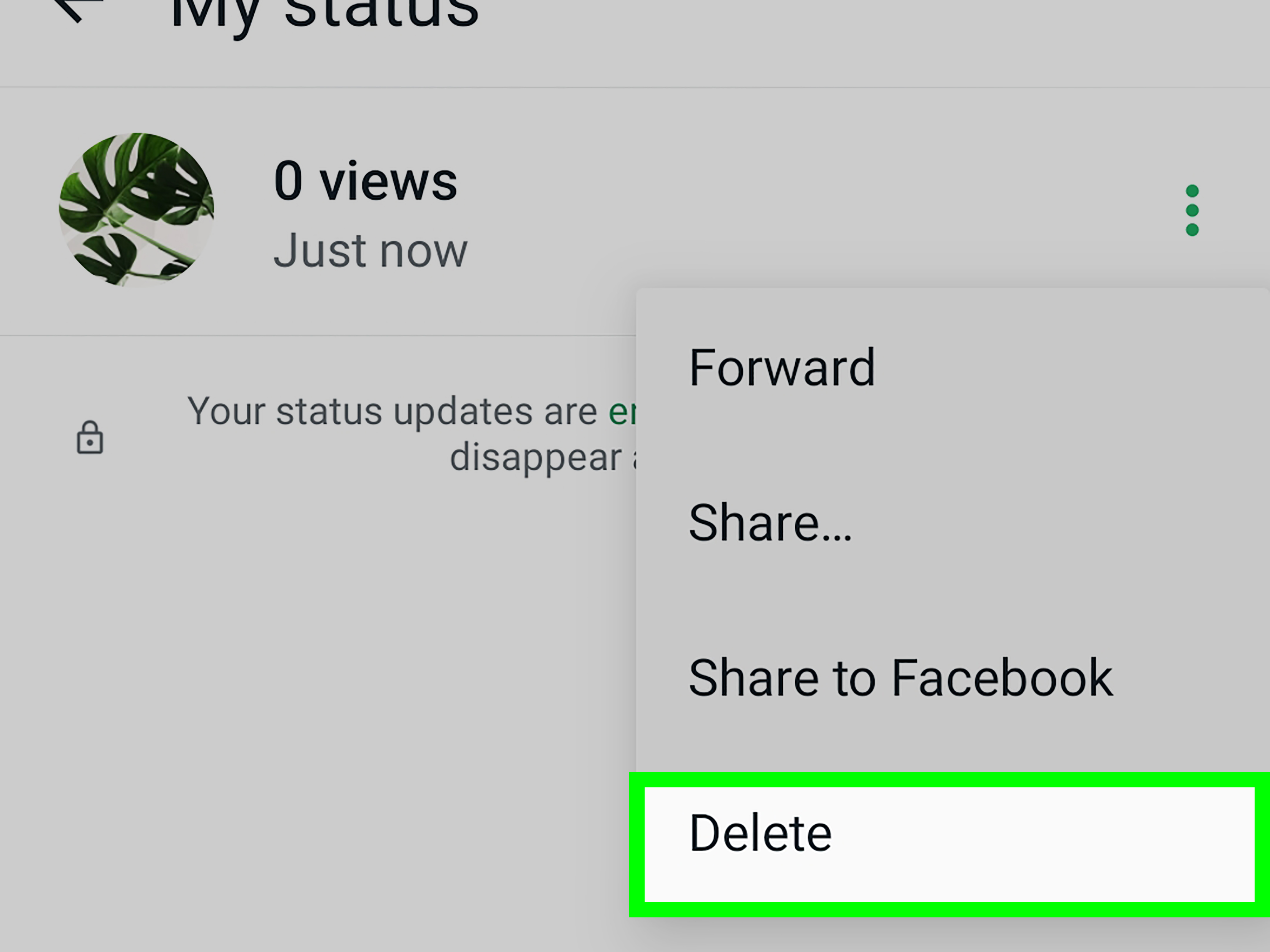
You cannot directly edit a WhatsApp Status after it has been posted. Once a status is live, you cannot open it, change the text, replace the photo, fix the video, or adjust the caption. The practical solution is to delete the status and post a corrected version.
How to Fix a Posted WhatsApp Status
- Open WhatsApp.
- Go to Updates.
- Tap My Status.
- Open the status you want to remove.
- Tap the menu or three-dot icon.
- Select Delete.
- Create and publish a new corrected version.
This delete-and-repost method is the closest thing to editing after publication. It is not as elegant as a magic “fix typo” button, but it works. If your mistake is minor, you can also post a follow-up Status clarifying it. For example: “Correction: the sale ends Friday, not Thursday. My calendar and I are currently in counseling.”
How to Save, Delete, or Share Your WhatsApp Status
You can delete your own Status before the 24-hour period ends. You may also be able to save media to your device depending on your phone settings, WhatsApp version, and how the Status was created.
When Should You Delete a Status?
- You posted it to the wrong audience.
- There is a typo or inaccurate information.
- The photo or video includes someone who did not want to appear.
- The update is no longer relevant.
- You realized it was funnier in your head. A tragic but common condition.
Deleting a status removes it from your Status feed, but remember that people may have already viewed it, taken a screenshot, recorded it, or remembered it with uncomfortable accuracy. Temporary does not mean invisible. Post with the same level of judgment you would use before handing your phone to your most honest friend.
How to Control Who Sees Your WhatsApp Status
Status privacy is one of the most important settings in WhatsApp. By default, your Status is usually shared with your contacts, but you can change who gets to see it.
WhatsApp Status Privacy Options
- My Contacts: All your saved contacts who also have you saved may be able to see your status.
- My Contacts Except: Share with most contacts but hide your status from selected people.
- Only Share With: Share your status with a custom list of selected contacts.
The Only Share With option is excellent for private updates, family photos, work-in-progress business posts, or anything that should not become neighborhood news by breakfast. The My Contacts Except option is useful when you are mostly comfortable sharing but want to exclude certain people, such as clients, coworkers, relatives, or that one contact who comments “Nice” on absolutely everything.
How to Change Status Privacy
- Open WhatsApp.
- Go to Updates.
- Open the Status privacy settings from the menu.
- Choose your preferred audience option.
- Save the setting before posting your next update.
For best results, check privacy before every sensitive post. WhatsApp may remember your recent audience choice, so do not assume every update is going to the same group unless you confirm it. A vacation photo meant for friends can be awkward if it reaches a client waiting for your “urgent” reply.
How to View, Like, and Reply to Someone’s Status
To view someone else’s Status, open the Updates tab and tap their profile photo or status ring. New updates often appear with a colored ring, while viewed updates may appear differently. You can reply privately to a status, send an emoji reaction, or like it when the option is available.
Replies to Status updates appear as private WhatsApp chats, not public comments. That makes Status more personal than many social media platforms. It is also why you should think before replying “LOL” to a serious announcement. Technology has advanced; social awareness remains a manual setting.
WhatsApp Status Ideas for Personal Use
If you use WhatsApp mostly for friends and family, your Status can be casual, expressive, and useful. You do not need to post every hour. In fact, please do not. A good Status gives people a glimpse into your day without making them feel trapped in a slideshow presentation called “My Entire Tuesday.”
Personal Status Ideas
- A travel photo with a short caption.
- A birthday or anniversary message.
- A quick voice note sharing good news.
- A funny everyday moment.
- A song clip that matches your mood.
- A photo of a meal, pet, book, workout, project, or view.
- A simple availability update, such as “Busy today, will reply tonight.”
The strongest personal statuses feel natural. You do not need perfect lighting, a luxury background, or a caption that sounds like it was approved by a committee of motivational calendars. Clear, honest, and slightly human usually wins.
WhatsApp Status Ideas for Business
For small businesses, freelancers, creators, and local sellers, WhatsApp Status can be surprisingly powerful. It reaches people who already know you, which often makes it warmer than a public social media post. Used well, it can remind customers what you offer without shouting into their inbox.
Business Status Examples
- Restaurant: “Lunch special today: grilled chicken rice bowl, available until 3 PM.”
- Salon: “Two haircut slots open tomorrow afternoon. Message to book.”
- Online seller: “New arrivals just landed. Sizes S–XL. Tap reply for prices.”
- Tutor: “Exam review sessions available this weekend. Limited times.”
- Consultant: “Quick tip: update your passwords before traveling.”
Keep business statuses specific. Mention the offer, deadline, price range, location, or next step. A vague post like “Big things coming soon” may create curiosity once. After the sixth time, people start wondering if the big thing got lost in traffic.
Best Practices for Better WhatsApp Status Updates
1. Put the Main Point First
People swipe fast. If the key information appears only at the end of a long video, many viewers will miss it. Start with the point: “Sale ends tonight,” “New menu today,” or “I’m offline until Monday.”
2. Use Short Captions
A good caption adds context without turning your status into a tiny novel. For photos, one short sentence is usually enough. For business updates, include the action you want viewers to take, such as “Reply to book” or “Message for details.”
3. Avoid Overposting
Posting occasionally keeps your updates interesting. Posting constantly can make people mute you. If you have 24 updates in one afternoon, ask yourself whether WhatsApp Status is still a tool or has become a documentary crew following your snacks.
4. Check Privacy Before Posting
Audience control is your seat belt. Use it. Separate personal, family, work, and customer updates when needed.
5. Design for Small Screens
Use large readable text, simple backgrounds, and clear images. Tiny text on a busy photo is hard to read, especially for people checking WhatsApp while walking, commuting, or pretending not to be in a boring meeting.
Common WhatsApp Status Problems and Fixes
Why Can’t I See Someone’s Status?
You may not be in their selected audience, they may have deleted the status, the 24-hour window may have expired, or one of you may not have the other saved as a contact. Privacy settings matter on both sides.
Why Can’t Someone See My Status?
Check your Status privacy settings. Also confirm that the person is saved in your contacts and that they have your number saved if required. If your audience is set to Only Share With, make sure they are included.
Why Did My Video Get Cut?
Your video may be longer than the allowed Status duration. Trim it before posting, or split it into multiple shorter clips. Put the most important moment near the beginning so the update still works even if someone watches only part of it.
Why Can’t I Edit My Status After Posting?
WhatsApp does not currently allow direct editing of a published Status. Delete the update and repost a corrected version.
Why Is My Status Blurry?
Compression can reduce quality, especially with large files or poor connections. Use clear original media, avoid excessive zooming, and upload while connected to a stable network. Also remember that HD media options may not apply to Status the same way they do to regular chat media.
Privacy and Safety Tips for WhatsApp Status
WhatsApp Status can feel private because it is inside a messaging app, but it still deserves careful handling. Your audience can screenshot, screen-record, remember, forward, or discuss what they see. End-to-end encryption helps protect the delivery of your content, but it cannot control what viewers do after seeing it.
- Do not post sensitive documents, addresses, tickets, IDs, or financial information.
- Avoid posting children’s photos publicly or to broad audiences without care.
- Do not share someone else’s image, voice, or news without permission.
- Use custom audience lists for personal updates.
- Delete outdated business offers to avoid confusion.
- Think twice before posting while angry, tired, or emotionally powered by caffeine.
Real-Life Experience: What Using WhatsApp Status Teaches You
After using WhatsApp Status for personal updates, work reminders, and small announcements, one lesson becomes obvious: the best Status updates are not always the most polished ones. They are the most useful, timely, and appropriate for the audience. A perfectly edited video can flop if nobody understands why it matters. A simple text update can work beautifully if it answers a question people already had.
For example, a small business owner may spend 20 minutes designing a beautiful graphic that says “New collection available,” but a quick phone photo with “Fresh stock arrived today, message me for sizes” may perform better. Why? Because it feels immediate. It tells viewers what happened, why they should care, and what to do next. WhatsApp is personal by nature, so updates that sound human often beat updates that sound like a billboard wearing perfume.
Another useful experience is learning to respect audience boundaries. Not every contact needs every update. Friends may enjoy vacation photos. Customers may prefer product availability. Family may want birthday pictures. Coworkers may only need schedule changes. Once you start using privacy controls intentionally, Status becomes much more effective. You stop broadcasting everything to everyone and start sharing the right thing with the right people.
The delete-and-repost reality also teaches a practical habit: review before posting. Because you cannot directly edit a live status, it is worth slowing down for ten seconds. Check the spelling. Check the crop. Check whether any private information appears in the background. Check whether the audience is correct. This tiny pause can prevent the classic WhatsApp panic spiral, where you post, gasp, delete, repost, and then pretend nothing happened while three people have already replied.
Using Status regularly also shows that timing matters. A breakfast special posted at 11:55 AM is useful. The same post at 9 PM becomes historical fiction. A weekend availability update should go out before the weekend, not halfway through Sunday when everyone has already made plans. For personal updates, timing affects tone too. Posting a funny moment right after it happens feels natural. Posting 18 old photos in a row can feel like your camera roll escaped.
Finally, Status works best when it starts conversations without demanding them. A good update gives people an easy reason to reply: “Where is this?” “How much?” “Congratulations!” “Save one for me.” That is the quiet strength of WhatsApp Status. It is not just a place to post; it is a bridge back into real chats. Use it with clarity, privacy, and a little personality, and it becomes more than a temporary update. It becomes a simple way to stay present without messaging everyone individually like a town crier with unlimited data.
Conclusion
WhatsApp Status is simple, flexible, and surprisingly useful when you understand how it works. You can post text, photos, videos, GIFs, voice updates, music, links, stickers, and quick announcements that disappear after 24 hours. You can edit your status before publishing with captions, text, drawings, stickers, and other tools. But once a Status is live, you cannot directly edit it. The fix is to delete it and repost a corrected version.
The real power of WhatsApp Status is control. You control what you share, who sees it, and how long it stays visible. Whether you are posting a family moment, promoting a small business, sharing a song, or announcing that you are busy and not ignoring people on purpose, Status gives you a lightweight way to communicate without starting a dozen separate chats.
Use privacy settings carefully, keep updates clear, avoid overposting, and review before you publish. Do that, and your WhatsApp Status will feel less like a random digital sticky note and more like a smart, personal communication tool. Also, fewer typo emergencies. Everyone deserves fewer typo emergencies.

