
Beauty Unlocked
How to Connect Two Monitors
Aug
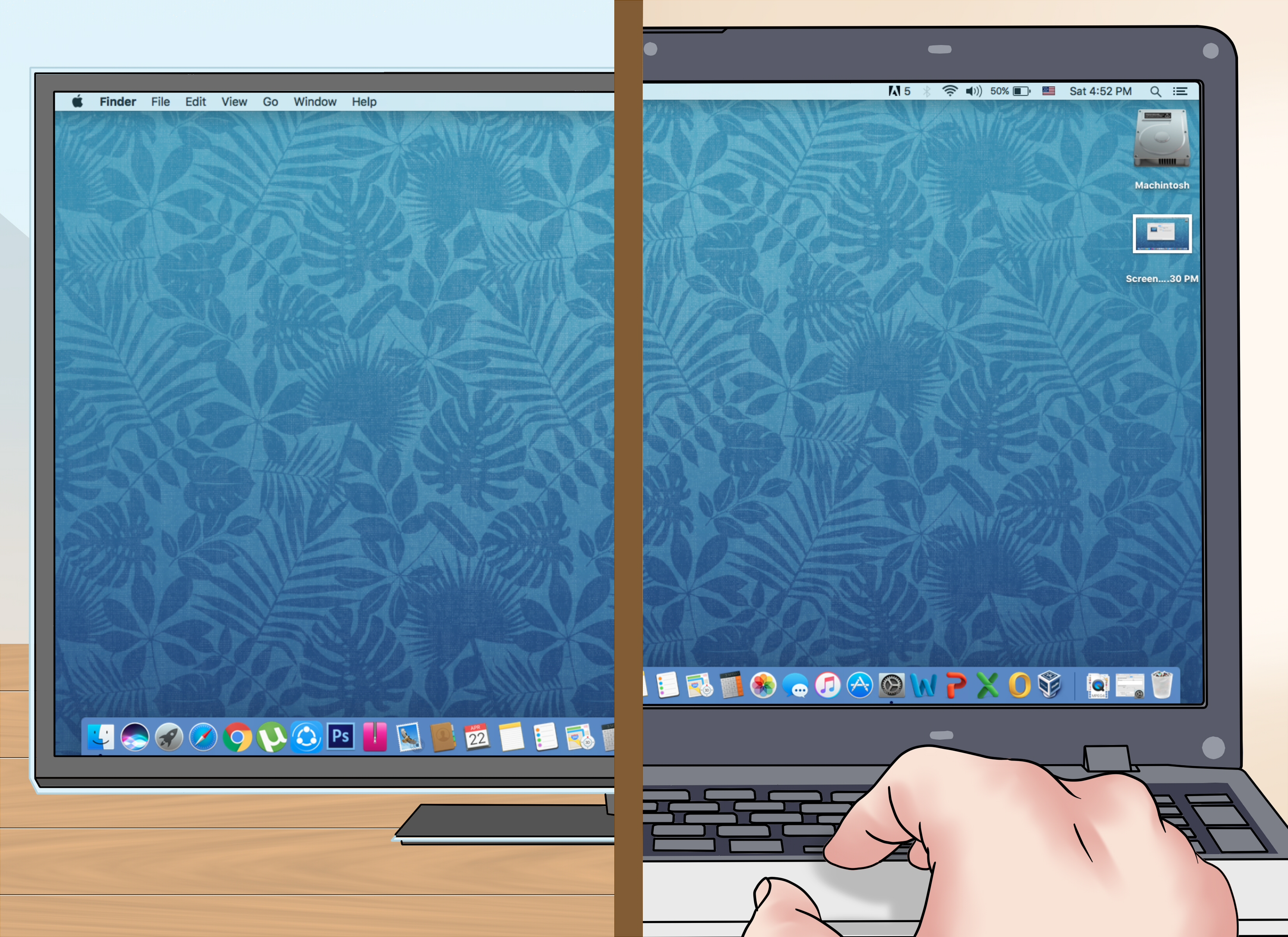
Connecting two monitors can transform an ordinary computer desk into a much more useful workspace. One screen can hold your main project while the other displays email, research, video calls, spreadsheets, reference material, or the playlist that is sews is that modern ports have names such as USB-C, Thunderbolt, DisplayPort MST, and HDMI, which can make a simple cable purchase feel like an entrance exam for electrical engineers.
This guide explains how to connect two monitors to a desktop or laptop, choose the correct cables or docking station, configure the displays in Windows or macOS, and troubleshoot common problems. No advanced technical knowledge is requiredjust a few minutes, the right hardware, and perhaps a flashlight for exploring the mysterious cable habitat behind your desk.
What You Need for a Dual-Monitor Setup
Before connecting anything, confirm that your computer can support two displays. Most modern desktop computers and many laptops can, but the number of visible ports does not always tell the full story.
Two Compatible Monitors
The monitors do not need to be identical. You can combine different brands, sizes, resolutions, and refresh rates. For example, a 27-inch 1440p monitor can work beside a 24-inch 1080p monitor.
Matching monitors can make the setup look cleaner and provide more consistent colors, brightness, scaling, and screen height. However, using an older monitor as a secondary display is perfectly reasonable. A second screen does not need to be glamorous to hold a calendar and 37 browser tabs.
Enough Supported Video Outputs
Your computer needs a way to send an independent video signal to each monitor. Common display connections include:
- HDMI: Common on desktops, laptops, televisions, and consumer monitors.
- DisplayPort: Frequently found on desktop graphics cards and business monitors.
- USB-C: Can carry video only when the port supports DisplayPort Alt Mode, Thunderbolt, or another compatible video technology.
- Thunderbolt: Supports video, high-speed data, docks, and sometimes laptop charging through one connection.
- Mini DisplayPort: Found on some older computers and monitors.
- DVI or VGA: Older standards that may require adapters when used with modern computers.
A USB-C connector does not automatically support video. Two USB-C ports can look identical while having completely different capabilities. Check the computer’s specifications or user manual for terms such as “DisplayPort over USB-C,” “DP Alt Mode,” “Thunderbolt,” or “external display support.”
The Correct Cables or Adapters
Whenever possible, use a direct cable that matches the output on the computer and the input on the monitor. Examples include HDMI-to-HDMI and DisplayPort-to-DisplayPort.
Adapters are useful when the ports differ. You might use USB-C-to-HDMI, DisplayPort-to-HDMI, or HDMI-to-DVI. Be aware that some video adapters are directional. A DisplayPort-to-HDMI adapter may not work when connected backward as HDMI-to-DisplayPort.
Resolution and refresh rate also matter. A cable or adapter that works at 1080p may not support 4K at 60 Hz or a high-refresh gaming monitor. Check the product’s rated resolution, refresh rate, and supported standard before buying it.
Check Whether Your Computer Supports Two Monitors
Desktop Computers
Look at the back of the computer for video outputs. A desktop graphics card may provide several HDMI and DisplayPort connectors, allowing each monitor to connect directly to the card.
If the computer has a dedicated graphics card, connect both monitors to that graphics card whenever possible. Do not casually connect one monitor to the graphics card and the other to a motherboard video port. Motherboard outputs may be disabled when a dedicated GPU is installed, unless integrated graphics and multi-monitor support have been enabled in the computer’s firmware.
The graphics card must also support the combined resolution and refresh rate of both displays. Most current GPUs can handle two ordinary office monitors, but demanding combinationssuch as two 4K high-refresh displaysrequire more bandwidth and a sufficiently capable graphics processor.
Laptop Computers
A laptop may offer one HDMI port plus a USB-C or Thunderbolt port. In that case, one monitor can connect through HDMI and the second through a compatible USB-C adapter or dock.
Some laptops can drive two external monitors through a single Thunderbolt, USB4, or USB-C docking station. Others support only one external display without specialized technology. Always check the specifications for the exact laptop model rather than assuming every configuration in the same product family behaves identically.
Mac Computers
External-display support varies considerably among Mac models and chip configurations. Some Macs support multiple external displays directly, while others support fewer displays or require particular resolutions, refresh rates, ports, or lid positions.
Check Apple’s technical specifications for your exact Mac model before purchasing a dock. A dock with two HDMI ports cannot force a computer to produce two independent native video streams when the computer itself supports only one.
How to Connect Two Monitors to a Desktop PC
- Turn off the computer and both monitors.
- Locate two supported video outputs on the graphics card or computer.
- Connect the first monitor using HDMI, DisplayPort, or another compatible cable.
- Connect the second monitor to another supported video output.
- Connect both monitors to power.
- Turn on the monitors and select the correct input source on each one.
- Start the computer and wait for the operating system to detect the displays.
You normally do not need to turn everything off, but doing so can make the initial connection process more predictable. It also reduces the chance of accidentally performing an interpretive dance with live cables under the desk.
If a monitor has several inputs, use its physical buttons or on-screen menu to select the port you connected. For example, choose HDMI 1 when the cable is plugged into HDMI 1 rather than DisplayPort or HDMI 2.
How to Connect Two Monitors to a Laptop
Method 1: Use Two Built-In Video Outputs
If the laptop has two usable video outputs, connect one monitor to each. A common arrangement is:
- Monitor one connected through HDMI
- Monitor two connected through USB-C-to-DisplayPort or USB-C-to-HDMI
The USB-C port must support video output. A basic USB-C charging or data port will not necessarily work with a monitor adapter.
Method 2: Use a Docking Station
A compatible docking station is often the cleanest option for a laptop. The monitors, keyboard, mouse, network cable, speakers, and power adapter can remain connected to the dock. You then connect the laptop with one USB-C, USB4, or Thunderbolt cable.
Before buying a dock, verify:
- The dock supports two independent displays, not merely mirrored output.
- The laptop supports the dock’s video technology.
- The listed resolution and refresh rate apply when both monitors are active.
- The operating system supports the dock’s multi-display method.
- The dock provides enough charging power for the laptop, when charging is required.
Marketing phrases such as “dual 4K” may depend on specific ports, refresh rates, compression technologies, operating systems, or laptop capabilities. Read the detailed specifications rather than relying entirely on the cheerful picture printed on the box.
Method 3: Use DisplayPort Daisy-Chaining
DisplayPort Multi-Stream Transport, commonly called MST, can send multiple display streams through one compatible connection.
For a daisy-chain setup:
- Connect the computer to the DisplayPort input on the first monitor.
- Connect the DisplayPort output on the first monitor to the DisplayPort input on the second monitor.
- Enable DisplayPort MST in the first monitor’s menu when required.
- Configure the screens as extended displays in the operating system.
The computer, port, cable, and monitors must support the required DisplayPort and MST features. The first monitor also needs a DisplayPort output, not merely an input.
MST support differs between operating systems. Windows commonly supports extended desktops through compatible MST hubs and daisy chains. macOS generally does not use standard MST hubs to create multiple independent extended displays in the same way, so Mac users should confirm dock compatibility carefully.
Method 4: Use a DisplayLink Dock or Adapter
DisplayLink products transmit display data through USB with the help of specialized hardware and software. They can be useful when a computer lacks enough native video outputs or when a laptop has limitations on directly connected displays.
A DisplayLink setup usually requires installing the appropriate software. It works well for productivity applications, web browsing, documents, and general office use. Native GPU outputs are often preferable for competitive gaming, color-critical production, or other work that demands the lowest latency and maximum graphics performance.
Why an HDMI Splitter Usually Does Not Extend Two Monitors
An ordinary HDMI splitter takes one video signal and sends a copy to multiple screens. Both monitors display the same image because the computer still sees only one display signal.
This is useful for presentations, store displays, classrooms, and situations where identical content must appear in two places. It is not the correct solution when you want separate windows on each monitor.
To create an extended desktop, use two independent graphics outputs, a compatible MST hub, a dual-display dock, or a supported USB graphics solution.
How to Set Up Two Monitors in Windows 11
After connecting the monitors, Windows will often detect them automatically.
- Right-click an empty area of the desktop.
- Select Display settings.
- Click Identify to display a number on each screen.
- Drag the display boxes so they match the physical positions of the monitors.
- Open the multiple-display menu and select Extend these displays.
- Select the monitor you want to use as the primary screen.
- Enable Make this my main display.
You can also press Windows + P to open the projection menu. Windows provides several modes:
- PC screen only: Uses only the main computer display.
- Duplicate: Shows the same content on both screens.
- Extend: Creates a larger desktop across the monitors.
- Second screen only: Disables the primary screen and uses the external display.
Adjust Resolution, Scaling, and Refresh Rate
Select each monitor separately in Display settings. Use its recommended native resolution for the sharpest image. You can also adjust text scaling so menus and applications remain readable on high-resolution screens.
To change refresh rate, open Settings > System > Display > Advanced display. Select the appropriate monitor and choose a supported refresh rate.
Different monitors can use different resolutions and refresh rates. However, mixed scaling may cause some applications to change size while being moved between screens. That behavior is normal, although it occasionally makes a window look as if it ate a mushroom from a video game.
How to Set Up Two Monitors on a Mac
- Connect both monitors using the supported ports, adapters, or dock.
- Open the Apple menu.
- Select System Settings.
- Choose Displays.
- Confirm that each connected display appears.
- Arrange the displays to match their positions on your desk.
- Choose extended desktop mode rather than mirroring when you want separate workspaces.
You can select a display to adjust its resolution, color profile, rotation, refresh rate, and other available settings. Depending on the Mac and macOS version, arrangement controls may appear directly in the Displays panel or through an Arrange option.
If only one external monitor works, verify the Mac model’s supported display count. Also check whether the dock uses native Thunderbolt video, DisplayPort MST, or DisplayLink, because those technologies do not behave identically on macOS.
How to Arrange Two Monitors Properly
The digital arrangement should match the physical layout. When the left monitor is physically on the left, place its display box on the left in the operating system. Otherwise, the pointer may need to travel in the wrong direction to reach the second screen.
Align the display boxes along their top edges when the monitors are physically level. When one screen is higher, lower, or rotated vertically, adjust the boxes accordingly. Accurate alignment lets the pointer cross naturally between screens instead of becoming trapped against an invisible digital wall.
Choose the Main Monitor
Use the monitor directly in front of you as the main display. This is normally where the taskbar, menu bar, desktop icons, login prompts, and newly opened applications appear.
The secondary display works well for communication tools, reference documents, file managers, monitoring dashboards, previews, or entertainment.
Consider a Vertical Secondary Monitor
Rotating one monitor vertically can be helpful for coding, reading long articles, editing documents, viewing chat applications, or monitoring social feeds. Make sure the monitor stand supports rotation, then change its orientation to portrait mode in the operating system.
How to Fix a Second Monitor That Is Not Detected
Check Power, Cables, and Input Selection
Confirm that the monitor is powered on and that the video cable is firmly connected at both ends. Select the correct input source using the monitor’s controls.
Try another cable when possible. A cable can appear completely normal while failing to carry a stable high-bandwidth signal.
Ask the Operating System to Detect the Display
In Windows, open Settings > System > Display, expand the multiple-display section, and choose Detect.
On a Mac, return to Displays settings after reconnecting the cable. Holding the Option key may reveal a display-detection control on supported macOS versions.
Restart the Computer and Dock
Disconnect the dock or adapter, restart the computer, and reconnect the equipment. For a powered dock, unplug its power supply briefly before reconnecting it.
Update Graphics Drivers and Dock Firmware
Install current graphics drivers through Windows Update or the computer or GPU manufacturer. Update docking-station firmware when the manufacturer provides an updater.
DisplayLink docks also require compatible DisplayLink software. After a major operating-system update, reinstalling or updating that software may restore a missing monitor.
Test One Monitor at a Time
Connect each monitor directly to the computer by itself. This helps determine whether the problem comes from a monitor, cable, adapter, dock, or a particular computer port.
If both monitors work individually but fail together, the likely issue is display-count support, bandwidth, dock configuration, port limitations, or graphics settings.
Reduce Resolution or Refresh Rate
A connection may lack enough bandwidth for two displays at their maximum settings. Temporarily lower one monitor from 4K to 1440p or 1080p, or reduce its refresh rate from 144 Hz to 60 Hz.
If both monitors begin working, review the capabilities of the computer port, cable, adapter, and dock. The weakest component in the connection determines the maximum result.
Common Dual-Monitor Problems
The Screens Show the Same Image
The system is probably using duplicate or mirror mode. Change the multiple-display setting to Extend. If the monitors are connected through a basic HDMI splitter, separate extended desktops will not be available through that splitter.
The Mouse Will Not Move to the Other Screen
Rearrange the monitor boxes in display settings. Their left, right, upper, and lower positions must reflect the physical setup.
One Screen Looks Blurry
Set the monitor to its recommended native resolution. Replace low-quality adapters or cables, especially when converting between old analog VGA connections and modern digital ports.
Windows Keep Moving After Sleep
This can occur when a monitor or dock temporarily disconnects during sleep. Update graphics drivers and dock firmware, check power settings, replace unstable cables, and use consistent monitor inputs.
One Monitor Flickers or Goes Black
Lower the refresh rate, reconnect the cable, and test a certified cable rated for the intended resolution. Avoid unnecessary adapters and cable extensions. A connection that works at 1080p may become unstable at 4K or a high refresh rate.
Practical Experiences and Lessons From Dual-Monitor Setups
The most useful lesson from real-world dual-monitor installations is that the simplest connection is usually the most reliable. Two direct cables from a desktop graphics card to two monitors tend to create fewer problems than a chain of converters, splitters, extension cables, and mystery adapters collected from the back of an office drawer.
A frequent mistake is buying a USB-C-to-HDMI adapter without checking whether the laptop’s USB-C port supports video. The adapter arrives, the monitor says “No Signal,” and everyone briefly suspects the monitor of having developed a personality disorder. In reality, the port may support only charging and data. Checking the laptop’s exact specifications before purchasing an adapter prevents this problem.
Another common experience involves docks that advertise two display outputs. Users naturally assume that two connectors mean two extended screens. Some inexpensive products internally split one signal, producing two copies of the same desktop. A proper dual-monitor dock should explicitly state that it supports extended displays and list the maximum resolution and refresh rate when both outputs are used simultaneously.
Monitor arrangement also makes a larger difference than expected. When two screens are slightly different in height, aligning their digital boxes at the top may not feel natural. Matching the boxes to the actual vertical positions makes pointer movement smoother. This small adjustment can eliminate the annoying moment when the cursor repeatedly collides with the edge of one display.
Mixed resolutions are generally manageable, but mixed physical sizes and scaling settings require experimentation. A 27-inch 4K monitor beside a 24-inch 1080p monitor may make text and windows change apparent size as they move between screens. Adjusting scaling separately for each monitor usually improves readability, although certain older applications may still look blurry after crossing from one display to another.
For home-office work, placing the main monitor directly ahead and the secondary monitor slightly angled to one side is usually more comfortable than positioning the center bezel directly in front of the chair. The primary display can hold the active document, while the secondary screen carries email, messaging, research, or a video meeting. This arrangement reduces constant window switching without requiring the neck flexibility of an owl.
A vertical secondary monitor can be surprisingly effective. Long documents, source code, web pages, and chat conversations fit naturally in portrait orientation. However, vertical placement is less comfortable for wide spreadsheets, videos, and applications with horizontal toolbars. The best orientation depends on the actual workload, not on how impressive the desk looks in a photograph.
Cable quality becomes especially important with 4K and high-refresh monitors. A cable may produce a picture at 60 Hz but flicker or lose signal at 120 Hz or 144 Hz. In troubleshooting, reducing the refresh rate is a useful diagnostic step. If the screen becomes stable, replacing the cable with one certified for the required bandwidth is often more effective than repeatedly reinstalling drivers.
Docks also benefit from adequate power and ventilation. A heavily loaded dock may handle two displays, charging, Ethernet, storage, and several USB devices at the same time. Using the manufacturer’s recommended power adapter and keeping the dock uncovered can improve reliability. Hiding it beneath paperwork may create a very tidy desk and a very warm electronic sandwich.
Finally, document the successful configuration. Note which cable connects to each monitor, which input each monitor uses, and which dock ports support the desired resolution. A small label on each cable can save considerable time after moving the desk, cleaning the workspace, or reconnecting a laptop that travels between home and office.
Final Thoughts
To connect two monitors successfully, begin by confirming that the computer supports two independent displays. Choose direct, compatible connections whenever possible, and verify that every USB-C port, adapter, dock, and cable supports the required video resolution and refresh rate.
After connecting the hardware, select extended desktop mode, arrange the screens to match their physical positions, choose a main display, and adjust resolution and scaling individually. When a second monitor does not work, troubleshoot systematically: check power, input selection, cables, display settings, drivers, firmware, and bandwidth.
Once configured correctly, a dual-monitor setup provides more room to work without making the computer itself faster. It simply gives your applications more places to existwhich is helpful, because apparently they all believe they deserve their own screen.
Note: External-display limits vary by exact computer model, graphics processor, dock, operating system, resolution, and refresh rate. Verify the manufacturer’s specifications before purchasing cables, adapters, or docking equipment.

