
Beauty Tools & Accessories
How to Figure Out What PC Operating System You Have: 9 Steps
Aug
At some point, every computer owner faces the same oddly dramatic question: “What operating system do I have?” Maybe you are installing software, downloading a driver, troubleshooting an error, checking security updates, or trying to explain your computer to tech support without sounding like you bought it from a wizard in 2012.
The good news is that figuring out your PC operating system is easy once you know where to look. The slightly annoying news is that different computers hide the answer in different places. Windows puts it in Settings, macOS shows it under About This Mac, Linux may reveal it through Settings or the Terminal, and ChromeOS keeps it in About ChromeOS. Nothing too scary. No screwdriver required. No chanting over the keyboard.
This guide walks you through how to figure out what PC operating system you have in 9 simple steps. You will learn how to identify your OS name, version, edition, build number, and whether your system is 32-bit or 64-bit. By the end, you will know exactly what your computer is runningand you may even feel suspiciously powerful.
Why You Need to Know Your PC Operating System
Your operating system, often shortened to OS, is the main software that controls your computer. It manages your apps, files, hardware, security settings, updates, and the little spinning loading icon that appears right when you are in a hurry.
Knowing your operating system matters because software, drivers, games, printers, antivirus tools, and updates often require a specific OS version. For example, a program may work on Windows 11 but not Windows 8. A printer driver may require 64-bit Windows. A Linux command may work on Ubuntu but behave differently on Fedora. A Mac app may need a newer macOS release.
In plain English: if you know your OS, you save time, avoid bad downloads, and make troubleshooting much less painful.
Step 1: Decide What Kind of Computer You Are Using
Before diving into menus and commands, identify the general type of computer in front of you. Is it a Windows desktop or laptop? A Mac? A Chromebook? A Linux machine? This first clue helps you choose the fastest path.
Common signs
If you see a Start button, taskbar, and Windows logo, you are probably using Windows. If you see an Apple logo in the top-left corner, you are on macOS. If your laptop heavily uses the Chrome browser and has a launcher in the corner, it may be a Chromebook running ChromeOS. If you see names like Ubuntu, Fedora, Debian, Mint, or GNOME, congratulationsyou are probably in Linux land, where even the penguin has opinions.
Do not worry if you are not sure yet. The next steps will help you confirm the exact operating system.
Step 2: Check Windows Through Settings
For most Windows users, the easiest way to identify the operating system is through the Settings app.
How to check your Windows version
- Right-click the Start button.
- Select Settings.
- Choose System.
- Scroll down and select About.
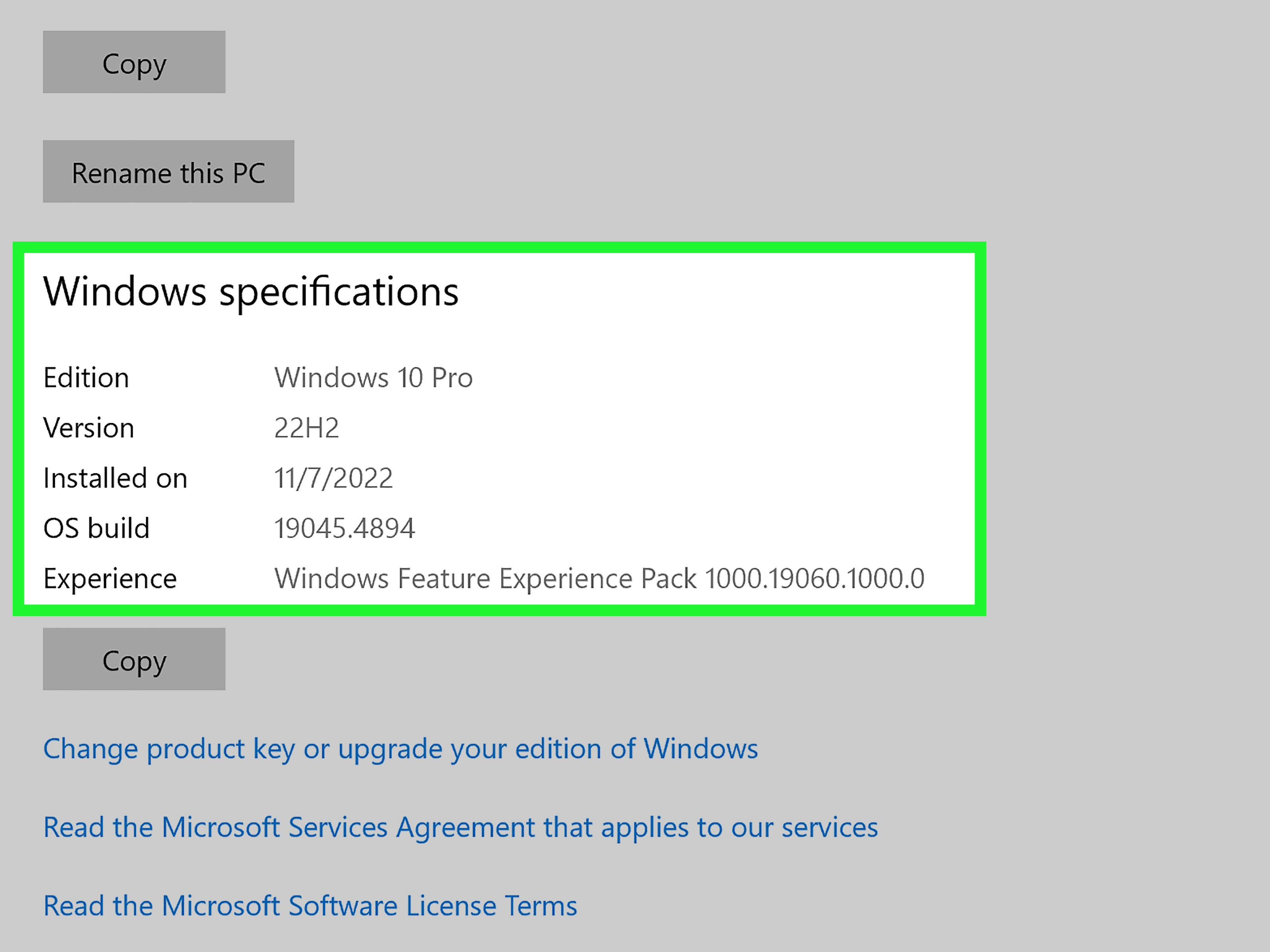
- Look for Windows specifications.
In this section, you should see important details such as Edition, Version, and OS build. For example, your PC might say Windows 11 Home, Windows 11 Pro, or Windows 10 Pro. The edition tells you the product type, while the version and build help identify the exact release.
You should also look under Device specifications. This area often shows your processor, installed RAM, device name, and System type. System type tells you whether your computer uses a 32-bit or 64-bit operating system. Most modern PCs are 64-bit, but checking is still smartespecially before downloading drivers or older software.
Step 3: Use the Winver Command on Windows
If you want the quick-and-clean method, use the famous Windows command: winver. It sounds like a tiny robot from a 1990s sci-fi movie, but it is actually one of the fastest ways to check your Windows operating system.
How to use winver
- Press Windows + R on your keyboard.
- Type winver.
- Press Enter.
A small window will appear showing your Windows version and build number. This is useful when you need to give exact information to support staff, check compatibility, or confirm whether an update installed correctly.
For example, instead of saying, “I have Windows, I think,” you can say, “I have Windows 11, version 24H2, build number such-and-such.” Suddenly, you sound like the person everyone asks to fix the office printer.
Step 4: Check Windows With System Information
Windows also includes a more detailed tool called System Information. It gives a deeper report about your PC, including the OS name, version, system model, BIOS mode, processor, installed memory, and more.
How to open System Information
- Click the Start button.
- Type System Information.
- Open the app.
- Look under System Summary.
Here, check OS Name and Version. You may also want to note System Manufacturer and System Model if you are downloading drivers from Dell, HP, Lenovo, Acer, ASUS, or another PC brand.
This method is especially helpful when you are troubleshooting hardware. For example, if your graphics card driver is acting like it had three cups of coffee and no breakfast, System Information can help you gather the details needed to find the correct fix.
Step 5: Find Your macOS Version on a Mac
Some people say “PC” only for Windows computers, while others use it to mean any personal computer. If you are using a Mac, the process is very simple.
How to check macOS
- Click the Apple menu in the top-left corner.
- Select About This Mac.
- Look for the macOS name and version number.
You may see something like macOS Sonoma, macOS Ventura, macOS Monterey, or another version depending on your device and update history. The window may also show your Mac model, chip or processor, memory, serial number, and startup disk.
This information matters because Mac apps often require a minimum macOS version. If an app says it needs macOS 13 or later, you do not want to guess. Guessing is fine for jelly bean flavors. It is less fun when installing expensive software.
Step 6: Check Linux Through Settings
Linux comes in many distributions, also called distros. Popular examples include Ubuntu, Fedora, Debian, Linux Mint, openSUSE, and Pop!_OS. The exact menu names may vary, but most desktop Linux systems include an About page.
General Linux desktop method
- Open Settings.
- Look for About, System, or Details.
- Find the OS name, version, desktop environment, memory, processor, and system type.
On Ubuntu, for example, the Settings app usually includes an About section that shows the Ubuntu version, GNOME version, windowing system, hardware model, processor, memory, and disk capacity.
This is the friendliest Linux method because it avoids Terminal commands. However, if you are comfortable typing commands, the next step is faster and often more precise.
Step 7: Check Linux With Terminal Commands
Linux users can identify the operating system from the Terminal. This is useful on desktops, laptops, servers, and remote systems where there may not be a graphical interface.
Useful Linux commands
This command reads the standard OS identification file used by many Linux distributions. It often shows details such as the distribution name, version, version ID, codename, and related information.
This command can display system information including the operating system, kernel, architecture, hostname, and virtualization details on many systemd-based Linux systems.
On systems that support it, this command shows distributor ID, description, release number, and codename. If the command is not installed, your system may suggest a package to install it.
One important tip: do not confuse the Linux distribution version with the kernel version. The distribution version tells you something like Ubuntu 24.04 or Fedora 41. The kernel version tells you the core Linux kernel release, which you can check with:
Both pieces of information are useful, but they are not the same thing. Think of the distribution as the whole car and the kernel as the engine. You need both to understand what you are driving, especially when things start making weird noises.
Step 8: Check ChromeOS on a Chromebook
If you are using a Chromebook, your operating system is ChromeOS. You can check the version from the Settings menu.
How to find your ChromeOS version
- Select the time in the bottom-right corner.
- Open Settings.
- Select About ChromeOS.
- Look under Google ChromeOS for the version number.
You may also see an option to check for updates. This is helpful because ChromeOS updates are closely connected to browser security, device features, and compatibility.
For school, work, or shared Chromebooks, some settings may be managed by an administrator. If you cannot update or change certain settings, the device may be controlled by an organization. In other words, it is not being stubborn personally. It has a boss.
Step 9: Write Down the Important OS Details
Once you find your operating system, do not just nod proudly and close the window. Write down the details you may need later.
What to record
- Operating system name: Windows, macOS, Linux, or ChromeOS
- Version: such as Windows 11 version 24H2 or Ubuntu 24.04
- Edition: such as Windows Home, Pro, Enterprise, or Education
- Build number: useful for Windows troubleshooting
- System type: 32-bit or 64-bit
- Device model: helpful for drivers and manufacturer support
- Processor and RAM: useful for software compatibility
You can save these details in a notes app, take a screenshot, or copy them into a support ticket. This small habit can save you a surprising amount of time later.
What Is the Difference Between OS Name, Version, Edition, and Build?
These terms often appear together, but they do not mean the same thing.
OS name
The OS name tells you the main operating system family. Examples include Windows, macOS, Ubuntu, Fedora, and ChromeOS.
Version
The version identifies a specific release. For example, Windows 11 and Windows 10 are different versions. Ubuntu 22.04 and Ubuntu 24.04 are also different versions.
Edition
The edition describes a product level or feature set. Windows Home and Windows Pro are common examples. Pro editions often include business features that Home editions do not.
Build number
The build number is more specific than the version. It helps identify the exact update state of the operating system. Support teams love build numbers. They may not write poetry about them, but they definitely ask for them.
Common Mistakes When Checking Your Operating System
One common mistake is checking the browser version instead of the operating system version. Chrome, Edge, Firefox, and Safari are browsers, not operating systems. They live inside the OS, like a very important roommate.
Another mistake is confusing the computer brand with the OS. Dell, HP, Lenovo, Acer, and ASUS make computers, but most of their PCs run Windows or sometimes Linux or ChromeOS. Saying “I have an HP” tells someone the brand, not the operating system.
A third mistake is assuming all Windows computers are the same. Windows 10 Home, Windows 11 Pro, and Windows Enterprise can behave differently, especially with updates, encryption, remote desktop, and business management features.
Finally, do not rely only on stickers. A laptop may have shipped with Windows 10 but later upgraded to Windows 11. The sticker is history. Settings shows the current truth.
When You Should Check Your OS Again
You should check your operating system before installing major software, downloading drivers, upgrading hardware, contacting support, setting up a printer, installing games, or troubleshooting errors. You should also check after major system updates, because the version or build may change.
If your computer has been upgraded, repaired, reset, or passed down from someone else, checking the OS is even more important. Family computers have mysterious past lives. One day they were used for homework, the next day they contain four printer drivers, two antivirus programs, and a folder called “New Folder Final FINAL 3.”
Real-World Experience: Why Knowing Your PC Operating System Actually Helps
Knowing your PC operating system may sound like a tiny technical detail, but in real life it can be the difference between a five-minute fix and an afternoon of dramatic sighing. Imagine trying to install a printer driver. The website asks whether you need Windows 10, Windows 11, macOS, or Linux. If you guess wrong, the installer may fail, the printer may refuse to print, and suddenly a simple document becomes a full emotional journey.
The same thing happens with software. Many apps list minimum system requirements. A video editor may require Windows 11 64-bit. A design tool may need a specific macOS version. A game may require a newer build of Windows and a certain amount of RAM. When you already know your OS version and system type, you can quickly decide whether the software will work before downloading a file the size of a small moon.
Another common experience involves tech support. If you contact a support agent and say, “My computer is broken,” they will probably ask what operating system you have. If you answer with the exact version, edition, and build, the conversation becomes smoother. Instead of playing twenty questions, the support person can focus on the real issue. It is like walking into a mechanic’s shop and saying, “It is a 2021 model, automatic transmission, and the warning light came on yesterday,” instead of saying, “The car is being weird.”
Knowing your OS also helps with security. Updates are tied to specific operating system versions. If your system is outdated, you may miss important security fixes. Checking your OS version lets you confirm whether you are current or whether your computer needs attention. You do not have to become a cybersecurity expert. You just need to know where the About page lives.
For students and remote workers, OS knowledge can prevent assignment and meeting disasters. Some exam software, video conferencing tools, VPN apps, and workplace programs only support certain operating systems. Finding this out five minutes before a deadline is not ideal. That is the kind of surprise nobody ordered.
For gamers, knowing the OS is just as useful. Game launchers, graphics drivers, anti-cheat systems, and performance tools can depend on Windows version, system architecture, and hardware compatibility. Before blaming the game, the internet, the mouse, or Mercury retrograde, checking your operating system is a smart first move.
Even casual users benefit. If you are helping a parent, sibling, friend, or neighbor with a computer, the first question should be: “What operating system is this?” Once you know, you can search for the right instructions, download the right app, and avoid advice meant for a completely different system. Windows instructions do not always help on a Chromebook. Mac steps do not magically work on Ubuntu. Computers are picky like that.
The best habit is simple: whenever you get a new computer or receive a used one, check the operating system right away. Take a screenshot of the About page and save it somewhere easy to find. It takes less than a minute, and future-you will be deeply grateful. Future-you may even forgive present-you for all those random files on the desktop.
Conclusion
Figuring out what PC operating system you have is one of those small skills that pays off again and again. Whether you are using Windows, macOS, Linux, or ChromeOS, the answer is usually hiding in an About screen or available through a simple command. Once you know your OS name, version, edition, build, and system type, you can install the right software, download correct drivers, troubleshoot smarter, and talk to support without feeling like you are translating ancient computer runes.
The next time someone asks, “What operating system are you running?” you will not have to panic-click through random menus. You will know exactly where to lookand that is a quiet little tech victory worth celebrating.

