
Body Care
Laptop Keyboard Brush
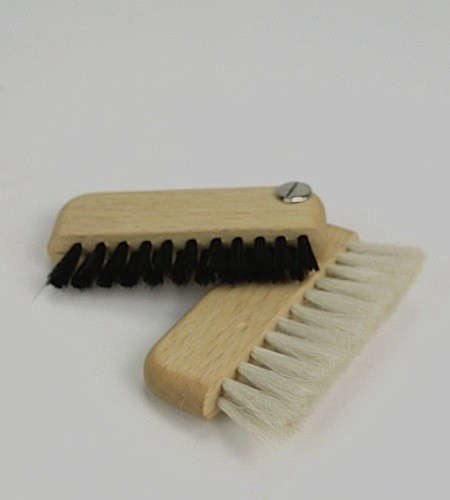
Jun
A laptop keyboard brush may look like the least dramatic tool on your desk, but give it one week near a real laptop and it becomes a tiny hero with bristles. Your keyboard is where work, snacks, coffee steam, pet hair, dust, and the occasional mysterious crumb all gather for a daily conference. The laptop itself may be sleek and expensive, but the space between the keys often tells a more honest story: “Someone ate crackers here during a deadline.”
The good news is that cleaning a laptop keyboard does not require a laboratory, a hazmat suit, or the confidence of someone who builds gaming PCs from scratch. A simple laptop keyboard brush, used correctly, can remove loose debris, improve typing comfort, reduce grime buildup, and help your laptop look less like it has survived a desert expedition. It is one of the safest first-line tools because it is dry, gentle, affordable, and easy to use before you reach for compressed air, microfiber cloths, or isopropyl alcohol.
This guide explains what a laptop keyboard brush is, why it matters, how to choose one, how to use it safely, and what mistakes to avoid. We will also cover real-world cleaning experiences, because keyboard cleaning is not just a maintenance task. It is a lifestyle choice for people who do not want sesame seeds living rent-free under the spacebar.
What Is a Laptop Keyboard Brush?
A laptop keyboard brush is a small cleaning brush designed to remove dust, crumbs, lint, hair, and light debris from the surface of a laptop keyboard and the narrow gaps between keys. It usually has soft bristles that can reach into tight spaces without scratching keycaps or pushing too aggressively against delicate keyboard mechanisms.
Some keyboard brushes are standalone tools. Others come as part of a cleaning kit with a microfiber cloth, screen cleaner, air blower, keycap puller, or small silicone detail tool. Many modern versions are dual-ended: one side has a soft brush for sweeping debris, while the other has a flat cleaning tip for edges, ports, or stubborn grime around key borders.
Why a Brush Works So Well
The reason a laptop keyboard brush is useful is simple: laptop keys are shallow, tightly spaced, and not always easy to remove. Unlike many desktop mechanical keyboards, laptop keyboards often use low-profile scissor-switch or similar mechanisms. That means aggressive cleaning can cause more trouble than the dust itself. A soft brush lets you dislodge debris without prying, scraping, soaking, or performing unnecessary keyboard surgery.
Think of it as dental floss for your laptop, except less personal and with fewer uncomfortable dentist questions.
Why Your Laptop Keyboard Needs Regular Cleaning
Your laptop keyboard is one of the most frequently touched surfaces you own. Every email, search, shortcut, password, late-night idea, and “I definitely know what I’m doing” spreadsheet formula passes through it. Over time, the keyboard collects oils from your fingers, dust from the room, lint from bags, crumbs from meals, and particles from whatever environment your laptop travels through.
Regular cleaning helps in several ways. It can make keys feel smoother, reduce visible grime, prevent debris from becoming packed into corners, and keep the laptop looking professional. For shared laptops, school devices, office equipment, or family computers, routine cleaning also supports better hygiene. Cleaning does not make your keyboard magically sterile forever, but it does remove the visible gunk that germs and dirt love to use as a vacation home.
Common Signs Your Keyboard Needs a Brush
You probably need a laptop keyboard brush if you see dust lines around keys, crumbs between rows, shiny buildup on high-use keys, hair stuck near the hinge area, or tiny particles that move when you type. You may also notice that some keys feel slightly gritty or less responsive. Not every sticky key is caused by dirt, but debris is one of the easiest problems to check before assuming the keyboard is failing.
Types of Laptop Keyboard Brushes
1. Soft-Bristle Detail Brush
This is the most common type. It looks like a miniature paintbrush or makeup brush and is ideal for sweeping dust and crumbs away from key edges. The best versions have flexible, non-shedding bristles and a narrow head that fits between rows.
2. Retractable Keyboard Brush
A retractable laptop keyboard brush slides into its handle or case when not in use. This keeps the bristles clean inside a backpack, drawer, or laptop sleeve. It is a great choice for students, remote workers, and anyone who cleans in coffee shops while pretending not to be emotionally attached to their device.
3. Dual-Ended Cleaning Brush
A dual-ended brush usually includes bristles on one side and a cleaning tip on the other. The tip may be made from soft plastic, silicone, or microfiber. It is useful for cleaning around key edges, trackpad borders, speaker grilles, and laptop seams.
4. Anti-Static Brush
An anti-static brush is designed to reduce static buildup while cleaning electronics. This type is often used by people who clean computer parts, camera gear, or delicate devices. For everyday laptop keyboard cleaning, a basic soft brush is often enough, but anti-static bristles are a nice upgrade if you clean multiple devices.
5. Cleaning Kit Brush
Some laptop cleaning kits include a keyboard brush along with microfiber cloths, cotton swabs, screen-safe cloths, and a small air blower. These kits are convenient, but quality varies. A kit is only useful if the brush is soft, the cloth is lint-free, and the liquids are safe for electronics when used properly.
How to Choose the Best Laptop Keyboard Brush
Choose Soft Bristles
The best laptop keyboard brush should feel soft enough to use on delicate surfaces. Avoid stiff brushes that feel like they belong in a garage or on a barbecue grill. Hard bristles can scratch keycaps, push debris deeper, or damage fragile trim around the keyboard.
Look for a Slim Shape
A slim brush head works better between laptop keys. Oversized brushes may look fluffy and luxurious, but they often sweep over the top of the keys without reaching the gaps where dust gathers. A narrow brush gives you more control.
Pick a Brush That Does Not Shed
A cleaning brush that leaves bristles behind is not a cleaning tool. It is a tiny betrayal. Check reviews or product descriptions for non-shedding bristles, especially if you plan to use the brush often.
Consider a Cap or Retractable Design
If you carry the brush in a bag, choose one with a cap or retractable cover. Otherwise, the brush may collect pocket lint and backpack dust, then generously donate it to your keyboard later.
Avoid Metal Tips Near Keys
Some cleaning tools include sharp or metal edges for scraping. Keep those away from laptop keyboards. A keyboard brush should remove debris gently, not audition as a tiny crowbar.
How to Clean a Laptop Keyboard With a Brush
Step 1: Shut Down and Unplug the Laptop
Before cleaning, turn off the laptop and unplug the power adapter. Remove connected accessories such as USB drives, mice, headphones, and external keyboards. If your laptop has a removable battery, remove it according to the manufacturer’s instructions. Most modern laptops do not have easy removable batteries, so powering down is the practical first step.
Step 2: Tilt the Laptop
Hold the laptop at an angle so loose particles can fall away from the keyboard instead of deeper into it. You can tilt it slightly forward, sideways, or upside down if you can do so safely. Do not shake it like you are trying to win a maraca competition. Gentle movement is enough.
Step 3: Brush Between the Keys
Use the laptop keyboard brush to sweep between rows of keys. Work from top to bottom, then left to right. Use light pressure and short strokes. The goal is to loosen debris, not force the brush under the keycaps. Pay special attention to the spacebar, Enter key, Shift keys, and the area near the touchpad, because those zones tend to collect more crumbs and finger oils.
Step 4: Use Compressed Air If Needed
After brushing, compressed air can help remove loosened debris from under and around the keys. Use short bursts and keep moisture away from the keyboard. Many laptop makers recommend using compressed air carefully and at an angle rather than blasting directly downward. The brush and air work well together: the brush loosens debris, and the air helps move it out.
Step 5: Wipe Key Surfaces
For the tops of the keys, use a microfiber cloth. If the keys are greasy, lightly dampen the cloth with water or an electronics-safe amount of isopropyl alcohol, depending on your device maker’s guidance. The cloth should be damp, not dripping. Never spray liquid directly onto the keyboard. Liquid belongs on the cloth, not inside the laptop where the expensive parts live.
Step 6: Let Everything Dry
After wiping, allow the keyboard to air dry completely before turning the laptop back on. Even if you used only a lightly damp cloth, patience is cheaper than repairs.
What Not to Do When Using a Laptop Keyboard Brush
Do Not Use a Hard Toothbrush
A clean, soft toothbrush can sometimes help with external keyboard cleaning, but many toothbrushes are too stiff for laptop keys. If the brush feels scratchy on your skin, it is probably too rough for your laptop.
Do Not Remove Laptop Keys Unless You Know They Are Removable
Some keyboards allow limited key removal, but many laptop keycaps are delicate and easy to break. Removing a key without knowing the mechanism can snap clips, damage hinges, or turn one crumb into a repair appointment. Check your laptop model’s official service instructions before attempting key removal.
Do Not Soak the Brush
A damp brush can drive moisture into the keyboard. For debris removal, keep the brush dry. If you need to clean grime from key surfaces, use a lightly damp microfiber cloth or cotton swab instead.
Do Not Use Household Cleaners Directly on the Keyboard
Window cleaner, bleach sprays, abrasive cleaners, and scented household sprays can damage coatings, leave residue, or seep into the device. A laptop keyboard is not a kitchen counter, even if it has collected enough crumbs to resemble one.
Laptop Keyboard Brush vs. Compressed Air vs. Cleaning Gel
A laptop keyboard brush is best for visible dust, surface crumbs, lint, and routine maintenance. Compressed air is better for particles trapped slightly deeper between keys. Cleaning gel can pick up loose dirt from surfaces, but it can also leave residue if the gel is low quality or pressed too hard into gaps. Microfiber cloths are best for oils and smudges on keytops.
The best cleaning method is usually a combination. Start with a dry brush, follow with compressed air if necessary, then wipe the keytops with a microfiber cloth. This order keeps the process gentle and reduces the chance of turning dry dirt into sticky mud.
How Often Should You Use a Laptop Keyboard Brush?
For most people, brushing the keyboard once a week is enough. If you eat near your laptop, have pets, carry your laptop in a bag, or work in a dusty room, two or three quick brush sessions per week may be better. For shared office or school laptops, cleaning should happen more often, especially on high-touch keys.
A deep clean does not need to be dramatic. A 60-second brush session every few days can prevent the kind of buildup that later requires cotton swabs, patience, and regret.
Who Should Own a Laptop Keyboard Brush?
Students
Students carry laptops between classrooms, libraries, dorm rooms, cafes, and backpacks that may also contain snacks, notebooks, gym clothes, and chaos. A small retractable brush is an easy way to keep the keyboard usable.
Remote Workers
Remote workers often use laptops for long hours, sometimes from kitchen tables or shared spaces. A keyboard brush helps maintain a cleaner, more professional setup, even if the rest of the desk is currently losing a battle with sticky notes.
Gamers
Gaming laptops tend to collect dust around WASD keys, vents, and speaker grilles. A soft brush helps clear debris without disturbing key mechanisms or decorative lighting zones.
Writers and Editors
If your keyboard is your workplace, cleaning it is not optional. Writers spend hours tapping keys, deleting sentences, rewriting headlines, and arguing with commas. A brush keeps the keyboard from becoming a fossil record of every snack eaten during revisions.
Real-World Experience With a Laptop Keyboard Brush
The first thing most people notice after using a laptop keyboard brush is how much dirt was hiding in plain sight. Before cleaning, a keyboard can look “mostly fine.” Then the brush makes one pass between the keys, and suddenly a small parade of dust, crumbs, and fibers appears. It is both satisfying and slightly alarming, like discovering your laptop has been storing emergency granola.
In everyday use, the best experience comes from keeping the brush within reach. A laptop keyboard brush stored in a drawer across the room is technically useful, but only in the same way a treadmill covered in laundry is technically fitness equipment. The brush works best when it lives near the laptop: on the desk, in a tech pouch, or inside a laptop sleeve. That way, cleaning becomes a quick habit instead of a weekend project.
A soft-bristle brush is especially helpful after eating near a laptop. Even careful people drop tiny crumbs. Toast, chips, cookies, crackers, and sandwich crusts are all talented escape artists. A quick brush before closing the lid prevents debris from being pressed against the screen or trapped under key edges. This is especially useful for thin laptops, where the space between the keyboard and display can be very tight.
Another practical lesson is that brushing works better before compressed air. If you blast air into a dirty keyboard first, some debris may move around instead of leaving. When you brush first, you loosen particles and gather them toward the surface. Then a short burst of air or a gentle tilt can help remove what remains. The process feels less random and more controlled.
The brush is also useful for cleaning around keys that get heavy use. The spacebar, Backspace, Enter, and Shift keys often collect the most visible grime. A few careful strokes around these keys can make the keyboard look noticeably better. For oily keytops, the brush alone is not enough, but it prepares the surface before wiping with a microfiber cloth.
One experience worth mentioning: not every brush sold as a “keyboard brush” is good for laptops. Some are too stiff, too wide, or too decorative to be useful. The best ones are not always the fanciest. A simple, soft, narrow brush with a cap often beats a bulky gadget with five attachments and the personality of a travel toothbrush.
There is also a psychological benefit. A clean keyboard makes a laptop feel newer. Typing feels more pleasant when keys are not surrounded by dust. The workspace looks more organized. Even if the inbox is still a disaster, at least the keyboard is no longer judging you.
Finally, a laptop keyboard brush encourages preventive care. Instead of waiting until a key feels sticky or debris becomes packed under the edges, you handle small messes early. That is the real value of the tool. It is not glamorous, but it is practical. It helps protect the part of the laptop you touch the most, and it does so without batteries, apps, subscriptions, or a firmware update. In today’s tech world, that alone deserves applause.
Frequently Asked Questions About Laptop Keyboard Brushes
Can I use a makeup brush as a laptop keyboard brush?
Yes, a clean, soft makeup brush can work well if it does not shed and has not been used with powder or cosmetics. Make sure it is dry and gentle.
Can a laptop keyboard brush fix sticky keys?
It may help if the sticky feeling is caused by dry debris. If the problem comes from spilled liquid, sugar residue, or mechanical damage, brushing alone may not solve it.
Is a keyboard brush safe for MacBook keyboards?
A soft, dry brush can be used carefully on MacBook keyboards for surface debris. For deeper debris, follow Apple’s model-specific guidance, especially when using compressed air.
Should I disinfect my laptop keyboard after brushing?
If the laptop is shared or frequently used in public spaces, wiping the key surfaces with an appropriate electronics-safe method can be helpful. Always apply liquid to a cloth, not directly to the keyboard, and follow your laptop manufacturer’s cleaning instructions.
Conclusion
A laptop keyboard brush is a small tool with a surprisingly big job. It helps remove dust, crumbs, hair, and lint from the spaces where your fingers work every day. Used with care, it can keep keys cleaner, improve the look of your laptop, and make routine maintenance simple enough that you might actually do it.
The best laptop keyboard brush is soft, slim, non-shedding, and easy to store. Use it dry, brush gently, power off the laptop before cleaning, and avoid direct sprays or harsh chemicals. For a more complete clean, pair the brush with compressed air and a microfiber cloth. Treat moisture like a suspicious character in a detective movie: keep an eye on it and do not let it sneak inside.
In the end, keyboard cleaning is not about perfection. It is about preventing buildup, protecting your device, and making your laptop feel better to use. Your keyboard works hard. The least you can do is evict the crumbs.

